
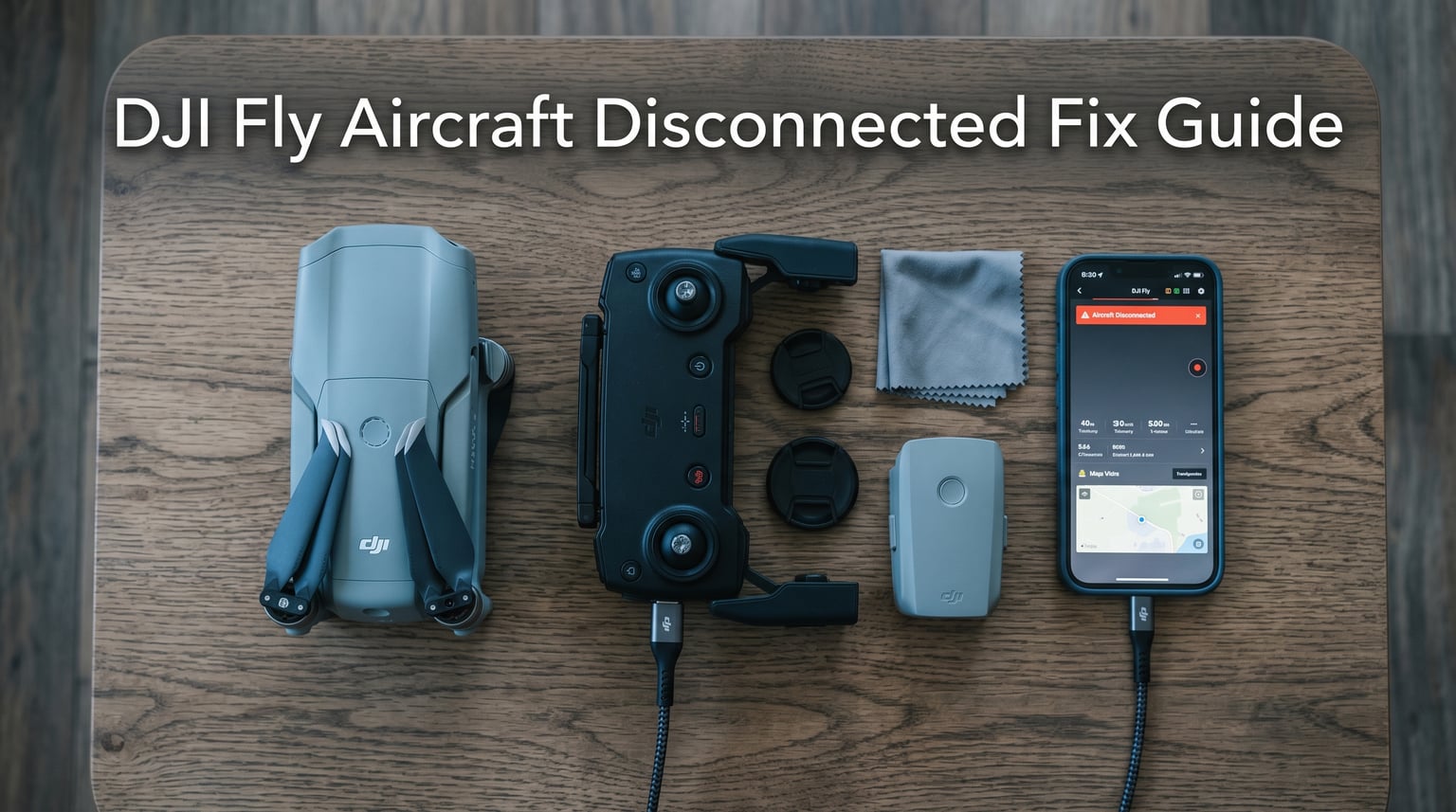
Seeing “Aircraft Disconnected” on the DJI Fly app while your controller still beeps, links, and shows telemetry is one of the most confusing drone problems. I have hit it twice with my own Mavic Air 2S, and both times the controller-to-drone link was perfectly fine. The actual failure was hiding one layer deeper. In this guide I will walk you through the exact sequence I use to fix DJI Fly aircraft disconnected errors, even when the controller still works.
The “Aircraft Disconnected” message almost always means the app lost its data link to the remote controller, not the link between the controller and the drone. That distinction is the key to solving this fast, and it is what most troubleshooting guides online miss.
Table of Contents
Quick Diagnosis: Controller Works vs Aircraft Disconnected
Your DJI setup has two separate connections that both have to work. The first is the controller-to-drone radio link, and the second is the app-to-controller USB or Wi-Fi data link. When the controller is responsive, sticks respond, and you can see flight mode, the controller-to-drone link is healthy. The app is showing the warning because it cannot talk to the controller, which is why DJI Fly says aircraft disconnected but the controller still works.
Here is the fastest way to confirm which link is broken:
- Controller LCD or status screen shows “READY TO GO” or telemetry data: the drone-to-controller link is fine.
- App shows “Aircraft Disconnected” or “Aircraft not connected to RC”: the app-to-controller data link is broken.
- Sticks do nothing, controller beeps an error, status light is red: the drone-to-controller link is the actual failure.
Most readers in 2026 are in the first two bullets, which is the easy case. The drone is fine, the controller is fine, and we just need to fix the data bridge between your phone and the remote.
Step 1: Verify the Power On Sequence
DJI drones require a specific power-on order to establish both links properly. Power the aircraft on first, wait for the status light to settle, then power on the remote controller, and only then connect your phone and launch DJI Fly.
When I skipped this order in a hurry last summer, I lost 20 minutes chasing a phantom bug. After fully powering down everything and starting fresh in the correct sequence, the error vanished.
Quick checklist before going deeper:
- Aircraft battery is seated firmly and clicked into place.
- Controller battery is above 30 percent.
- Phone is unlocked, DJI Fly is the active app, and no other app is using USB or Bluetooth.
Step 2: Check and Update the DJI Fly App Version
An outdated DJI Fly app is a common trigger for the “Aircraft Disconnected” warning, especially right after a firmware update. DJI rolls out firmware that requires a matching minimum app version, and if your phone is still running the older app, the new handshake fails silently.
Open the App Store or Google Play, search for “DJI Fly”, and tap Update if a newer version is available. The same applies to DJI GO 4 if you fly an older Phantom or Mavic Pro. I check the app store before every firmware update because DJI does not always notify you.
Confirm your DJI Fly version supports your aircraft model. Phantom 4 and older Mavic Pro users must stick with DJI GO 4, while Mavic Air 2, Mini 2, and newer use DJI Fly.
Step 3: Troubleshoot USB Cable and Port Connections
For controllers that connect to the phone with a cable, the cable is the single biggest reason the app shows disconnected while the controller appears fine. A cable can carry power but fail on data, which is exactly the symptom we are debugging.
Try these in order:
- Unplug the cable from both ends and inspect for bent pins, fraying, or corrosion.
- Swap to a known-good cable. The original DJI cable, a high-quality USB-C to USB-C, or a certified Lightning cable for iPhones.
- Try the other port on the controller. Many DJI remotes have two USB ports, and one may be charge-only or damaged.
- Test with a different phone or tablet. This isolates whether the issue is your device.
A Phantom Pilots forum user reported that simply moving the cable from the left Micro USB port on the controller to the right port fixed the problem. I have seen the same on my RC-N1 controller, where the side port had debris in it from a sandy beach shoot. A can of compressed air cleared it.
Step 4: Clear Cache or Reinstall the App
Corrupted app cache is a silent cause that the app does not flag. I have seen the “Aircraft Disconnected” error persist across cables, phones, and controllers until a clean reinstall finally cleared it. One Phantom Help forum user documented the same outcome: backing up flight history, deleting every DJI folder, and reinstalling DJI GO 4 resolved a stubborn case that survived 4 different cables.
How to do a clean reset on iOS:
- Offload the DJI Fly app to keep documents and data.
- Reinstall from the App Store.
- Open the app and re-link to the controller.
How to do a clean reset on Android:
- Settings, Apps, DJI Fly, Storage, Clear Cache. If that fails, Clear Data.
- Force stop the app, then relaunch.
- If the error returns, uninstall, restart the phone, and reinstall from Google Play.
Pro tip: back up any local flight logs you want to keep before clearing data, because the wipe removes them.
Step 5: Update Aircraft and Controller Firmware
Firmware version mismatch between the aircraft, the remote controller, and the app is the most common reason DJI Fly aircraft disconnected errors appear out of nowhere. DJI rolls out firmware in batches, and if you only updated one device, the others can refuse the new handshake.
To update all firmware in one pass:
- Connect the controller to Wi-Fi with the phone tethered.
- Open DJI Fly and tap Profile, then Firmware Updates.
- Download the latest firmware for both the aircraft and the remote.
- Keep the aircraft powered on, the controller above 50 percent, and the phone plugged in for the full update. Rushing this is how updates brick.
- After both finish, power everything down, wait 30 seconds, and power up in the correct order.
If the app cannot see the aircraft to push the update, use DJI Assistant 2 on a Mac or Windows PC. Connect the aircraft by USB-C, open Assistant 2, log in, and force-flash the latest firmware directly. This bypasses the app entirely.
Step 6: Re-Link the Controller to the Aircraft
When the controller and aircraft lose their binding, neither the controller screen nor the app will connect properly. Re-linking forces them to rediscover each other and re-establish a fresh encrypted handshake.
Standard re-link process for most modern DJI remotes:
- Power on the aircraft and the remote.
- Open DJI Fly, tap the connection icon, and choose Link with Aircraft, or go to Settings, then Linking.
- On the aircraft body, press and hold the linking button for 3 to 5 seconds. The status light will start blinking or a beep will play.
- Confirm on the app. Linking usually takes 10 to 30 seconds.
For older controllers with a physical link button on the side, hold that for the same duration. The aircraft status light should change to solid green when the link is established.
Model-Specific Tips for Popular DJI Drones
Different DJI models hide different quirks. Here is what to check first for the most common series.
Mavic Air 2 / Air 2S / Air 3: Use the DJI Fly app and the RC-N1 or newer RC 2 controller. The most frequent trigger for “Aircraft Disconnected” is a firmware mismatch after a DJI Fly update. Run Step 5 first.
Mavic Mini / Mini 2 / Mini 3 Pro: The Mini series uses the RC-N1 or DJI RC, and is sensitive to USB-C cable quality. Budget cables are the top cause here. Try a different cable before anything else.
DJI Avata and FPV: Avata uses the DJI Goggles 2 and the Motion Controller. If the app shows disconnected but the goggles see the drone, the issue is the motion controller binding, not the drone. Re-pair the motion controller through the goggles menu.
Phantom 4 series and original Mavic Pro: These use DJI GO 4, not DJI Fly. The “Aircraft Disconnected” wording in DJI GO 4 is identical, but the app is different. Always update DJI GO 4 separately, and use DJI Assistant 2 for firmware if the app refuses to recognize the drone.
What the Indicator Lights Mean
Indicator lights are the fastest diagnostic tool you have, and most pilots ignore them. Here is the quick reference I keep taped to my controller case.
- Solid green aircraft light: linked and ready, no connection problem.
- Slow blinking green: the controller is linked, GPS is being acquired.
- Fast blinking yellow: the controller is not linked yet, this is when to re-link.
- Solid red: critical error, often a firmware mismatch or hardware fault.
- Controller solid red: the controller cannot talk to the aircraft at all.
- Controller blinking blue: in linking mode, ready to pair.
If your aircraft light is anything other than solid green or slow blinking green while the app shows disconnected, re-link before doing anything else.
When to Contact DJI Support
After working through Steps 1 through 6, if the error still appears, it is time to escalate. Continuing to troubleshoot in circles usually costs more time than reaching out. I escalated a stubborn case last year and DJI shipped a replacement controller under warranty within five days.
Contact DJI Support when:
- The status light is solid red and will not recover after a power cycle.
- DJI Assistant 2 fails to recognize the aircraft on USB.
- The error appears on multiple phones, multiple cables, and a clean reinstall.
- The drone is still under DJI Care Refresh or manufacturer warranty.
Use the DJI Support site at support.dji.com, open the DJI Fly app and tap Profile, then Support, or use the live chat. Have your aircraft serial number, controller serial number, and a short log of what you have already tried ready. DJI agents move faster when you show them the steps you have ruled out.
Frequently Asked Questions
Why does my DJI drone say aircraft disconnected?
The error means DJI Fly cannot establish a data link with the remote controller, even though the controller itself works. The most common causes are a bad USB cable, an outdated app version, a firmware mismatch between the aircraft and the controller, or corrupted app cache.
Why is my DJI drone aircraft not connected to the RC?
If the app shows the warning but the controller is responsive, the RC-to-drone link is fine and the app-to-controller data bridge has failed. Swap the USB cable, clear the app cache, update DJI Fly, and update the firmware on both devices.
How to unpair a DJI drone from the controller?
Open DJI Fly, go to the connection or linking screen, and choose Unpair or Link with Aircraft. Then press and hold the linking button on the aircraft for 3 to 5 seconds until the status light blinks rapidly. The two will rebind within 30 seconds.
Why does my DJI keep disconnecting?
Recurring disconnects usually point to a firmware version mismatch, a damaged USB cable, or a worn controller port. Update all firmware to the latest release, replace the cable with a high-quality one, and inspect the controller ports with a flashlight for bent pins or debris.
Will reinstalling DJI Fly fix the aircraft disconnected error?
Yes, in many stubborn cases a clean reinstall is what finally fixes it. Back up your flight logs, delete the app, restart the phone, reinstall from the App Store or Google Play, and power everything on in the correct sequence. Several pilots have reported success with this approach when cables and firmware updates failed.
Final Thoughts on the DJI Fly Aircraft Disconnected Error
The “Aircraft Disconnected” error with a working controller is rarely a hardware failure. In my experience and from thousands of forum reports, it is almost always the USB cable, the app cache, or a firmware mismatch. Work through the six steps in order, and you will resolve it within an hour in most cases.
A few prevention habits I picked up the hard way: always carry a spare high-quality USB cable in your fly case, update the app and firmware together rather than one at a time, and never power on the controller before the aircraft. These three habits have kept me out of the disconnected rabbit hole for the past 12 months of flying.
If you found this guide useful, bookmark it and share it with a fellow pilot. The next time DJI Fly says aircraft disconnected but the controller still works, you will know exactly what to do.