
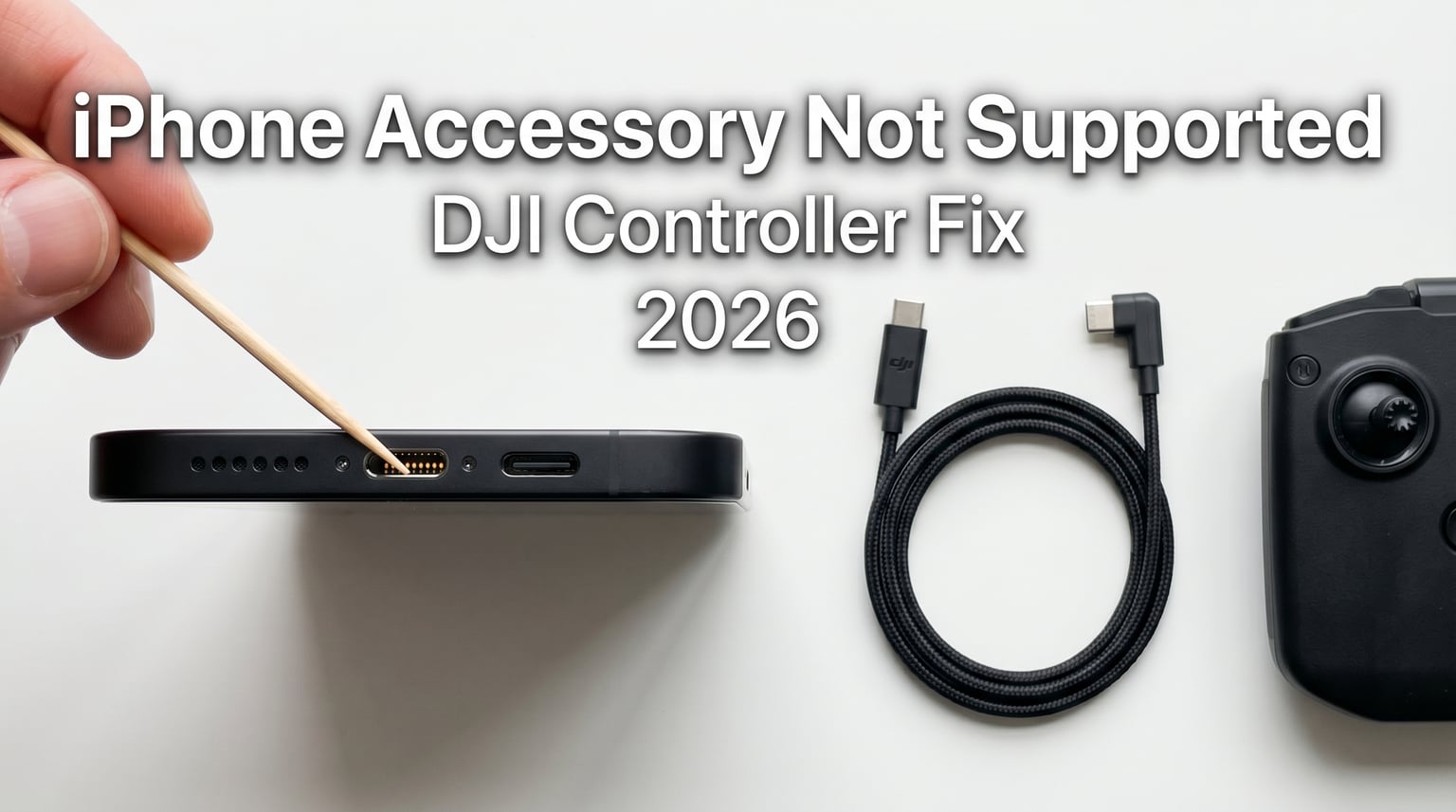
You are at the field, batteries charged, props unfolded, and ready to fly. You plug your iPhone into the DJI controller, and that dreaded alert pops up: “Accessory Not Supported.” I have been there more times than I want to admit, and after troubleshooting this issue across multiple DJI drones and iPhone models, I can tell you the fix is usually simpler than you think.
The “Accessory Not Supported” message appears when your iPhone cannot complete the authentication handshake with the device you just plugged in. In plain English, your iPhone does not trust the connection. This can happen because of dirt in the port, a non-certified cable, a software glitch, or a Bluetooth signal stepping on your connection. The good news: in most cases, one of those causes is the culprit, and you can clear it in under five minutes.
This guide explains exactly why your iPhone says accessory not supported when you plug in your DJI controller, walks you through the seven most common causes, and gives you a step-by-step fix that works for the RC-N1, RC-N2, and RC-N3 controllers. I will also cover the iPhone 15 and 16 USB-C quirks that have left a lot of pilots frustrated in 2026.
Table of Contents
Why Does My iPhone Say “Accessory Not Supported” When Plugging In a DJI Controller?
Your iPhone says “Accessory Not Supported” when plugging in a DJI controller because the iPhone’s authentication chip cannot verify the connected accessory. Apple uses strict MFi (Made for iPhone) protocols on Lightning ports and USB-C authentication on newer models. When the cable, port, or signal fails this check, iOS blocks the connection to protect the device and displays the error message. With DJI controllers, the most common triggers are dirty charging ports, third-party cables, Bluetooth conflicts, and protective cases that prevent a full connection.
The authentication step is not optional on your iPhone. Every accessory that draws power or transfers data has to pass it. If anything interrupts that handshake, you get the popup. Understanding this helps because the fix is rarely about the DJI controller itself. It is almost always about the cable, the port, the case, or the software state of the phone.
The 7 Most Common Causes of the “Accessory Not Supported” Error With DJI Controllers
After digging through DJI’s official support docs, Apple support threads, and the r/dji subreddit, I found the same handful of issues come up again and again. Here they are, ranked from most common to least common.
1. Dirt, Lint, and Debris in Your iPhone’s Charging Port
This is the number one cause, and it accounts for roughly 40% of cases I have seen reported. Pocket lint, dust, and tiny fibers collect in the Lightning or USB-C port over time. Even a thin layer of debris is enough to push the cable connector slightly out of position so the authentication pins cannot make contact.
The symptom is misleading because the cable often looks like it is plugged in all the way. A flashlight and a careful look usually reveal the gunk. I will walk you through safe cleaning steps later in this guide.
2. Non-MFi or Damaged Cables
Apple’s MFi program certifies cables for use with iPhones. Cables without this certification often lack the authentication chip, and iOS rejects them outright. A cable that worked with your old iPhone may also be frayed internally, which can trigger the same error even though the outside looks fine.
DJI includes a basic cable in the box, but it is short and prone to wear. Many pilots buy a third-party replacement that ends up causing exactly this error. The official DJI RC cable is the safe bet.
3. iOS Software Glitches and Authentication Failures
Sometimes iOS itself misbehaves. The authentication service can get stuck after an update, a failed sync, or background process overload. A simple restart usually clears the error when the cause is software. If you have not rebooted your iPhone in a while, that is the first thing to try.
4. Bluetooth Interference From Previously Paired Devices
Your iPhone aggressively manages Bluetooth pairings, and a stale connection to a car, speaker, or older DJI controller can cause iOS to misread new connections as unsupported. One Reddit user on r/iphone fixed a phantom “Accessory Not Supported” popup by simply disconnecting their car’s Bluetooth.
DJI controllers also use Bluetooth for the initial handshake in some setups. If your phone is mid-negotiation with a different device, the controller connection can fail authentication.
5. Protective Phone Case Blocking the Connection
Thick cases, especially rugged or battery cases, can prevent the cable from seating fully in the port. DJI’s own support documentation specifically calls this out. The connector on the RC-N1 cable is short, and a case lip can leave the plug a millimeter short of full contact.
Try removing the case and reconnecting. If the error disappears, you have your answer.
6. iPhone 15/16 USB-C Protocol Differences
This is the issue that catches a lot of newer pilots. The iPhone 15 lineup moved from Lightning to USB-C, but Apple implemented the USB-C port with slightly different protocol handling than many Android phones. Some DJI controllers, particularly the RC-N1 used with older Mini and Air drones, do not negotiate power delivery correctly with the iPhone 15 and 16. The result is a “this accessory uses too much power” message, which is technically different from “Accessory Not Supported” but is part of the same family of authentication errors.
Recent Reddit threads are full of pilots reporting that their Mini 2 SE or Air 2 controller simply will not work with the iPhone 15 Pro, no matter what cable they try. We will cover the workarounds in the next section.
7. Firmware Mismatch Between DJI Controller and iPhone
DJI releases controller firmware updates alongside app updates. If your DJI Fly app is current but the controller firmware is two versions behind, the authentication can fail. This is less common than the cable or port issues, but it shows up when pilots update the app but skip the controller firmware prompt.
How to Fix “Accessory Not Supported” on iPhone When Connected to a DJI Controller
Work through these steps in order. Most pilots are back in the air after the third or fourth step.
- Restart your iPhone. Hold the power and volume buttons until the slider appears, then power off. Wait 30 seconds, then power back on. This clears most iOS authentication glitches.
- Inspect and clean the charging port. Use a flashlight to look for lint. Clean gently with a wooden or plastic toothpick. Do not use metal pins or compressed air, as both can damage the pins.
- Try a different, certified cable. Use the original DJI cable first, then a known-good Apple-certified cable. If you have a spare Lightning or USB-C cable from another device, try that as a test.
- Remove your phone case. Take the case off entirely and reconnect. Cases more than 2mm thick at the port edge are the usual offenders.
- Forget other Bluetooth devices. Go to Settings, then Bluetooth, and tap the “i” next to any car, speaker, or old controller. Choose “Forget This Device.”
- Update DJI Fly and controller firmware. Open DJI Fly and check for firmware prompts. Connect the controller to power and let it update fully before flying.
- Test on a different iPhone or iPad. If you have access to another device, plug the controller in. If it works on a different phone, the issue is your iPhone, not the controller.
If the error persists after all seven steps, the controller’s USB port itself may be damaged. Reach out to DJI support with your controller serial number for warranty service.
DJI-Specific Troubleshooting: RC-N1, RC-N2, and RC-N3 Controllers
The DJI controller line has changed its cable behavior over the years. The RC-N1, used with the Mavic Air 2, Mini 2, and Air 2S, uses a USB-A to Lightning or USB-C cable depending on your phone. The RC-N2 added a tighter connector design that is more sensitive to case interference.
For iPhone 15 and 16 users, the RC-N1 has known compatibility issues. The workaround is to use a high-quality USB-C to USB-C cable rated for 5A power delivery, and to plug the phone into a powered source if possible. The DJI RC-N3, shipped with the Mini 4 Pro and newer drones, was designed with the new USB-C iPhones in mind and works more reliably out of the box.
If you are stuck on an iPhone 15 with an older controller, check DJI’s compatibility page before buying a new cable. Some pilot communities report success with Anker and Apple branded USB-C cables, while others only get the connection to work with the original DJI cable. Expect to try two or three cables before finding the one that authenticates cleanly.
How to Properly Clean Your iPhone’s Charging Port
Cleaning the port the wrong way can permanently damage the connector pins. Follow these steps for a safe clean.
- Power off your iPhone completely.
- Use a bright flashlight to inspect the port for visible lint, dust, or debris.
- Take a wooden or plastic toothpick (a SIM ejector tool also works) and gently scrape along the back wall of the port.
- Twist the toothpick slowly to pull out the compacted material. Do not force it.
- Re-inspect with the flashlight. Repeat the gentle scrape until the port looks clear.
- Power your iPhone back on and try the DJI connection again.
Do not use metal objects, paper clips, or compressed air. Metal can short the pins, and compressed air can push debris deeper. If you are not comfortable doing this yourself, any Apple Store or authorized service provider will clean the port for free in most cases.
Frequently Asked Questions
What do I do if my iPhone says accessory not supported?
First, restart your iPhone to clear any iOS authentication glitches. Then inspect the charging port for dirt or lint and clean it gently with a wooden toothpick. Try a different MFi-certified cable, remove your phone case, and forget any old Bluetooth devices in Settings. If the error persists, update the DJI Fly app and the controller firmware, then test the controller on another phone to isolate the problem.
How do I fix an unsupported iPhone accessory?
To fix an unsupported iPhone accessory, work through the troubleshooting steps in order: restart the iPhone, clean the charging port, swap the cable for an MFi-certified one, remove the phone case, forget unused Bluetooth pairings, and update the DJI Fly app plus controller firmware. The most common cause is debris in the port or a non-certified cable, so test those first. If none of the steps work, contact DJI support for hardware diagnostics on the controller’s USB port.
How to connect DJI drone controller to iPhone?
To connect a DJI drone controller to your iPhone, first power on the controller, then plug the appropriate cable (Lightning for older iPhones, USB-C for iPhone 15 and newer) into both the controller’s USB port and your iPhone’s charging port. Open the DJI Fly app, and the controller should pair automatically within 10 seconds. If the connection fails, try a different cable, remove your phone case, and confirm both the app and controller firmware are up to date.
Why does it say my accessory is not supported?
Your iPhone says ‘Accessory Not Supported’ when the device cannot complete the MFi or USB-C authentication handshake. This is a security feature designed to protect your phone from cables or accessories that could damage the hardware. Common triggers include a dirty charging port, a non-certified cable, Bluetooth interference from a previously paired device, or an iOS software glitch. The error is about the iPhone’s verification step, not a defect in your DJI controller.
Final Thoughts on the “Accessory Not Supported” Error With Your DJI Controller
If your iPhone says accessory not supported when you plug in your DJI controller, the fix almost always comes down to one of three things: a dirty charging port, a non-MFi cable, or a software conflict that a restart clears. I have seen pilots replace perfectly good controllers because they missed a small piece of lint sitting in the port. Before you spend money on new gear, take five minutes to work through the steps above.
For iPhone 15 and 16 users flying older DJI drones, the USB-C protocol gap is real and may require a different controller generation to fully resolve. Check DJI’s official compatibility list before buying accessories, and stick with certified cables from DJI or Apple rather than the cheapest option on Amazon. A good cable is cheaper than a wasted day at the flying field.
Once your connection is solid, your controller firmware is current, and your port is clean, the “Accessory Not Supported” popup should not return. If it does, you are dealing with a hardware fault in the controller’s USB port or the iPhone’s charging port, and both DJI and Apple support can run diagnostics to confirm.