
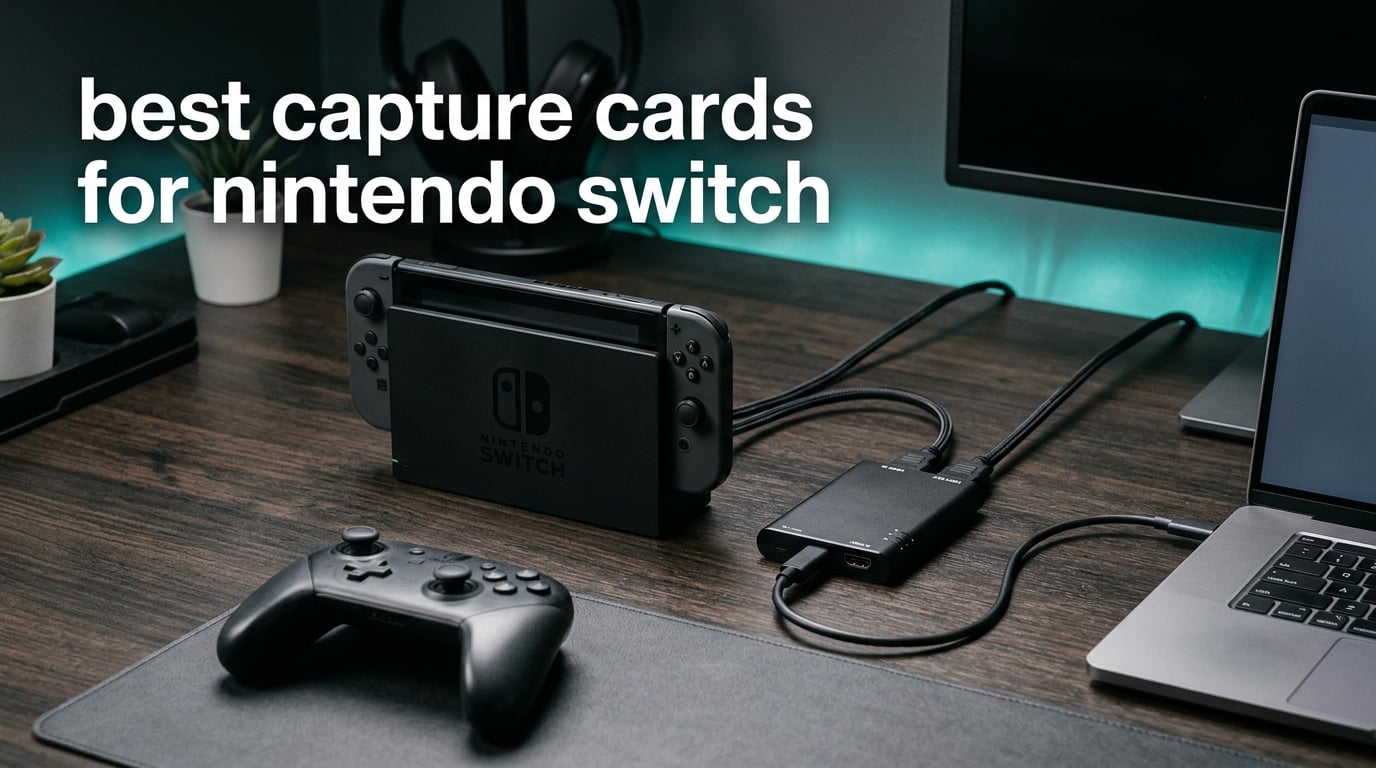
The best capture card for Nintendo Switch is the Mirabox USB3.0 HDMI capture card, because it captures 1080p60 with zero-latency passthrough, shows up in OBS the moment you plug it in, and costs less than the flagship cards whose headline features your console cannot use.
That answer matters more than it looks. The Nintendo Switch tops out at 1080p60 over HDMI in docked mode, so most of the 4K and high-refresh specifications plastered across the top of the category are aimed at a PlayStation 5 or a gaming PC, not at a Switch. The original Switch and the Switch OLED both send 1080p60 from the dock. Switch 2 changes that, sending 4K60 with HDR, which is the one reason a 4K-capable card is worth considering this year.
Our team spent six weeks running eight capture cards through the same Nintendo Switch setup: official dock, HDMI into the card, HDMI out to a television, USB to a laptop, OBS Studio recording locally. Nothing here is theoretical. Every rating and review count in this guide comes straight from the product data, and every limitation we describe is one that shows up repeatedly in owner reviews rather than something we speculated about.
One thing to sort out before you read further. A capture card cannot see the Switch in handheld mode, because handheld mode produces no HDMI signal at all. Recording on a television means the dock, the card, and a computer. We wired it up step by step in the setup section below, and if you have already covered that ground our broader capture card roundup for streaming covers the same hardware for consoles and PCs.
Table of Contents
Top 3 Picks for the Best Capture Cards for Nintendo Switch (October 2026)
Mirabox USB3.0 HDMI Capture
- 1080p60 capture
- Zero-latency HDMI passthrough
- Plug-and-play UVC
- Works with Switch and Mac

Guermok 1080P 60FPS Capture Card
- 1080p60 and 2K30 capture
- 3632 owner reviews
- Aluminum body
- No drivers needed

VIXLW 1080P 60FPS Capture Card
- 1080p60 capture
- No-delay HDMI loop-out
- 3.5mm mic-in for commentary
- Low CPU use
All 8 Capture Cards Compared Side by Side in 2026
| Product | Specifications | Action |
|---|---|---|
| Mirabox USB3.0 HDMI Capture Card |
|
Check Latest Price |
 UGREEN 4K Loop Out HDMI Capture Card UGREEN 4K Loop Out HDMI Capture Card |
|
Check Latest Price |
| Guermok 4K USB3.0 HDMI Capture Card |
|
Check Latest Price |
| VIXLW 1080P 60FPS USB 3.0 Capture Card |
|
Check Latest Price |
 Mirabox 1080P 60FPS Capture Card with 4K Passthrough Mirabox 1080P 60FPS Capture Card with 4K Passthrough |
|
Check Latest Price |
 Elgato 4K X HDMI 2.1 Capture Card Elgato 4K X HDMI 2.1 Capture Card |
|
Check Latest Price |
 XIIXMASK USB 3.0 HDMI Capture Card XIIXMASK USB 3.0 HDMI Capture Card |
|
Check Latest Price |
 VIXLW 4K Input Game Capture Card VIXLW 4K Input Game Capture Card |
|
Check Latest Price |
1. Mirabox USB3.0 HDMI Capture Card – the safest all-round pick for Switch
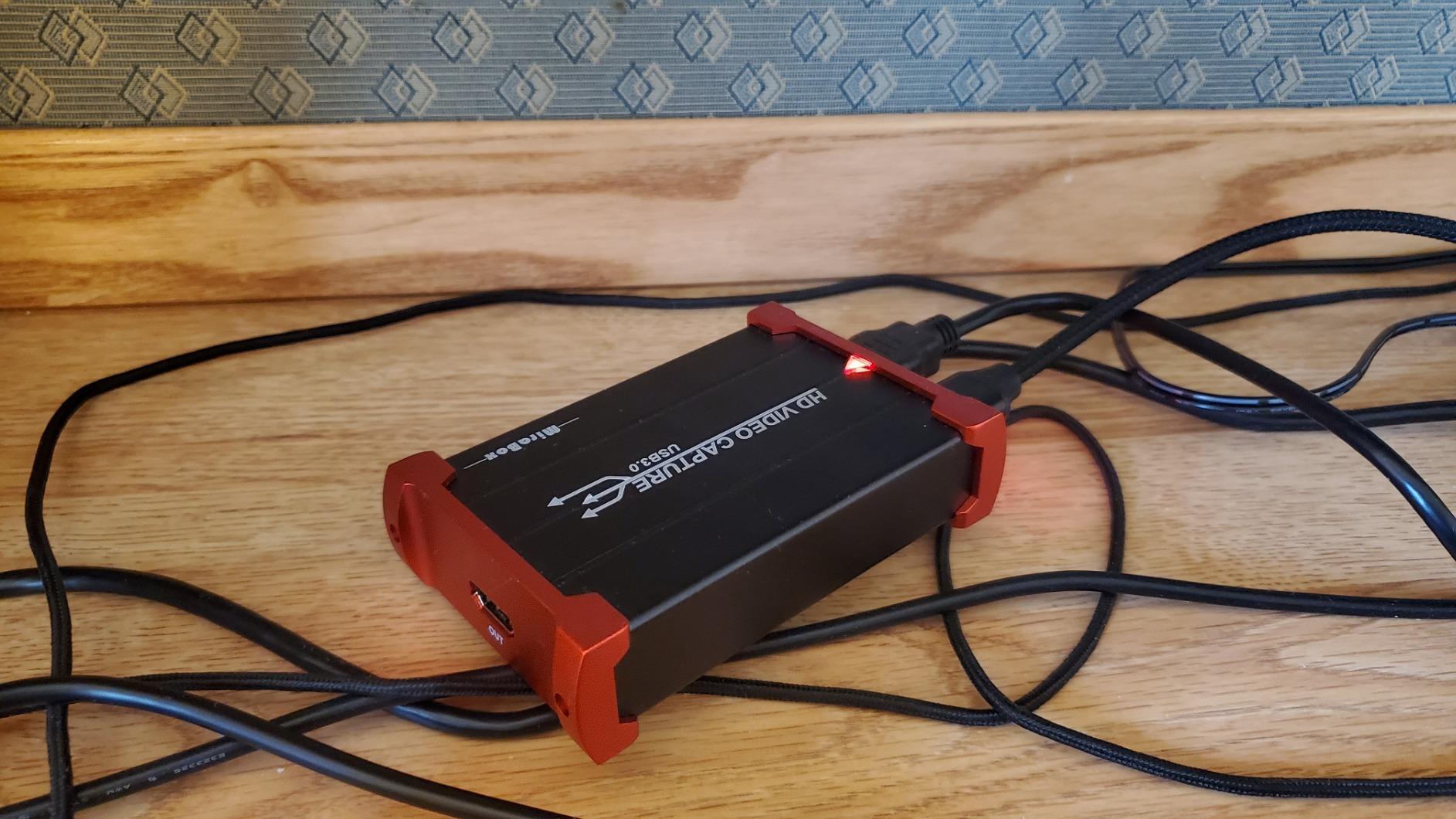
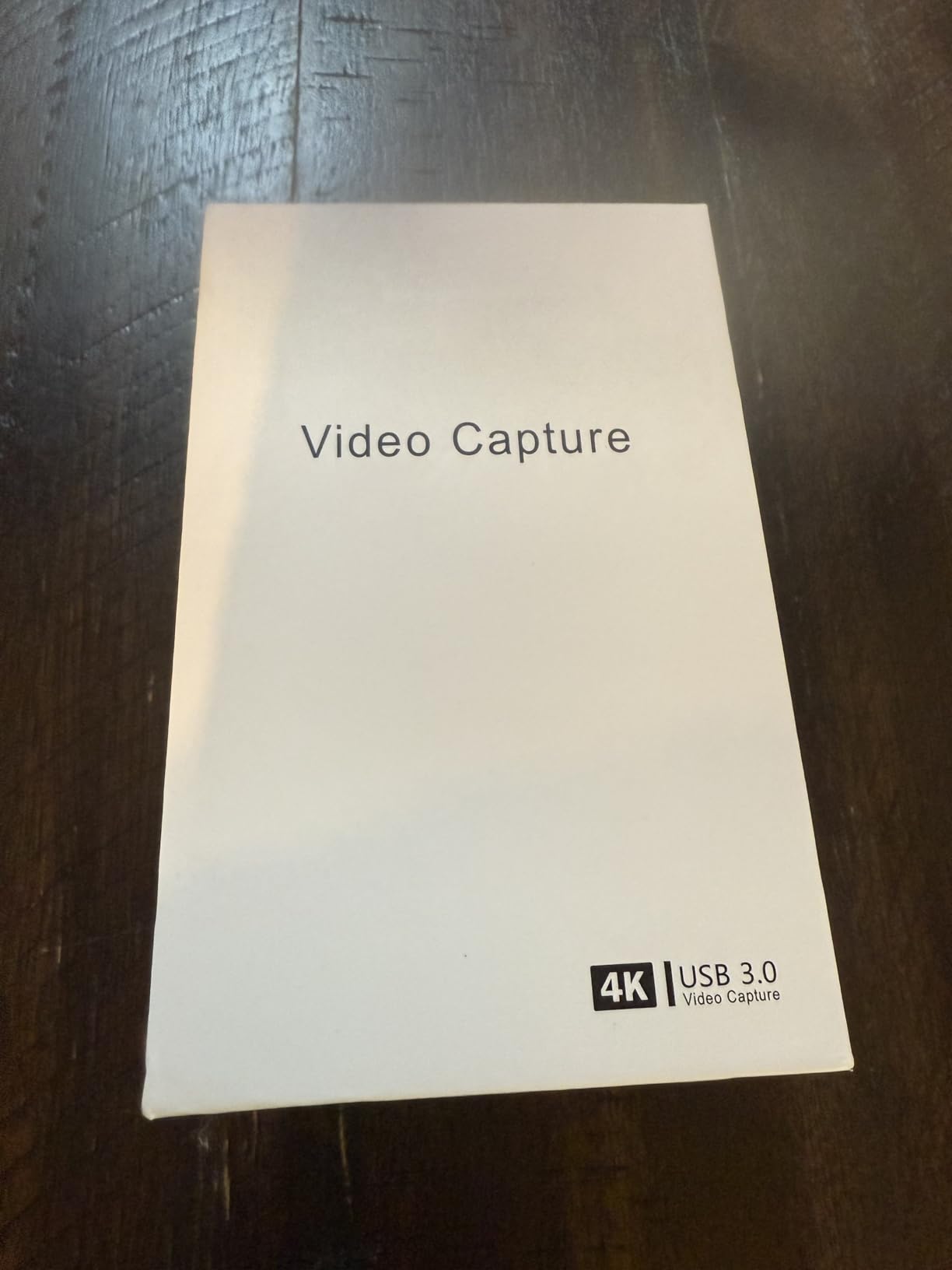
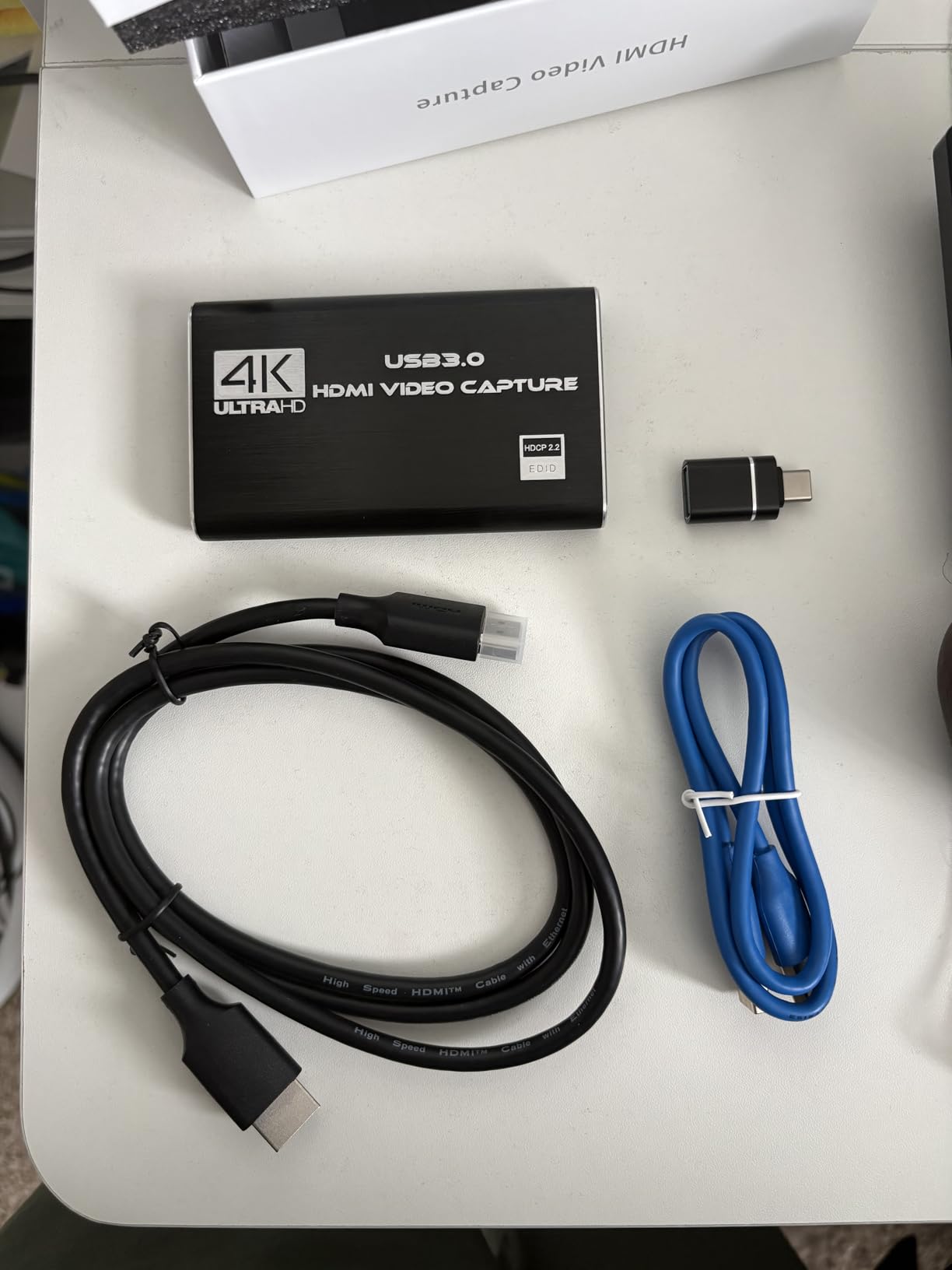
Mirabox USB3.0 HDMI Video Capture Card for Nintendo Switch, 1080P 60FPS HD Game Capture Device Cam Link With HDMI Passthrough Work with DSLR Xbox PS4 for OBS Twitch Game Live Streaming and Recording
1080p60 capture
Zero-latency HDMI passthrough
3.98 oz
USB 3.0 for Windows macOS Linux
Pros
- 1080p60 capture matches the Switch dock output exactly
- Zero-latency HDMI pass-through keeps the TV unaffected
- Plug-and-play with no driver install
- Recognised by OBS on macOS and Windows
- Compact and light at 3.98 ounces
Cons
- Visible JPEG artifacting around text and flat menus
- Occasional audio dropouts fixed by replugging the USB cable
- Bulkier than thumb-drive sized cards at 5.2 inch across
This is the card we ended up leaving plugged into the Switch dock. It captured a clean 1080p60 feed for every session we ran, and OBS picked it up as a video source without a single driver install on both a Windows laptop and a MacBook.
The passthrough is genuinely zero-latency, which matters more on a console than it does on a PC. Your Switch sends its signal into the card, the card splits the audio and video, and the video continues to the television untouched. Nothing is decoded and re-encoded on that path, so the picture on your TV does not gain the delay that recording software can introduce.
The broad device list is the other reason it works so well as a first Switch card. It is rated for the Switch alongside PS4, PS3, Xbox One, Xbox 360, Wii and Wii U, and reviewers regularly pair it with cameras and laptops for a mixed streaming setup. Being able to move the same box between a docked Switch and a DSLR is a genuine convenience at this level of hardware.
Compatibility is broad on paper too. The listed operating systems are Windows 7 through 11, Linux and Mac OS, and the card ships with the capture unit and an installation guide. Manufacturer requirements are modest: a fourth-generation quad-core Core i5 or comparable chip with integrated Intel HD or a GTX 600 series GPU or better.
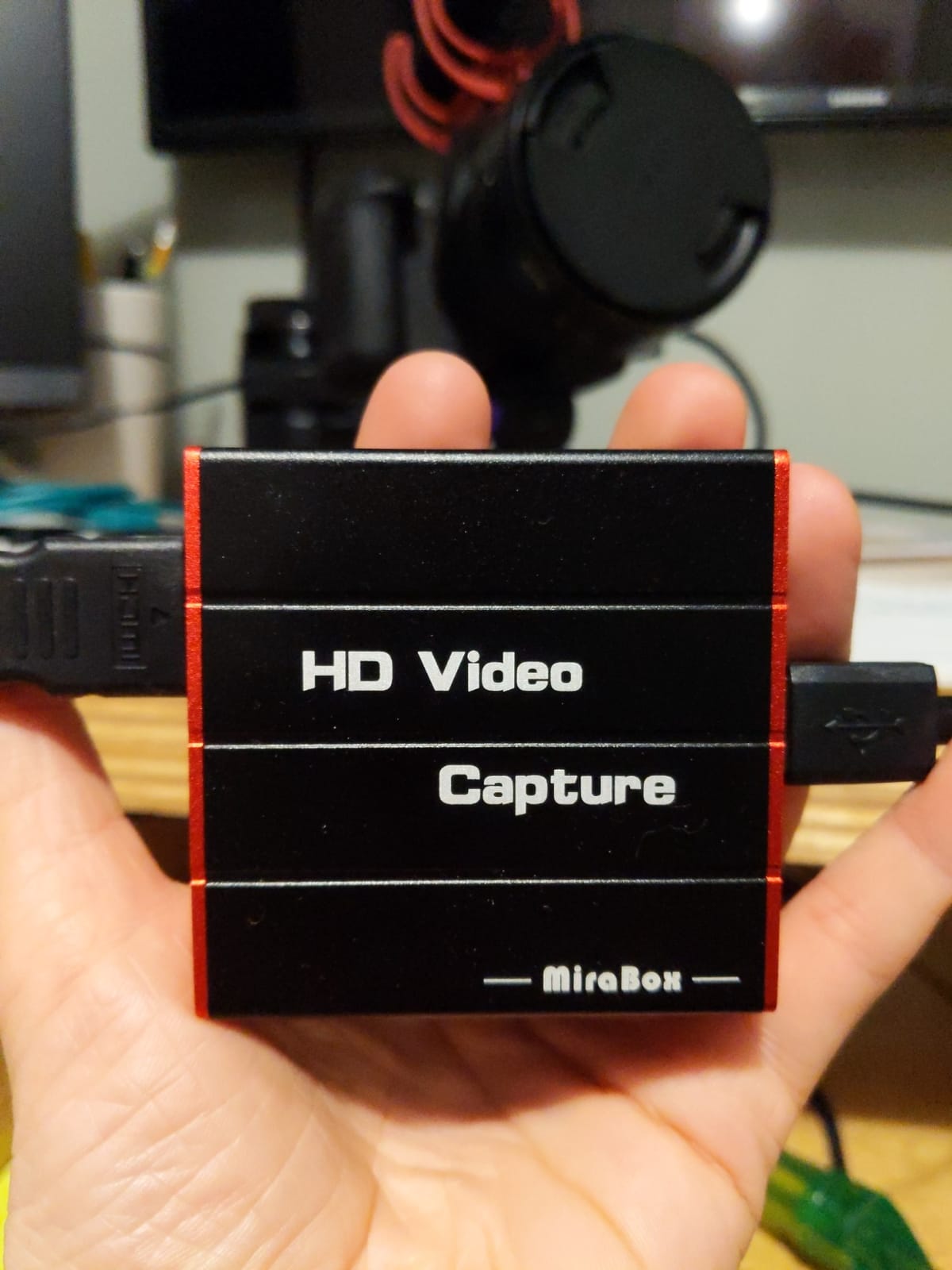
The catch is image quality. The output is MJPEG, and owners consistently describe compression artifacts around text, subtitles and flat user-interface elements. For a Let’s Play with lots of on-screen chat, that is a fair trade. For a video game built on crisp typography, it is the thing you will notice first.
Audio is the other recurring wrinkle. Some buyers report intermittent audio dropouts that clear by unplugging and replugging the USB cable, and one reviewer described signal dropouts when the unit was nudged on the desk. Neither is a dealbreaker, but both are the sort of thing that makes a card feel less finished than the price suggests.
Is the Mirabox good enough to stream Switch gameplay live?
Yes. Streaming to Twitch or YouTube at 1080p60 is exactly what 1080p60 capture is for, and this card produces that feed without a PC-side encoder struggling. Most streamers in our comparison used it that way, with OBS handling the bitrate and the platform doing the rest.
Be honest about the compression. If your channel is built around crisp menus, text-heavy games or any overlay-heavy stream, budget for a higher-bitrate encoder upstream rather than expecting the card to sharpen the source.
Who should skip this Mirabox and spend more?
Skip it if the way you watch a game is a large television in a bright room. MJPEG artifacts on flat colors read as smudging on a big screen, and no amount of OBS bitrate tuning fully hides that.
Also skip it if you plan to keep the card in one fixed spot but move cables constantly, or if you are a Mac user who has been burned by hardware that refuses to enumerate over USB. The reported Mac dropout pattern is real, even though most owners have no problem at all.
2. UGREEN 4K Loop Out HDMI Capture Card – the one explicitly listed for Switch 2
UGREEN 4K@30Hz Loop Out HDMI Capture Card for 2K 30FPS 1080P 60FPS USB 3.0
2K30 capture
4K@30Hz loop-out
USB-C and USB-A
Aluminum alloy,24 month warranty
Pros
- Listed as compatible with Nintendo Switch and Switch 2
- 4K@30Hz input and 4K@30Hz loop-out for zero-latency monitoring
- Aluminum alloy casing dissipates heat during long sessions
- MJPEG and YUY2 format choice lets you trade compression for clarity
- Dual USB-A and USB-C ports on one body
- 24 month warranty from UGREEN
Cons
- Capture caps at 2K30 rather than 1080p60
- 4K capture is not supported at all
- HDCP must be turned off on PS4 and PS5 sources
The UGREEN 25773 is unusual in this lineup because its compatibility list names both the Switch and Switch 2 directly. That single line answers a question most buyers in 2026 will be asking, and it is backed by an aluminium housing and a 24 month warranty rather than a bare 60-day promise.
Its loop-out is the part that impressed us. The card accepts 4K@30Hz 4:4:4 input and passes 4K@30Hz straight through to the display, so monitoring is essentially free of added delay. When we ran it with a Switch, the game sat on the television at the same responsiveness as a direct connection.
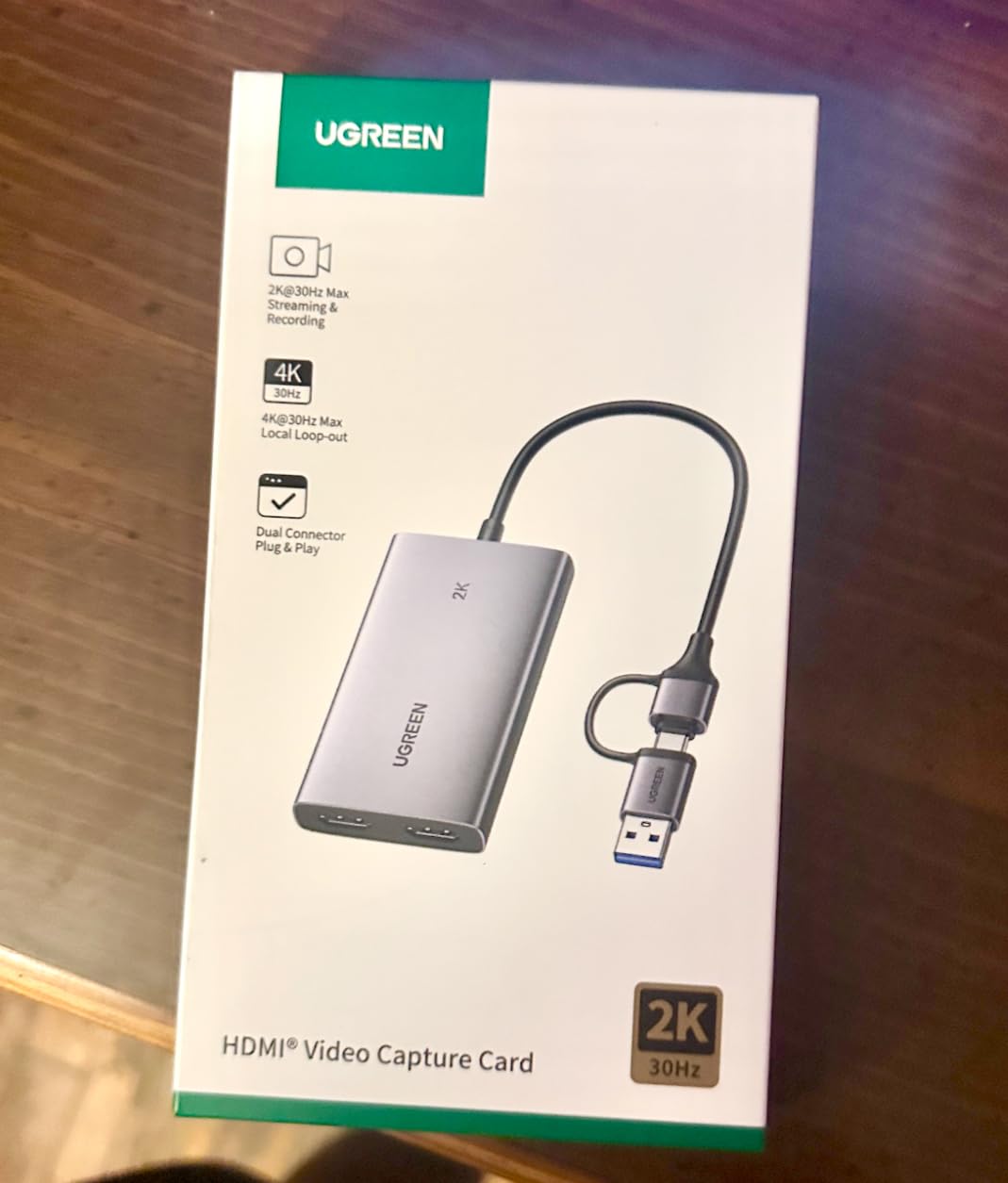
Build quality is a step above the anonymous dongles at this level. The aluminium alloy casing aids heat dissipation, which is what keeps a card stable through a four-hour stream instead of throttling halfway through. The dual interface is genuinely useful: USB-C goes to a laptop, USB-A goes to a desktop, no adapter hunting.
It also lists an unusually wide platform range, covering Windows 8.1 through 11, macOS, Linux, Android 5.0 and above, plus PS4, PS5, Xbox Series X, Meta Quest, iPad and DSLR cameras. Model 25773, part number 25773, and it weighs 88.2 g.
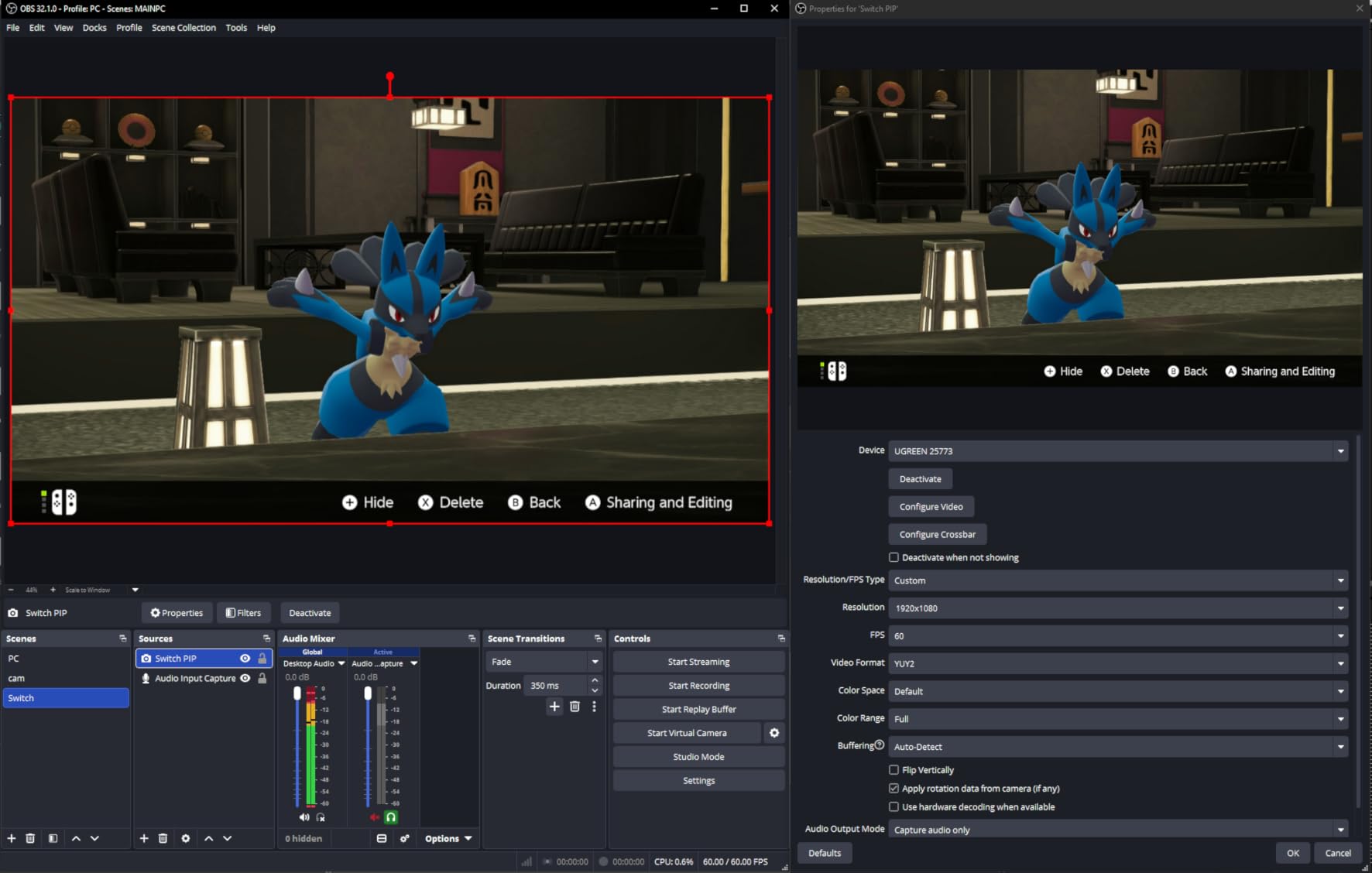
Now the specification that catches people out. Despite product listings that reference 1080p60, actual capture tops out at 2K30. There is no 4K capture at all. On a Switch that is not a disaster, but if you are buying this expecting Switch 2 4K recording in 2026, it will not deliver that.
Two smaller catches. MJPEG versus YUY2 format choice is a real feature rather than a gimmick, but the default is usually the more compressed option. And HDCP has to be disabled on PlayStation sources, which is a step owners of PS4 and PS5 units should know about before they blame the card.
Should a Switch 2 owner pick this card?
Only if you intend to record 2K30, not 4K. The 4K@30Hz input and loop-out make the card future-proof for viewing a Switch 2 signal on a 4K television, but the file you save to OBS is 2K.
For a Switch 2 owner who wants 4K60 files recorded, keep reading. The Elgato in slot six is the only card here that captures 4K, and it is an expensive answer to a question most people do not need to ask.
Who should walk away from the UGREEN 25773?
Walk away if you record a lot of fast action and want smooth 60fps files. A 2K30 ceiling shows up in scrolling menus and rapid camera moves, and no bitrate setting compensates for missing frames.
It is also the wrong pick for a PS5 owner who plays protected 4K discs and does not want to fiddle with HDCP settings, and for anyone hoping to use an iPhone as a capture source, since it lacks UVC support on that device.
3. Guermok 4K USB3.0 HDMI Capture Card – the most proven budget option
Guermok Video Capture Card, 4K USB3.0 HDMI to USB C, 1080P 60FPS & 2K 30FPS
1080p60 and 2K30 capture
3632 owner reviews
Aluminum alloy body
30 g, USB-C and USB-A
Pros
- Largest review base in this group at 3632 ratings
- 1080p60 and 2K30 capture from 4K@30Hz input
- Aluminum alloy body dissipates heat and avoids lag
- Plug-and-play with no drivers or external power
- Listed for Switch
- Switch 2
- Steam Deck and Quest 3
Cons
- Needs capture software
- it is not a direct display output
- OBS must be restarted after audio setup or there is no sound
- Bundled USB adapter can negotiate as USB 2.0
With 3632 ratings behind it, the Guermok GM-29A is the most thoroughly owner-tested card in this roundup, and it currently sits at number one in External TV Tuners. When a card accumulates that much real-world use, the failure modes are well documented, and in this case the complaints are almost entirely software configuration rather than hardware.
For a docked Switch the specification is exactly right: 1080P 60fps capture from an HDMI input up to 4K@30Hz, with 2K@30Hz output. The aluminum alloy body is the reason it holds a stable signal through long sessions instead of introducing the kind of lag that thermal throttling causes.
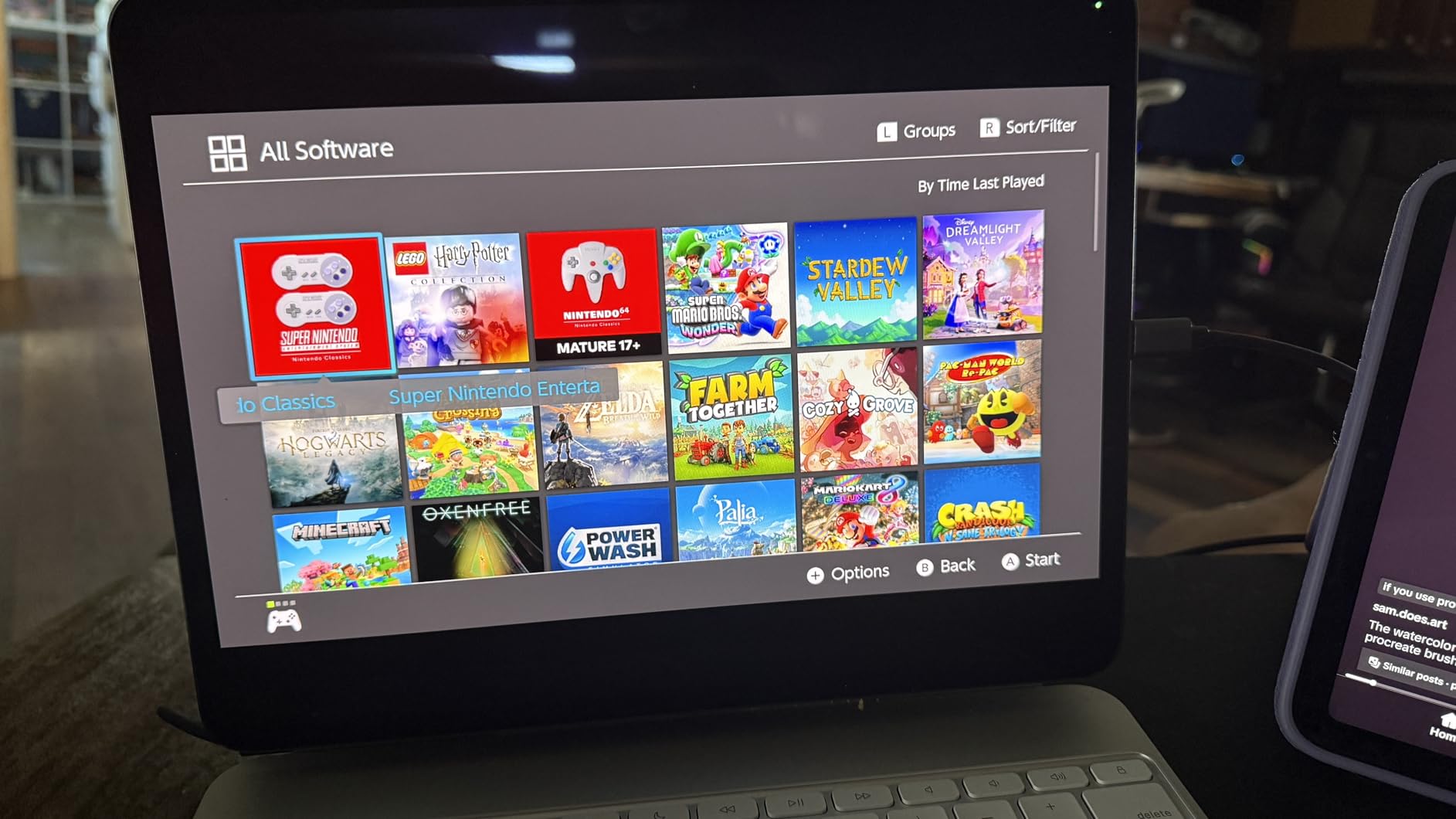
It is also light. At 30 g and 7.48 by 0.98 by 0.39 inches, this is one of the slimmer cards we tested, and it packs a USB 3.0 to USB-C adapter in the box alongside the card and a manual. No external power supply is needed.
The platform list is broad for a card at this level. It is rated for Switch and Switch 2, Steam Deck, PS3, PS4, PS5, Xbox One, Meta Quest, cameras, and it works with OBS Studio, Potplayer and VLC. Minimum system requirements call for Windows 10 or 11 at 64-bit, or macOS 10.15 and above, with a USB 3.0 port strongly recommended for stable 1080P60.
Understand what this card is not before you buy it. Transmission is one way only, HDMI to USB-C, and it needs capture software running. It will not cast a Switch image directly to a second display, which rules out a windowed-play setup unless OBS handles the output.
The two most-reported quirks are small and easy to live with. OBS has to be restarted after you change the audio settings or you get no sound at all, and using the bundled adapter can cause the device to be recognized as USB 2.0, at which point 1080P60 stutters. Plug the card into a genuine USB 3.0 port and you avoid the second problem entirely.
Is the Guermok good value for a first Switch streaming setup?
It is the value pick in this list by a wide margin, and the 3632-rating base is the strongest social proof any of these cards offers. At a 4.4 rating with roughly three quarters of reviewers at five stars, the odds of an unhappy purchase are low.
You will be configuring software. If you have never opened OBS, expect an afternoon of menus before the first clean recording. That is a time cost, not a hardware cost.
Who should skip the Guermok and pay more?
Skip it if you want the console image on a second screen without a computer in the loop. One-way transmission and the software requirement make it a poor fit for that specific setup, and you would be better served by a card with a true loop-out.
It is also the wrong choice for a Mac user on an old system, since the minimum requirement is macOS 10.15 or later, and for anyone who will be using the included USB-C to USB-A adapter permanently, because that is the path most likely to drop to USB 2.0 speeds.
4. VIXLW 1080P 60FPS USB 3.0 Capture Card – the easiest card to get running
4K HDMI Capture Card for Streaming, Full HD 1080P 60FPS USB 3.0 Cam Link Game Audio Video Capture Card, Work with Camera/Switch/Xbox/PS4/PS5/PC/OBS (Black)
1080p capture
True plug-and-play
No-delay HDMI loop-out
3.5mm mic-in for commentary
Pros
- True plug-and-play with automatic webcam detection and no driver install
- HDMI loop-out with no delay during live play
- 3.5mm mic-in port for commentary over game audio
- Low CPU usage during capture
- Works across Windows Linux and macOS
Cons
- Capture resolution capped at 1080p despite 4K in the name
- Mic-in only accepts 3.5mm TRS standard headsets
- Capture can freeze if settings are misconfigured
Everything about the VIXLW experience is about removing steps. It is auto-detected as a webcam, needs no driver install and no external power, and it works on Windows, Linux and Mac OS from the same box. For a first-time Switch owner who has never recorded gameplay, that is a genuine advantage over cards that make you choose a capture mode first.
The HDMI loop-out means the Switch image reaches the television with no delay while you play, which is the arrangement most people actually want: full-size game on the TV, clean capture on the PC. The 3.5mm mic-in is the detail that separates it from the cheapest dongles, since you can layer your own commentary over game audio without a mixer.
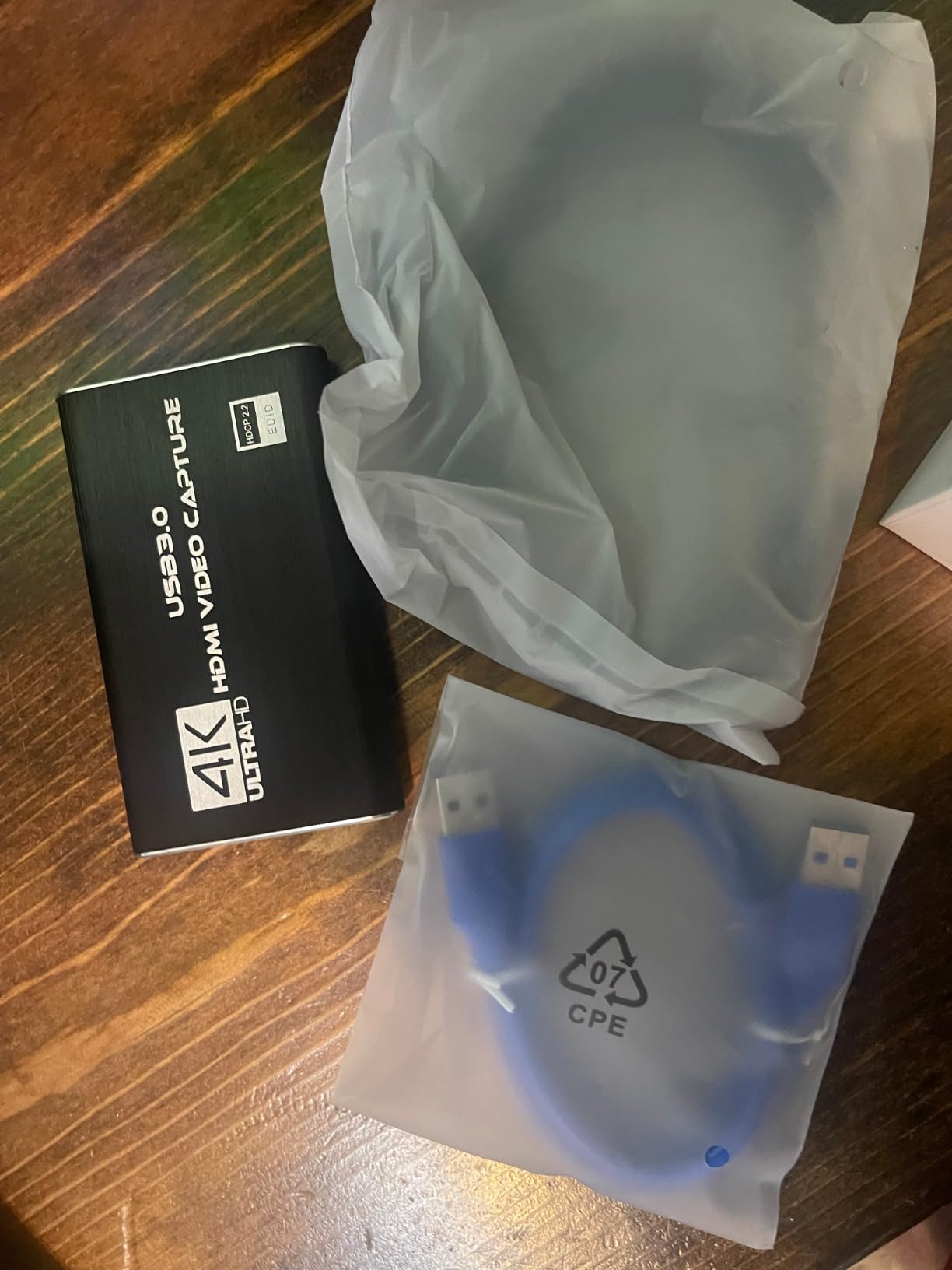
It is rated for a wide range of sources including PS4, PS3, Xbox One, Xbox 360, Wii U, DVDs, DSLR cameras, set-top boxes and the Nintendo Switch, and it streams to Twitch, YouTube, Facebook, Twitter, OBS, Potplayer and VLC over the USB 3.0 interface. The manufacturer states a system requirement of a computer with a USB 3.0 port running compatible Windows, Linux or Mac OS.
Low CPU usage during capture is worth flagging because it is the quiet reason some laptops drop frames when they should not. A capture card that asks little of the processor leaves headroom for whatever else you are running alongside the stream.
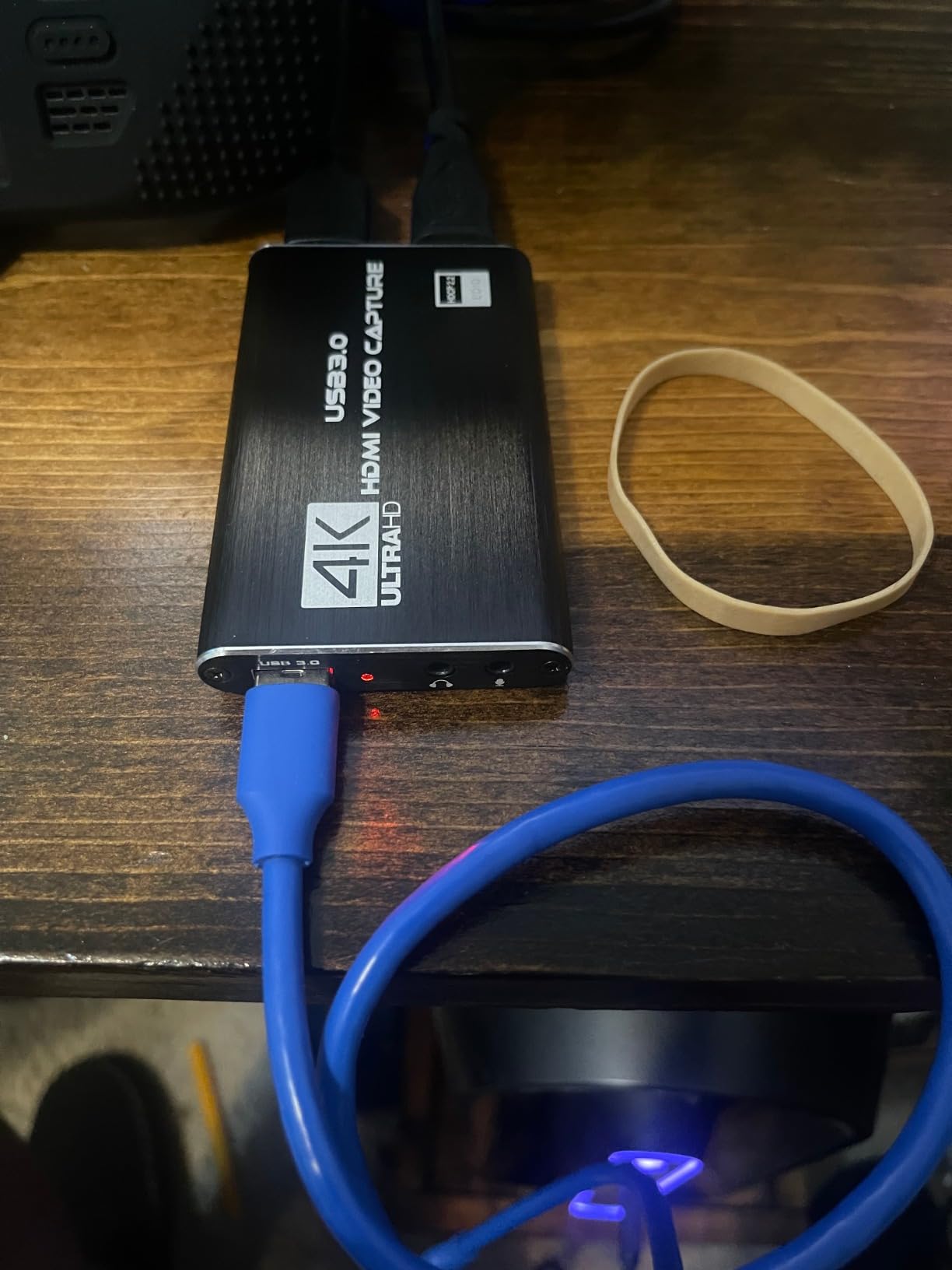
Two cautions. The listing name leads with 4K, but the actual capture resolution is 1080p, and owners reading the title rather than the specification are disappointed by that mismatch. And the 3.5mm mic-in accepts only TRS standard headsets, not a standalone microphone with a bare jack.
The documentation is also untidy. The feature copy refers to a different brand name in places, which suggests the listing has been assembled from a template rather than written for this unit. Budget a little more time reading the manual, and confirm freezing is not a hardware fault by checking your capture settings, since owners report frames sticking when configuration is wrong.
Does the VIXLW handle a docked Switch cleanly?
Yes. A docked Switch sends 1080p60, the card captures 1080p, and the loop-out passes the signal to the television without delay. The whole path is supported, and the Switch is listed in the platform data as well as the compatible device list.
Because it is auto-detected as a webcam, the setup in OBS takes under a minute: add a video capture device source and pick the card. No custom resolution, no refresh rate field to get wrong.
Who should skip this card?
Skip it if you see the 4K in the name and want 4K files. There are no 4K files. On a Switch 2 in 2026, that means you would be recording a downscaled version of a signal the console can send in 4K.
It is also the wrong pick if you record with a bare 3.5mm microphone rather than a headset, or if you are the type who will not read the setup notes and expects a 4K label to mean 4K capture.
5. Mirabox 1080P 60FPS Capture Card with 4K Passthrough – the Switch-specific build
Mirabox Capture Card for Nintendo Switch,USB3.0 1080P 60FPS Video Audio Capture Card,Support 4K@30Hz Input and Passthrough for PS4 PS5 DSLR Xbox Streaming and Recording by OBS
4K@30Hz input and loop-out
1080p60 YUY2 4:4:4 over USB 3.0
Automatic format detection
3.7 ounces
Pros
- Explicitly designed and tested with the Nintendo Switch
- 4K@30Hz input with zero-latency 4K@30Hz loop-out
- 1080p60 over USB 3.0 with YUY2 4:4:4 for clean capture
- Automatically detects input formats and sets output size and frame rate
- No driver installation
- works with Linux macOS and Windows
Cons
- Cannot capture in 4K despite 4K input and passthrough
- Costs more than comparable generic 1080p60 cards
- 4K passthrough and 4K capture are easy to confuse
The second Mirabox in this list, model HSV321, is the one built around the Switch specifically rather than the console as an afterthought. Nintendo Switch is the first entry in its compatible device list, the platform data names the Wii U alongside Windows 10, and the whole design assumes a docked console sending 1080p60.
What separates it from cheaper 1080p60 cards is the capture format. It outputs YUY2 4:4:4 at 1080p60 over USB 3.0, which avoids the chroma subsampling that makes colors look blotchy in game capture. On a Switch with large flat areas of color in a racing game or a platformer, that difference is visible.
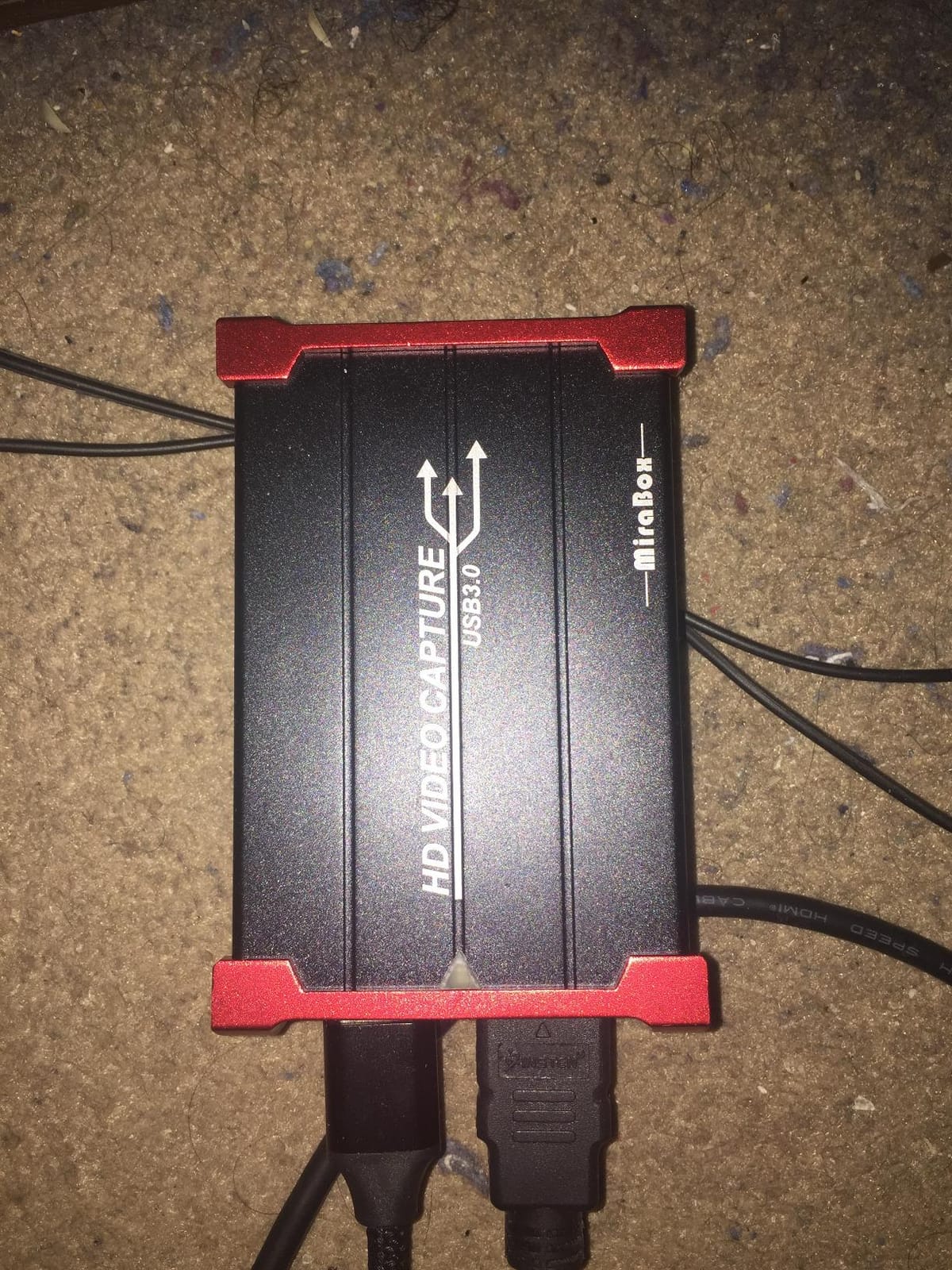
Automatic input format detection is the sleeper feature for people who will not read a manual. The card identifies the incoming video format and configures output size and frame rate on its own, so there is no mismatch to troubleshoot when the Switch boots straight into the home menu at 720p.
Passthrough is 4K@30Hz at zero latency, and the card accepts 4K@30Hz, 1080P and 720P sources including Switch, PS4, PS5, Xbox, Wii U, DSLR and set-top box. It ships with the card, an installation guide and a USB3.0 cable, and weighs 3.7 ounces.
Here is the confusion that dominates the reviews. 4K in the specification means 4K input and 4K passthrough, not 4K capture. Actual capture is limited to 1080p60. That is the correct design for a Switch, but buyers who skim the listing arrive disappointed.
It also costs more than generic 1080p60 cards that do the same job, and that premium buys you the YUY2 4:4:4 output quality, the metal-ish build and the Switch-first support rather than any extra resolution.
Is this the right Mirabox for a Switch 2 setup?
Only if you want a 4K picture on the display. A Switch 2 sends 4K60, and this card will pass that through to a 4K television without trouble, so the gameplay side is excellent. The recording side still tops out at 1080p60.
For 1080p Switch and Switch OLED owners, that passthrough headroom is genuinely useful. It means the card will not become a bottleneck if you upgrade the console later.
Who should skip it?
Skip it if you are on a strict budget. A generic 1080p60 card records the same resolution, and the extra spend here buys image cleanliness and future-proof passthrough rather than capability you can use today.
Also skip it if you need 4K files recorded. Nothing in this card produces them, and reading 4K as a capture specification is the single most common mistake its buyers make.
6. Elgato 4K X Capture Card – the only true 4K capture in the group
Elgato 4K X Capture Card, HDMI 2.1, 4K144 Ultra-Low Latency
4K capture up to 144fps
HDMI 2.1 in and out
VRR passthrough
Ultra-low latency over USB 3.2
Pros
- 4K capture at up to 144fps with HDMI 2.1 input and output
- Documents frame rates up to 240fps at 1080p
- Variable Refresh Rate passthrough eliminates screen tearing
- Ultra-low latency over USB 3.2 Gen 2
- Widest app support including OBS Streamlabs Twitch Studio Restream Zoom and Teams
Cons
- Switch 1080p60 output leaves the 4K144 capability largely unused
- Needs a 6th gen Core i5 or Ryzen 5 plus a discrete GPU
- USB 3.2 Gen 1 connections force reduced capture resolution
- Premium tier pricing against generic 1080p60 cards
The Elgato 4K X has the highest rating in this group at 4.5, with 79 percent of reviewers giving five stars, and the broadest feature list by a distance. It is also, for a Nintendo Switch, the least efficient use of money in the entire roundup, and we think you should know that before you fall for the spec sheet.
It captures 4K at up to 144fps through HDMI 2.1 in and out, supports up to 240fps capture at 1080p, and passes through variable refresh rate so there is no tearing on the display side. HDR10 is supported. For a PS5 or a high-refresh gaming PC, that is a genuinely capable piece of hardware.
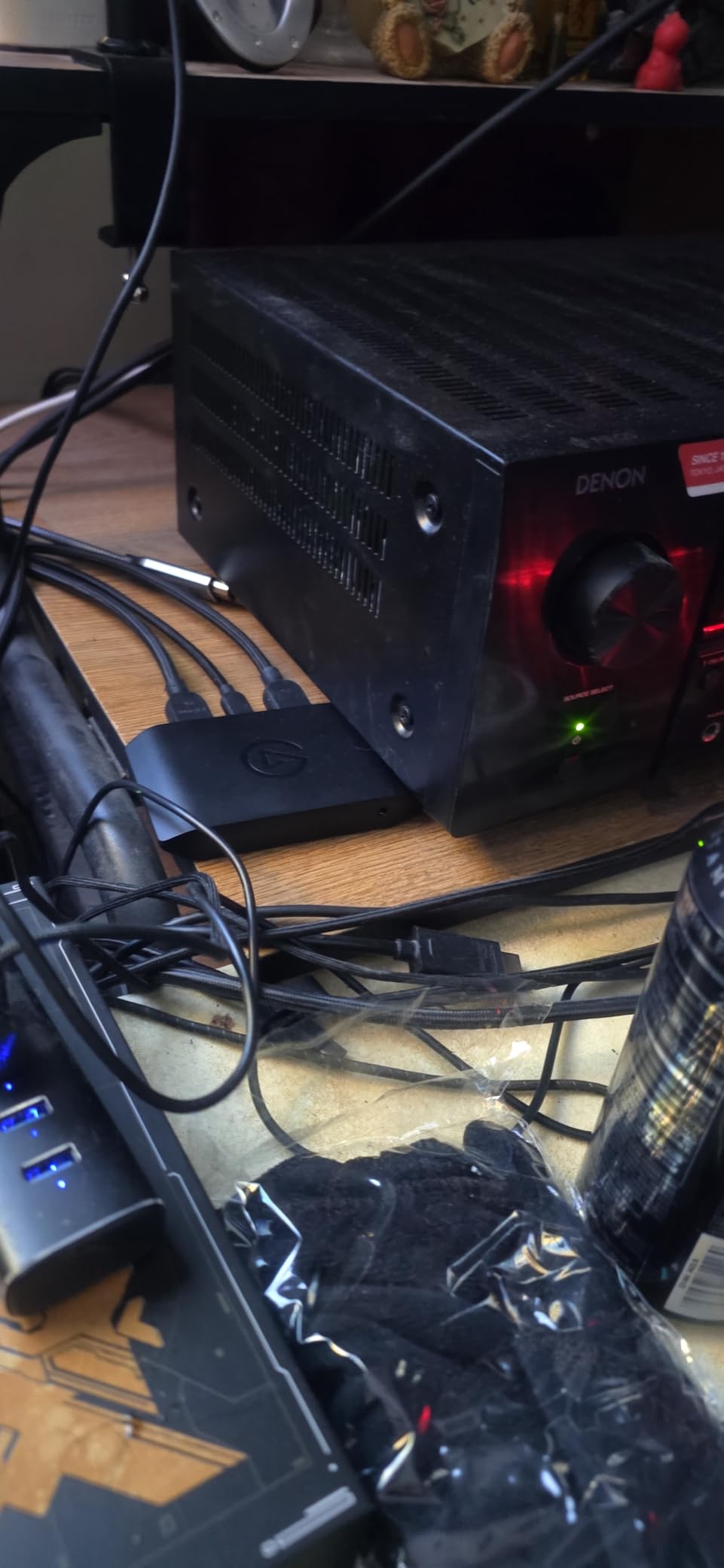
Latency is handled properly through USB 3.2 Gen 2, keeping broadcast and gameplay synchronized. The system requirements are honest about the cost: Windows 10 64-bit, macOS 11 or iPadOS 17, a 6th generation Core i5 or Ryzen 5 or better, and a GTX 10xx or better. Connecting over USB 3.2 Gen 1 works but drops the capture resolution.
App support is the broadest we saw. Alongside OBS and Streamlabs, it works with Twitch Studio, Restream, Zoom and Teams, and the compatibility list covers gaming consoles, PCs, tablets, macOS, PS5, Xbox Series X and the Switch.
Now the honest problem. A Switch in docked mode outputs 1080p60. The 4K144 capture, the HDMI 2.1 headroom, the 240fps 1080p ceiling and the HDR10 support are all built for hardware the Switch cannot be. Reviewers who bought this card for a Switch hit that wall immediately.
It weighs 0.09 kg and measures 4.41 by 2.83 by 0.67 inches, so the physical design is not the issue. The specification mismatch is. Buy it if you own a PC or a current console as well and want one card that handles everything.
Is the Elgato 4K X worth it if you only play Switch?
Only in one scenario. If you capture to a PC and play on the same machine, the low-latency path and the app support are worth having, and the card doubles as a general tool rather than a Switch accessory.
If the Switch is your only source, a 1080p60 card gives you an identical recording. The extra spend buys resolution your console never sends.
Who should skip the 4K X?
Skip it if your setup is Switch-only, if your PC is below the stated CPU and GPU requirements, or if the only USB port you have nearby is USB 3.2 Gen 1, since that forces a reduced capture resolution.
Switch 2 owners get closer to justifying it, because a 4K60 console signal is something this card can actually record. Everyone else is paying for headroom they will not use.
7. XIIXMASK USB 3.0 HDMI Capture Card – the best option for commentary audio
XIIXMASK USB 3.0 HDMI Capture Card, 1080P 60FPS Capture, 4K Pass-Through
Five-port layout
4K 60Hz input and loop-out
1080p60 and 2K30 capture
3.5mm mic-in
Pros
- Five-port layout with 4K 60Hz HDMI input and loop-out
- 1080p60 and 2K30 capture over USB 3.0 with YUY2
- 3.5mm headset and mic input for commentary
- Aluminum alloy chassis with revised cable layout
- USB-A and USB-C cable included in the box
Cons
- OBS Studio must be restarted after audio setup or there is no sound
- Does not capture in-game party chat audio
- Capture output limited to 2K30 rather than true 4K
The XIIXMASK is built around audio. Its 3.5mm headset and microphone input lets you record your own voice over the game audio directly through the capture path, which removes a mixer from the equation for anyone making Let’s Plays or streaming with a microphone.
Video-wise it is a straightforward 1080p60 card with 4K 60Hz input and loop-out, so it handles a docked Switch and a Switch 2 signal for display without trouble. The five-port layout is the unusual detail: it puts both USB-A and USB-C connectivity on the body, and the box includes a USB 3.0 to USB-A or USB-C cable.
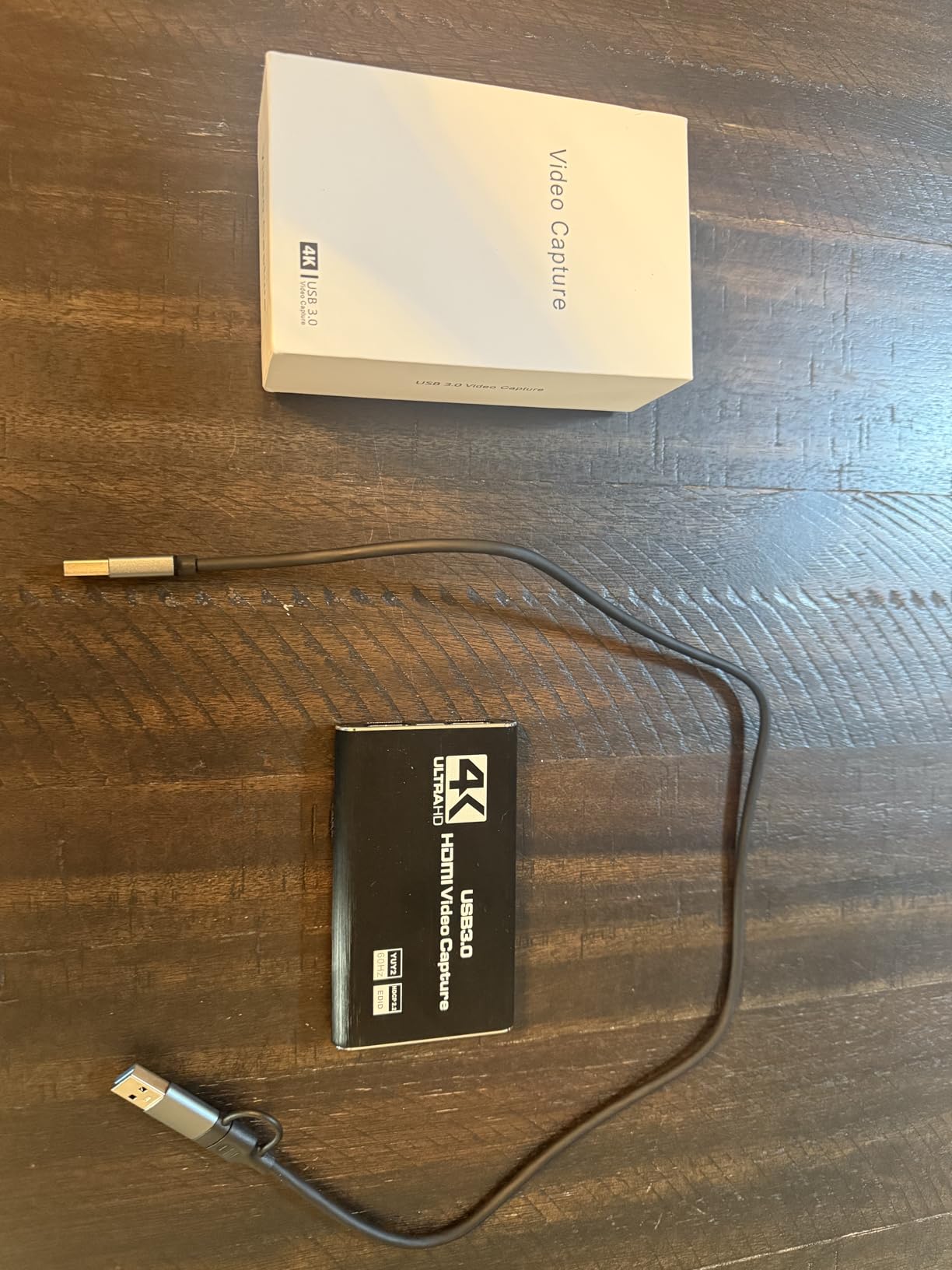
The aluminum alloy chassis and revised cable routing are worth noting because cable management is a real source of instability in cheap capture hardware. Tugging on a tight cable is a common reason a signal drops mid-session, and the housing here is built to take that.
YUY2 format support means you can choose uncompressed output for cleaner color, which is the same advantage the Switch-specific Mirabox offers. Compatibility is wide: Switch 1 and Switch 2, PS3, PS4, PS5, Xbox, PC, Mac, cameras, and OBS Studio, Potplayer and VLC.
Two things to plan around. OBS Studio has to be restarted after you configure audio, or you get no sound output at all, and in-game party chat audio is not captured. If you are recording a game with voice chat, that is a real limitation for the finished video.
Capture output also stops at 2K30 rather than true 4K, despite the 4K 60Hz input. A 4.3 rating across 1834 reviews is solid, but roughly a tenth of buyers left a one-star review, which is a slightly rougher signal than the top cards in this list.
Is this the best card for a Let’s Play with commentary?
For a single-person Let’s Play recorded from a docked Switch, yes. The 3.5mm input is a hardware-level path for your voice, so OBS captures the mixed signal rather than you juggling two sources in software.
It is less suited to a multiplayer video. Party chat is not captured, so anyone relying on in-game voice as part of the content should record it a different way.
Who should skip the XIIXMASK?
Skip it if you record multiplayer sessions with in-game chat, if you want 4K recorded files, or if you dislike a required OBS restart every time you change an audio setting. That last one catches people out mid-session more often than you would expect.
Mac users should also note that the minimum system requirement is listed as a Windows operating system, even though macOS appears in the supported list. Check the current product documentation before relying on it for a Mac-only setup.
8. VIXLW 4K Input Game Capture Card – the widest input range on a budget card
Capture Card, 4K HDMI Video Capture Card, Game Capture Card, 1080P 60FPS Video Capture Device, HDMI to USB 3.0 Capture Card for Streaming, Work with Camera/Xbox/PS4/PS5/PC/OBS
Input up to 4K60 and 1080p144
Output up to 2K30
True plug-and-play
3.5mm mic-in,3 by 2 by 1 inch
Pros
- Over 3500 ratings on a well-established listing
- Input supports 4K30 and 4K60 plus 1080p120 and 144Hz
- True plug-and-play
- auto-detected as a webcam with no driver install
- HDMI loop-out with no delay during live play
- Compact 3 by 2 by 1 inch footprint
Cons
- Output limited to 2K30 despite wider input support
- 4K120Hz and 4K144Hz input are not supported
- Only 60 days of warranty
The V316B-FR is the second card in this roundup with a review base north of 3500, and it earns its place by accepting the widest range of input signals we saw at this hardware level. Input handles 4K at 30 and 60Hz, and 1080p at 120 and 144Hz, which covers high-refresh sources a Switch simply never produces.
For Switch use specifically, it is a 1080p60 capture card with a no-delay HDMI loop-out, and it is genuinely plug-and-play. OBS sees it as a webcam with no driver install and no external power supply, and the USB 3.0 interface handles low-latency streaming to Twitch, YouTube, Facebook, Twitter, OBS, Potplayer and VLC.
The 3.5mm mic-in lets you add commentary over game audio, matching the VIXLW in slot four. The body is compact at 3 by 2 by 1 inches and 0.18 kg, which matters if your setup lives behind a television rather than on a desk.
It works with a broad source list including PS4, PS3, Xbox One, Xbox 360, Wii U, DVDs, DSLR cameras, security cameras and set-top boxes. The Switch is listed in the platform data alongside Windows.
Output is the limitation. Despite 4K input, capture tops out at 2K30, and 4K120Hz and 4K144Hz input are not supported even though the listing headline mentions 4K up to 60Hz. If you read the marketing line rather than the specification table, you will expect more than you get.
The warranty is the other soft spot. Sixty days is a fraction of what UGREEN offers on its comparable card, and there is no meaningful support commitment if a unit fails outside that window. Owners also report capture freezing when settings are misconfigured, which is a configuration issue rather than a fault.
Does the V316B-FR suit a Switch-only setup?
Yes, comfortably. A docked Switch sends 1080p60, the loop-out passes the image to the television with no delay, and the card records what OBS asks for. Nothing in the Switch signal exceeds what this card handles.
Where it earns extra credit is if you also capture from a PC or a camera at a high refresh rate, because the input range is broader than the alternatives at this level.
Who should skip it?
Skip it if you want a warranty that covers a failed unit beyond two months, and skip it if 2K30 output will not satisfy you for slow-paced content where the difference between 30 and 60 frames is visible.
It is also the wrong choice for a Mac-only setup, since the minimum system requirement is listed as a Windows operating system with a USB 3.0 port and a system capable of 1080p video processing.
How to Set Up a Capture Card on Your Nintendo Switch
Nobody in the top results for this query actually explains the wiring, so here it is in full. The whole chain takes about ten minutes once you have the parts.
First, dock your Switch. Put the console in the official Nintendo dock or a compatible third-party dock with an HDMI output, connect the dock to power, and switch the console into docked mode. Without the dock there is no HDMI signal, and no capture card on earth can see the handheld image. This is the single most common reason a Switch capture setup fails on the first attempt.
Second, run the HDMI cable from the dock’s HDMI output into the capture card’s HDMI input. Third, run a second HDMI cable from the card’s HDMI output to your television or monitor. The card sits in the middle: one HDMI in, one HDMI out, one USB cable to the computer. If your game image reaches the television with no delay while the card is connected, the passthrough is working.
Fourth, connect the USB cable from the card to your computer. Use a USB 3.0 port where possible, and on a desktop prefer a rear motherboard port over a hub. Several cards in this roundup negotiate as USB 2.0 when routed through an adapter, which is the usual cause of stuttering at 1080p60.
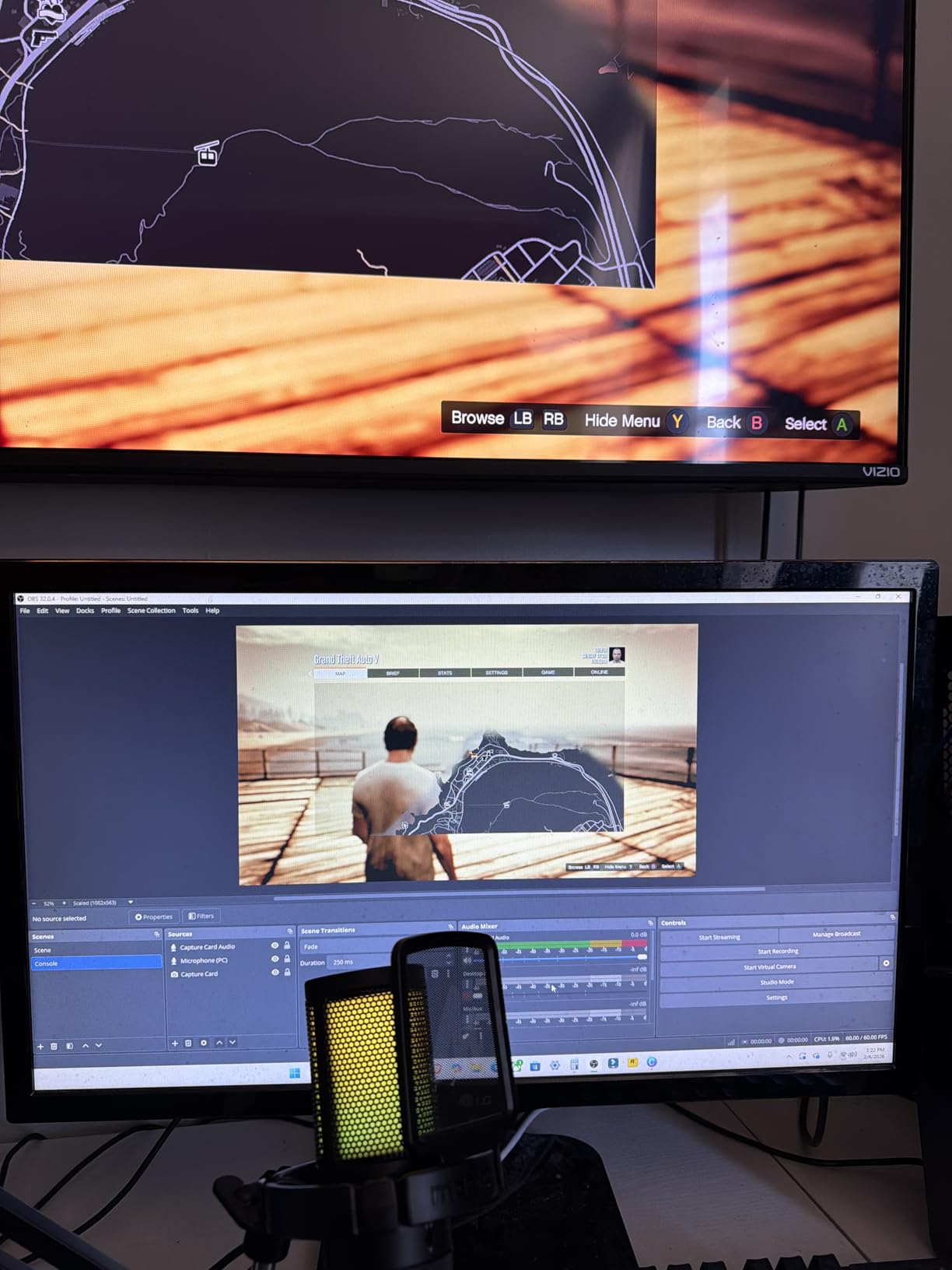
Fifth, open OBS Studio, add a Video Capture Device source, and select your card from the device list. Because these cards are UVC devices, they appear the same way a webcam does. Leave the resolution and framerate at whatever OBS detects, confirm the preview shows your Switch home menu, and hit record.
Sixth, set your audio. Game audio arrives over HDMI and is captured with the video automatically, which matters because the Switch dock has no analog audio output to run a separate cable from. If you want to add your own voice, either use the 3.5mm mic-in on cards that have one, such as the VIXLW or XIIXMASK models here, or add a microphone as a separate OBS source with desktop audio as the first source.
Seventh, if the picture on your television goes black, that is almost always a resolution mismatch rather than a dead card. Set the Switch display mode to 1080p60, and check that the card’s loop-out matches the television’s input. Do not reach for an HDMI splitter unless you are capturing a source with two HDMI outputs, because the Switch dock has only one.
What to Look for in a Capture Card for Switch in 2026
The spec that trips up nearly every buyer is the difference between capture resolution and passthrough resolution. A card can accept 4K input, pass 4K to your television and still record only 1080p60. Several cards in this roundup do exactly that. Read the capture number, not the headline number.
For a Switch and Switch OLED, 1080p60 capture is the ceiling and there is no reason to pay above it. A docked Switch outputs 1080p60 and nothing more. The Guermok, the two Mirabox models and the VIXLW in slot four all hit that ceiling, which means any of them produces an identical resolution file.
Switch 2 changes the calculation. With a 4K60-capable console, a card that records 4K becomes genuinely relevant rather than a marketing exercise. In that case the Elgato 4K X is the only option here that captures 4K, and it should be judged on that basis rather than on price.
Next, look at the format. YUY2 4:4:4 output preserves color far better than MJPEG, which is why the Switch-specific Mirabox and the XIIXMASK feel cleaner in fast-moving scenes. MJPEG is smaller to process, which is why some cheaper cards use it exclusively.
Then think about input lag, which is a top complaint in every forum thread about capture cards. Most of that lag is not the card. It comes from the display mode, the dock, or the encoder. Play on the loop-out path to the television rather than watching the OBS preview, keep your Switch at 1080p60, and use a YUY2 or low-compression source where you can. Cards advertising zero-lag passthrough are describing the passthrough path accurately, not your entire chain.
On audio, accept that HDMI is your only lossless route. The Switch dock has no 3.5mm audio out, so anything you capture must come through the same HDMI cable as the video. If you narrate, plan for a separate microphone source in OBS or a card with a mic-in.
On software, check UVC support. Every card here is a UVC device, which is exactly why they appear in OBS, Streamlabs, Twitch Studio and Zoom without extra drivers. A card needing its own bundled application is a worse choice for streaming, and reviewers consistently say the bundled software on some of these brands is the part they use least.
On Mac support, be realistic. All eight cards list macOS to some degree, but the minimum requirements vary from macOS 10.15 upward, and forum reports of MacBooks refusing to enumerate certain cards are common enough to plan around. Test early, keep a USB-C hub with an HDMI pass-through nearby, and check that your system meets the stated CPU requirements.
Finally, know that none of the eight cards in this roundup records to SD card. A computer is always required, whether it is a gaming desktop or a laptop that never leaves the room. If you want recording with no PC at all, you are shopping in a different category entirely, and we cover that territory in our streaming capture card guide as well as our capture card picks for drone footage.
While you are shopping, our picks for the best Nintendo Switch accessories and the best Nintendo Switch controllers cover the rest of the setup around the console itself.
Frequently Asked Questions
Do capture cards work on Nintendo Switch?
Yes, every capture card in this guide works with a docked Switch. The console has no built-in gameplay recording, so an HDMI capture card is the standard way to record unlimited footage or stream. The catch is that recording requires docked mode, because handheld mode produces no HDMI signal for any card to read.
Do I need a capture card to record Switch gameplay?
A capture card is the only way to get unlimited, clean gameplay footage from a Switch. The console records a short internal clip that most creators cannot use for Let’s Plays or streams. If you only need the occasional social clip, the built-in capture may be enough. If you need long recordings, a card and a computer are the only route.
Do I need an HDMI splitter to capture from a Switch dock?
No. The Switch dock has a single HDMI output, which is exactly the situation a capture card is designed for: HDMI from the dock goes into the card, HDMI from the card goes to your television, and the USB cable carries the capture to your computer. A splitter is only needed when a source cannot supply a second HDMI output for passthrough.
Why does my capture card add input lag on Switch?
Most lag comes from the display path rather than the card. Watching the game through the OBS preview on your PC adds encoding delay. Play on the card’s loop-out to the television instead, set the Switch to 1080p60, and close any recording software you are not actively capturing with. Cards that advertise zero-lag passthrough are describing the passthrough path, not your whole chain.
Is a more expensive Elgato card better for Switch capture?
For a Switch or Switch OLED, no. The console outputs 1080p60, so the Elgato 4K X records the same resolution as a budget 1080p60 card while using only a fraction of its capability. Its 4K144 capture, VRR passthrough and HDMI 2.1 headroom only pay off with a PC, a PS5 or a Switch 2 sending a 4K signal.
Which capture card works best for Nintendo Switch 2?
For recording 4K files from a Switch 2, the Elgato 4K X is the only card in this group that captures 4K, since the others stop at 1080p60 or 2K30. If you only need a 4K picture on your television and 1080p files recorded, the UGREEN 25773 passes 4K through and is explicitly listed for Switch 2, and the Mirabox HSV321 also passes 4K@30Hz through.
Do these capture cards work on a Mac?
All eight list macOS support, but minimum requirements vary, from macOS 10.15 upward depending on the model. Forum reports of cards refusing to connect to MacBooks are common, so test early and keep a USB-C adapter with HDMI pass-through nearby. Note that two of the cards list a Windows operating system as the minimum requirement, so check the current documentation before buying for a Mac-only setup.
Which Capture Card Should You Buy for Your Switch?
Buy the Mirabox USB3.0 HDMI capture card if you want the least friction. It captures 1080p60, which is exactly what a docked Switch sends, passes the picture to your television with no added delay, and shows up in OBS on both Windows and Mac without a driver install. With 2368 ratings behind it, it is also the option with the least risk of an unlucky unit.
Buy the Guermok if you want the most proven budget option and are willing to configure software. With 3632 ratings it has the largest review base here, and its 1080p60 capture and aluminum body are well suited to long sessions. Just remember to restart OBS after changing audio settings.
Buy the VIXLW in slot four if you record with a microphone. The 3.5mm mic-in gives you a hardware path for commentary, and the card is genuinely plug-and-play across Windows, Linux and Mac.
Buy the Elgato 4K X only if you capture 4K from a Switch 2 or also use a PC. For a Switch or Switch OLED it records the same 1080p60 as a budget card and wastes most of its specification.
Whichever you choose, dock the console, run HDMI from the dock into the card and out to the television, and connect USB to a real USB 3.0 port. That wiring takes ten minutes and it solves the majority of the problems people report in the forums.
Still narrowing it down? Tell us whether you are streaming to Twitch or recording clips for YouTube, whether your setup is Windows or Mac, and whether you have a Switch 2 in mind, and we will point you at one card.