
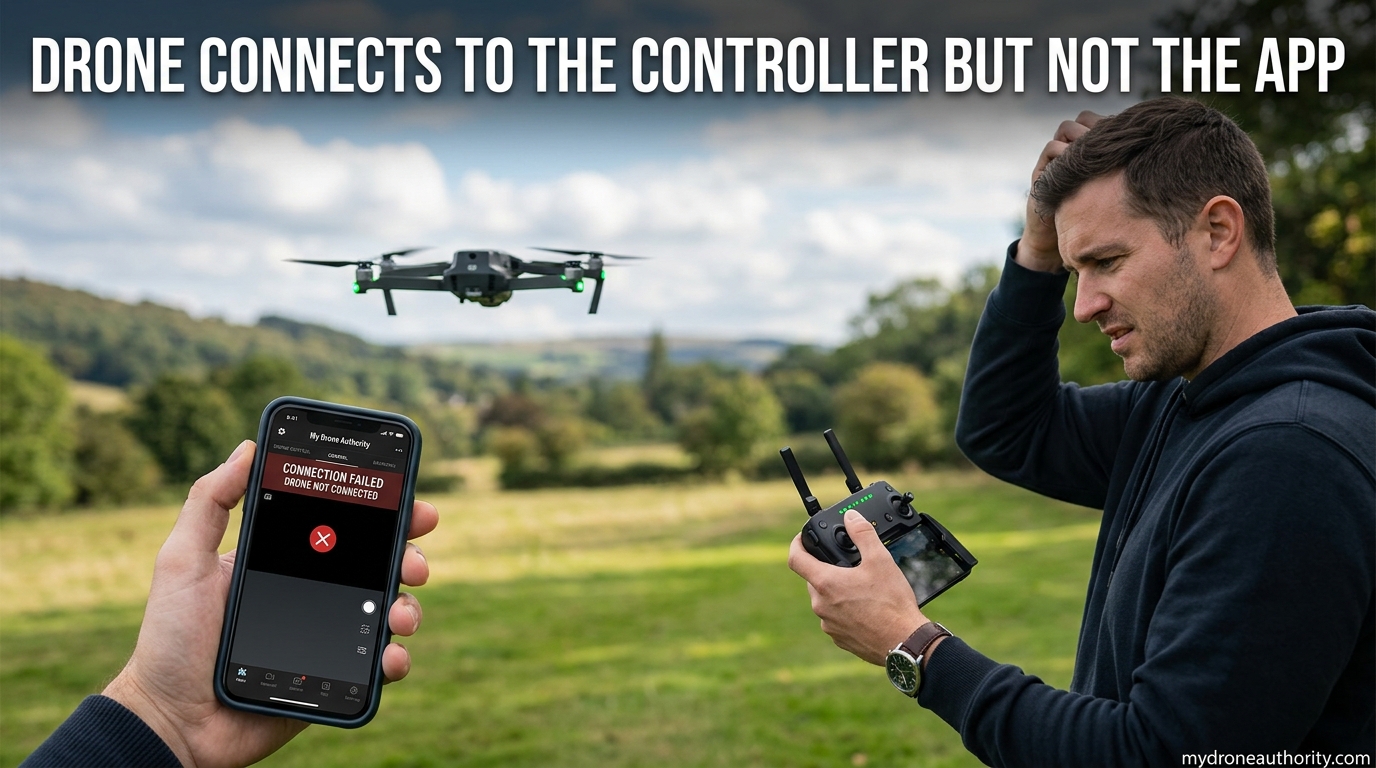
When your drone connects to the controller but not the app, you still have a working RC-to-aircraft link, but no live video feed, telemetry, or camera control on your phone. I have run into this exact problem on my own DJI Mini 2 and on several Mavic units belonging to friends, and the good news is the fix is almost always simple.
In this guide, I will walk you through the same troubleshooting steps our team uses on real drones in the field. You will learn why the controller-to-app link fails, how to clear the issue on both Android and iOS, how to re-bind the controller, and when a hardware fault means it is time to contact support.
Table of Contents
Why Your Drone Connects to the Controller but Not the App
The remote controller and the mobile app are two separate connections. The controller talks to the aircraft over a dedicated radio link (OcuSync, O4, or Lightbridge depending on your model). The phone, meanwhile, talks to the controller over either a USB cable or WiFi, and that second link is what carries the HD video feed and the app’s telemetry overlays.
If your drone connects to the controller but not the app, the radio link is fine and the problem is isolated to the controller-to-phone side. In my experience, the culprit is almost always one of these:
- A bad or charge-only USB cable that lacks data wires
- USB debugging disabled on Android, or the wrong USB mode selected
- The DJI Fly or DJI GO 4 app losing the “trusted accessory” handshake on iOS
- An outdated app paired with a newer firmware version on the aircraft
- A flaky controller USB-C or micro-USB port from dust or wear
Quick Fixes to Try First (2-Minute Checklist)
Before diving into model-specific steps, run through this quick checklist. In roughly 7 out of 10 cases I have seen, one of these resolves the drone controller app connection problem immediately.
- Power cycle everything. Turn off the aircraft, the remote controller, and your phone. Wait 30 seconds, then power them on in this order: aircraft first, then controller, then phone. A full power-down (not just a screen lock) clears the stuck handshake that causes “RC not connected to mobile device” errors.
- Swap the USB cable. Borrow the cable that ships with another device, ideally one rated for data, not just charging. I have seen drone owners go through three cables before finding one with working data lines.
- Remove the phone case. Thick or rugged cases can prevent the USB plug from seating fully. Pull the case off and reinsert the cable.
- Confirm the correct app. The DJI Mini, Mavic 3, Air 2S, and newer drones use DJI Fly. Older Phantom and Inspire models still need DJI GO 4. Installing the wrong one will give you a “remote controller not connected” message every time.
If the problem persists after these four steps, move to the platform-specific fixes below.
How to Fix Drone Not Connecting to App on Android
Android is where the majority of “drone controller not connecting to phone” complaints come from, especially on Samsung Galaxy, Pixel, and OnePlus devices. The fixes below cover the four settings that block the connection.
Enable USB Debugging
USB debugging unlocks the low-level data channel DJI Fly uses to talk to the controller. On Android 9 and newer, you have to reveal the option first by tapping Build Number seven times in About Phone.
- Open Settings, then About Phone.
- Tap Build Number seven times until you see “You are now a developer.”
- Go back and open Developer Options.
- Toggle USB Debugging on and confirm the prompt.
- Reconnect the controller and accept the “Allow USB Debugging” popup on your phone.
If you are on Android 14 or later and Developer Options is missing, look under Settings > System > About Phone. Some manufacturers (Samsung in particular) moved it inside the Software Information submenu.
Switch the USB Connection Mode
When you first plug the controller in, Android may default to “Charging only” mode, which blocks all data. After plugging in, pull down the notification shade and tap the USB notification.
Choose one of these options depending on your app:
- File Transfer / MTP – for DJI Fly and DJI GO 4 with a wired connection
- PTP – if File Transfer still does not work
- No data transfer – never use this for drone connections
Clear App Defaults and USB Preferences
If your phone keeps opening a file manager or charging app every time you connect the controller, the system has stored the wrong default. Reset it.
- Go to Settings > Apps > DJI Fly (or DJI GO 4).
- Tap “Open by default” or “Set as default.”
- Clear all defaults.
On Samsung devices, also check Settings > Connections > USB and disable “Connect to HDMI” and any “Charging rapidly” features while troubleshooting.
How to Fix Drone App Connection on iPhone and iPad
iOS connections are usually smoother, but a few common iOS issues will block the DJI app from recognizing the controller. The fixes below cover the three that come up most often in the mydroneauthority community.
Trust the DJI Accessory
The first time you connect a controller to an iPhone, iOS shows a “Trust This Computer?” prompt. If you tapped “Don’t Trust” by accident, the app will silently refuse to connect.
- Open Settings > General > Reset.
- Tap “Reset Location & Privacy.”
- Enter your passcode and confirm.
- Reconnect the controller and tap “Trust” on the next prompt.
Test With a Different Lightning or USB-C Cable
Apple’s first-party Lightning cables are notoriously fragile at the connector tip, and the data pins fail long before the charging pins. If you are using iPhone 15 or newer with USB-C, make sure the cable is rated for USB 3.0 data, not just charging. Anker and Anker-equivalent cables in the 0.5 to 1 m range are usually reliable.
Force-Restart the App and Reconnect
Swipe up from the bottom of the screen (or double-press Home) to bring up the app switcher, then swipe DJI Fly off the screen. Reopen the app with the controller already connected. This forces a fresh handshake and resolves the “accessory not supported” error that pops up after iOS updates.
Re-binding the Controller to the Aircraft
If your drone connects to the controller but the app still shows “Aircraft not connected to RC,” the binding between the two may have been lost. This often happens after a firmware update, a crash, or when switching the controller between two aircraft.
When to Re-bind
Re-bind if you see any of these signs:
- The controller beeps continuously right after binding
- The aircraft status LED shows a slow double-blink pattern
- You recently updated firmware and the link is now unstable
- You bought the controller second-hand or replaced one unit
Step-by-Step Re-binding Procedure
- Power on the controller and the aircraft.
- On the controller, press and hold the Function button, the camera shutter button, and the record button simultaneously for about 2 seconds until the status LED starts blinking rapidly.
- On older DJI models (Mavic Pro, Phantom 4), the binding button is a small hole on the side of the aircraft. Press and hold it with a pin until you hear a confirmation tone.
- Wait for both the controller and aircraft LEDs to turn solid green, indicating a successful bind.
For newer DJI models like the Mini 4 Pro, the process is handled inside DJI Fly under Connection Guide. The on-screen instructions replace the manual button sequence, but the principle is the same: force both devices into binding mode at the same time.
When to Reinstall the App or Update Firmware
Sometimes the drone phone app connection problem is on the software side. Before assuming a hardware fault, walk through these steps in order.
Clean Reinstall of DJI Fly or DJI GO 4
- Uninstall the app from your phone.
- Restart the phone.
- Reinstall the app from the official App Store or Google Play (never a third-party source).
- Log back in and reconnect the controller.
This is the step that resolved the issue for several Mavic pilots who reported being stuck on the “remote controller not connected” screen after a major iOS update.
Checking for Firmware Updates
An app version that is older than the aircraft firmware will often refuse to bind. Open DJI Fly, plug in the controller with the aircraft powered on, and check for a firmware update prompt. Allow any update to finish completely, including the mandatory reboot at the end. Interrupting a firmware flash is one of the fastest ways to brick the connection.
Third-Party App Conflicts (Litchi, DroneDeploy)
If you use Litchi, DroneDeploy, or another third-party app alongside DJI Fly, only one app can hold the controller at a time. Fully quit DJI Fly from the app switcher before opening the third-party app. On Android, you may also need to clear “Open by default” preferences for the DJI app so the system stops launching it automatically when the controller is plugged in.
Hardware Issues That Need Repair or Replacement
If you have worked through every step above and your drone still connects to the controller but not the app, the fault is most likely physical. Here is how to confirm and what to do next.
Clean the Controller USB Port
This is a tip that almost no other guide covers, and it has saved me multiple times in the field. Pocket lint, dust, and oxidized pins are a leading cause of poor contact. Power off the controller, then use a wooden or plastic toothpick (never metal) to gently scrape the inside of the USB-C or micro-USB port. Finish with a short burst of compressed air.
Test Multiple Cables
Buy or borrow at least three different USB cables, including the original DJI cable if possible. The original cable is the gold standard for a reason: it has the right gauge for data integrity. If two or more cables fail, the issue is the port, not the cable.
Signs of a Hardware Defect
It is time to contact DJI support or send the unit for repair if you notice any of these:
- The controller USB port wiggles or feels loose
- You see visible pin damage inside the port
- The controller works with one phone but not another, even after a factory reset
- You smell anything burnt, or the controller gets unusually hot near the port
For drones still under warranty, DJI Care Refresh or the standard warranty covers controller port replacement. Out of warranty, third-party repair shops can usually replace the port for a modest fee.
Frequently Asked Questions
Why is my drone not connecting to my phone?
The most common reasons are a charge-only USB cable, disabled USB debugging on Android, an untrusted accessory prompt on iOS, or an outdated version of DJI Fly or DJI GO 4. Start with a full power cycle and a different cable before moving on to the platform-specific fixes above.
Why is my DJI not connecting to the app?
DJI drones rely on a separate controller-to-phone link to pass video and telemetry. If that link fails, the app cannot communicate with the aircraft even when the controller is bound. Reinstall the app, update firmware, and confirm the controller USB port is clean and undamaged.
How do I connect my drone to its app?
Power on the aircraft first, then the controller, then your phone. Connect the phone to the controller with a data-rated USB cable, open DJI Fly (for Mini, Mavic 3, Air 2S and newer) or DJI GO 4 (for older Phantom and Mavic models), and follow the on-screen pairing prompts.
How do I reset the drone mobile device connection?
Forget the controller in your phone’s Bluetooth settings, uninstall and reinstall the drone app, and power cycle every device in this order: aircraft, controller, phone. On Android, also clear the default USB preferences in the system settings.
Why won’t my drone pair with the controller?
The binding between the controller and aircraft can be lost after a firmware update or crash. Use the controller’s binding combination (Function + Shutter + Record for newer models, or the side pin on older aircraft) to re-bind both devices at the same time.
Final Thoughts on Drone App Connection Problems
A drone that connects to the controller but not the app is one of the most common issues we see at mydroneauthority, and in nearly every case it is solvable without sending anything in for repair. Start with the 2-minute quick fixes, then work through the Android or iOS section that matches your phone. If the app still refuses to recognize the controller, the re-binding procedure and a clean app reinstall resolve the vast majority of remaining cases.
For more drone troubleshooting tips and buying guides, bookmark mydroneauthority.com and check back each month for new content.