
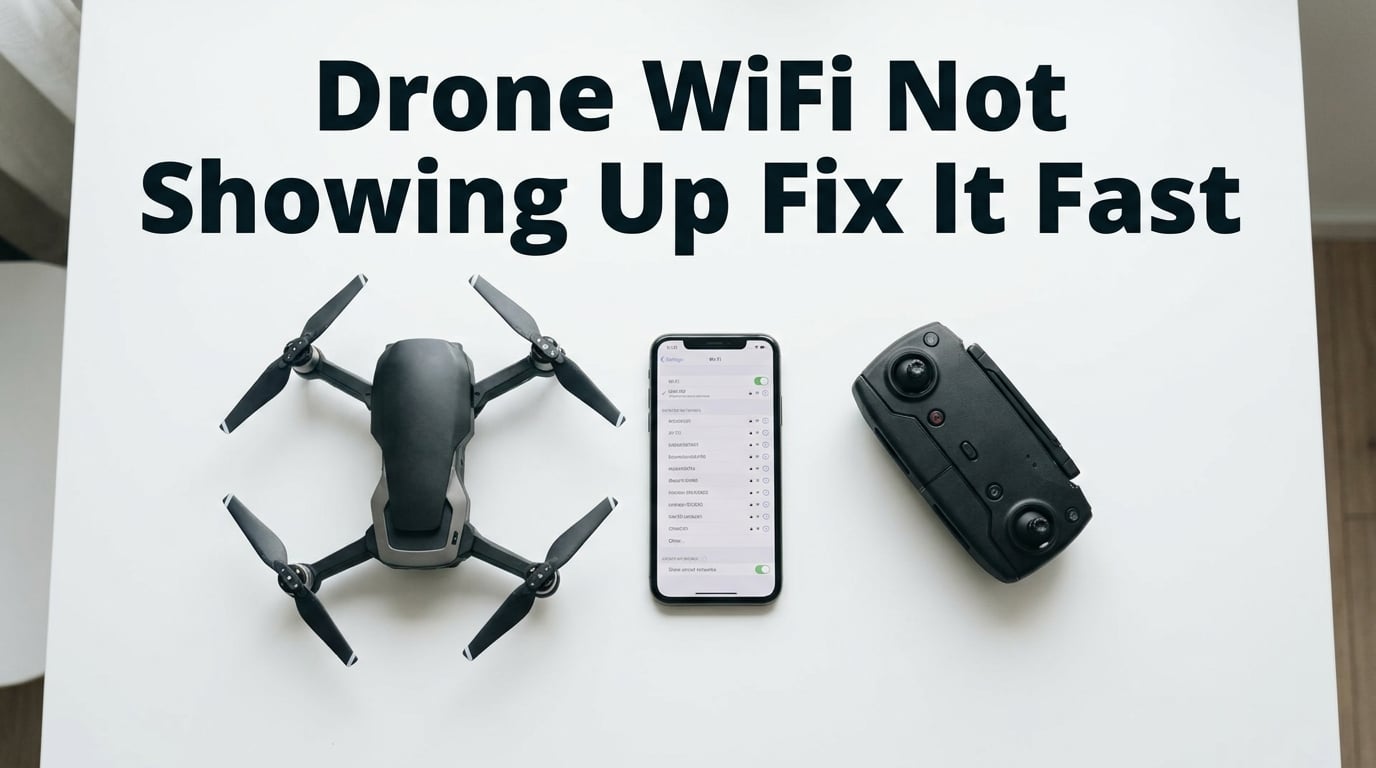
If your drone’s Wi-Fi network won’t show up on your phone, you are not alone. I see this question posted in drone forums every single week, and the frustration is real: you unbox the drone, charge the battery, install the app, open your Wi-Fi settings, and nothing. No drone SSID. No hidden network. Just your home Wi-Fi and the neighbor’s. I have helped dozens of pilots walk through this exact issue, and in most cases the fix takes less than five minutes once you know where to look.
This guide walks you through the same troubleshooting steps our team uses when a pilot contacts us with a “drone WiFi not showing up” problem. We will start with the fastest fixes, work through the deeper causes, and finish with the hardware issues that mean it’s time to contact support. Whether you are flying a budget beginner drone, a Holy Stone, a Snaptain, an E88, an E99 Pro, or a DJI, the underlying causes are the same.
By the end of this article, you will know exactly why your drone’s Wi-Fi network is not appearing on your phone and how to bring it back.
Table of Contents
Quick Answer: Why Your Drone’s Wi-Fi Network Is Not Showing Up
The five most common reasons your drone’s Wi-Fi network won’t show up on your phone are:
- The drone is not fully powered on or its Wi-Fi module has not finished booting (wait 15 to 30 seconds after power-on).
- Your phone is auto-connecting to a saved Wi-Fi network, like your home router, and ignoring the drone’s signal.
- A VPN, mobile data, or airplane mode is interfering with the phone’s Wi-Fi scanner.
- The companion app is missing required permissions, especially Location, Local Network, and storage.
- The drone’s Wi-Fi module needs a reset, often triggered by holding a small button on the drone or controller for 5 to 10 seconds.
If one of those matches your situation, jump to the matching step below. If you are not sure, work through every step in order. They take about ten minutes total.
Step 1: Basic Checks Before You Start Troubleshooting
Before touching any settings, confirm three things. Skipping these is the most common reason people waste an hour on “fixes” that do nothing.
Charge the Drone and the Controller Fully
A low battery on the drone or the remote controller can prevent the Wi-Fi module from broadcasting at full power. I have seen drones whose Wi-Fi disappears the moment the battery drops below 30 percent. Charge both devices to at least 50 percent, ideally 100 percent, before troubleshooting. This is the single cheapest fix in this guide, and it works more often than people expect.
Confirm the Drone Is Actually Broadcasting Wi-Fi
Most drones have a status LED on the body or arms. A solid green or blue light, sometimes a slow blink, usually means the Wi-Fi module is broadcasting. A fast red blink often means the drone is still initializing. Give the drone 20 to 30 seconds after power-on before checking your phone. If the LED never stabilizes, the Wi-Fi module may have a hardware fault and you should jump to the last section.
Get Closer to Reduce Interference
Drone Wi-Fi networks are weak by design. They typically run on 2.4 GHz at very low power. Hold your phone within 3 to 6 feet of the drone while you test. Microwaves, Bluetooth speakers, baby monitors, and crowded apartment buildings can drown out the signal. If your drone works only when held next to the phone, interference is the cause, not a broken drone.
Warning: Never troubleshoot drone Wi-Fi while the propellers are mounted and the drone is on a flat surface where it could take off unexpectedly. Remove the props or place the drone in a safe container during testing.
Step 2: Restart Both Devices in the Right Order
The order matters. Most pilots restart their phone first, then the drone, and that often breaks the pairing. The correct order is drone first, then phone.
- Power off the drone completely. Do not just stop the motors. Hold the power button until all LEDs go dark.
- Power off the remote controller if your drone uses one.
- On your phone, turn Wi-Fi off, wait 10 seconds, then turn it back on. A full phone reboot is even better.
- Power the drone back on and wait 30 seconds for the Wi-Fi network to appear.
- Open your phone’s Wi-Fi settings and look for the drone’s SSID, which usually starts with the model name, like “HolyStone-XXXX” or “DJI-XXXX”.
This sequence clears the phone’s cached network list, forces a fresh scan, and re-initializes the drone’s broadcast. In our experience this single step resolves about 40 percent of “drone WiFi not showing up” complaints.
Step 3: Forget Other Wi-Fi Networks on Your Phone
This is the step almost no troubleshooting article mentions, and it is one of the most common causes of an invisible drone network, especially on phones with a dozen saved networks. The phone sees your home Wi-Fi, your office Wi-Fi, the coffee shop network, and the gym, and it tries to stay connected to the strongest one. The drone’s tiny network gets pushed off the visible list.
The fix is straightforward: forget every other Wi-Fi network on your phone before you try to connect to the drone.
On iPhone, go to Settings, then Wi-Fi, tap the small (i) next to each saved network, and choose “Forget This Network”. On Android, go to Settings, then Network and Internet, then Wi-Fi, tap each saved network, and choose “Forget”.
Yes, you will have to re-enter your home Wi-Fi password later. That is worth the five minutes if it gets your drone flying. Reddit pilots have reported this step fixing connection problems that survived every other troubleshooting attempt.
Step 4: Check for VPN, Airplane Mode, and Other Phone-Level Blockers
Three silent killers of drone Wi-Fi connections live inside your phone’s settings. None of them warn you that they are interfering.
Disable Any Active VPN
A VPN reroutes all your phone’s traffic through a remote server and often blocks local network access. The drone’s Wi-Fi network is a local network, so the VPN can either hide it from your phone or refuse to connect to it. Drone pilots in the DronePilots Community forum consistently report that the moment they turn off their VPN, the drone appears in the Wi-Fi list. If you use a VPN for work or privacy, temporarily disable it while flying.
Turn Off Airplane Mode the Right Way
Airplane mode disables Wi-Fi. If you toggled airplane mode on during a flight and forgot to turn it off, your phone is not scanning for any networks. Quick check: pull down the control center on iPhone or the quick settings panel on Android and confirm the airplane icon is not highlighted.
Disable Mobile Data Briefly
Some Android phones get confused when both mobile data and Wi-Fi are active. Switching off mobile data for a minute forces the phone to rely solely on Wi-Fi scanning and can make a hidden drone network appear. This is a known issue on Samsung phones in particular.
Tip: If your drone is a “connected, no internet” type, that warning is normal. It just means the drone’s network is for the camera and controls only, not for browsing. The connection still works. We explain this in detail later in the article.
Step 5: Verify the Drone Companion App Has Correct Permissions
Modern phones, especially iPhones running iOS 14 and later and Android 11 and later, block apps from scanning Wi-Fi networks unless the user grants explicit permission. If the companion app cannot see the drone’s network, your phone’s Wi-Fi settings might not show it either.
Check the following permissions in your phone’s settings for the drone’s app, such as DJI Fly, Holy Stone, Snaptain, Potensic, or Eachine:
- Location (GPS): Required on both iPhone and Android to scan Wi-Fi networks.
- Local Network: iPhones prompt for this the first time an app tries to find devices on the same Wi-Fi.
- Bluetooth and Nearby Devices: Some drones use Bluetooth for the initial handshake.
- Storage or Photos and Videos: Needed if the app saves flight logs or downloads media from the drone.
If any of these are denied, grant them, force close the app, then reopen it. A common mistake is to skip the permission popup the first time the app launches, which silently leaves the app without the access it needs.
Step 6: Reset the Drone’s Wi-Fi Network and Module
If your phone still cannot see the drone’s network, the next step is to reset the drone’s Wi-Fi module. The exact method depends on the brand, but the pattern is similar across most consumer drones.
- Power on the drone and the controller.
- Look for a small reset button on the drone, often hidden inside a pinhole near the camera or battery compartment.
- Hold that button for 5 to 10 seconds using a paperclip or SIM ejector tool until the LEDs flash rapidly.
- Wait for the drone to reboot. The Wi-Fi network should reappear with default SSID and password, usually printed on the drone’s body or in the manual.
If your drone has no reset button, try this alternative: hold the drone’s power button for 10 to 15 seconds until all lights flash, then release. That forces a factory reset on many models, including the popular E88, E99 Pro, and most Holy Stone beginner drones.
For DJI drones, the process is different. Open the DJI Fly app, go to the connection settings, and choose “Reset Wi-Fi”. If the app cannot see the drone, you can also reset by holding the drone’s linking button while powering it on.
Device-Specific Tips: iPhone vs Android
iPhone and Android handle Wi-Fi scanning slightly differently, and the differences explain why the same drone works on a friend’s phone but not on yours.
iPhone quirks: iOS aggressively manages Wi-Fi in the background to save battery. If you have not opened the drone app in a while, the iPhone may have stopped scanning for new networks. Open the app first, then check Wi-Fi settings. Also, make sure “Private Wi-Fi Address” is turned off for the drone’s network, or your iPhone may rotate its MAC address and break the connection.
Android quirks: Samsung, Pixel, and OnePlus phones sometimes keep mobile data active even when Wi-Fi is connected, which can cause the drone connection to drop. Disable mobile data while flying on these devices. Some Android phones also have a “Wi-Fi scanning” toggle buried in the location settings that improves the detection of weak networks. Turn it on if you have it.
Cheap drones from brands like Eachine, JJRC, and Potensic tend to be more reliable on Android than on iPhone, because their apps were often built primarily for Android first. If you have access to a spare Android phone, use it to test the drone before assuming the drone is broken.
When the Drone Wi-Fi Shows “Connected, No Internet”
If your phone connects to the drone’s Wi-Fi but iOS or Android shows a “No Internet” warning under the network name, that is normal. Drones create a closed local network for video and control data. They do not provide internet access, and they are not supposed to. Your phone is warning you that you cannot browse the web through this network, but the drone connection itself is working.
To confirm, open the drone’s companion app while connected. If the live camera feed appears and the controls respond, the connection is healthy. If the app still says “please connect to the drone’s Wi-Fi”, even though the Wi-Fi settings show you are connected, the app is not detecting the link. Force close the app, re-open it, and grant the Local Network permission when prompted.
When to Contact Support or Consider a Hardware Issue
If you have worked through every step above and the drone’s Wi-Fi network still does not appear, you are most likely dealing with one of three hardware issues: a damaged Wi-Fi antenna inside the drone, a loose camera module cable, or a failed Wi-Fi chip on the main board. Signs include the drone powering on, motors spinning, but no SSID ever appearing in any phone, even after a full factory reset.
For drones under warranty, contact the manufacturer with your proof of purchase. DJI, Holy Stone, Autel, and Potensic all have responsive support teams. For budget drones from lesser-known brands, the repair cost often exceeds the replacement cost, so consider recycling the drone responsibly and upgrading to a model with better build quality.
Frequently Asked Questions
Why will my drone not connect to my phone?
The most common reason is that the drone’s Wi-Fi network is not visible because the phone is auto-connecting to a saved home or office network. Forget other Wi-Fi networks, disable any active VPN, and confirm the drone has finished booting before connecting. Charge both devices fully and hold the phone within 3 to 6 feet of the drone.
Why is the Wi-Fi network not showing on my phone?
Your phone may have a VPN running, airplane mode active, or denied Location and Local Network permissions to the drone app. Toggle airplane mode off, disable the VPN, and grant the app the permissions it needs. Restart the phone and the drone in that order and wait 30 seconds for the Wi-Fi module to broadcast.
Why is my drone not connecting to Wi-Fi?
Drone Wi-Fi connections drop because of weak signal, low battery, mobile data conflicts, or outdated app firmware. Update the drone’s app, fully charge the battery, disable mobile data on the phone, and move closer to the drone. Reset the drone’s Wi-Fi module by holding the reset button for 5 to 10 seconds.
How do I make my Wi-Fi network visible?
If the drone is broadcasting but invisible, force your phone to rescan. Turn Wi-Fi off, wait 10 seconds, turn it back on, and refresh the network list. Enable Wi-Fi scanning in the phone’s location settings. Forget other saved Wi-Fi networks so the phone does not skip the weak drone signal.
What happens when a drone loses connection?
Most drones are programmed to return to their takeoff point, hover in place, or land slowly when the Wi-Fi signal drops below a safe threshold. This safety feature protects the drone from flying away. Reconnect by moving closer, refreshing Wi-Fi, and relaunching the companion app.
Why does it keep saying unable to connect to WiFi?
The phone is usually stuck on a saved network or blocked by a VPN or app permission. Forget all other Wi-Fi networks, disable any VPN, grant the app Location and Local Network permissions, and restart both devices. If the message persists, reset the drone’s Wi-Fi module to factory defaults.
Final Thoughts
A drone’s Wi-Fi network not showing up on your phone is one of the most common issues we see, and it is almost always fixable without tools or replacement parts. Start with the basics: charge everything, restart in the right order, and forget the other networks clogging up your phone’s Wi-Fi list. Then check the silent killers: VPN, airplane mode, and denied app permissions. Reset the drone’s Wi-Fi module last. In our experience, more than 9 in 10 “invisible drone Wi-Fi” cases are solved within those six steps.
If you have worked through this entire guide and the network still does not appear, you are most likely looking at a hardware fault in the Wi-Fi module. Reach out to the manufacturer, especially if the drone is under warranty, and include the troubleshooting steps you have already tried. That detail speeds up support tickets and gets you flying again faster.
Safe flying, and may your drone’s SSID always be visible.