
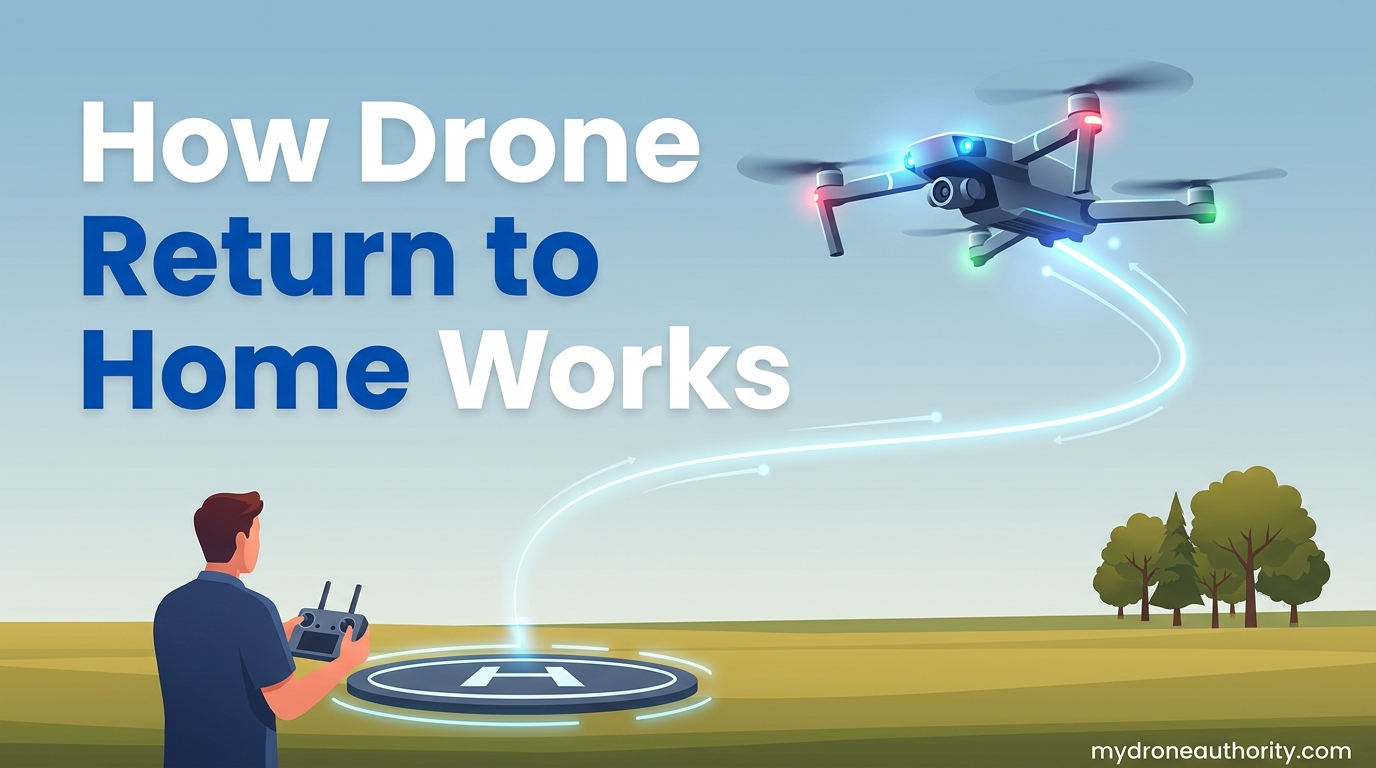
Return to Home (RTH) is the automated fail-safe built into nearly every modern GPS drone that climbs the aircraft to a preset altitude, flies it in a straight line back to its recorded home point, and lands it without pilot input. Understanding how drone return to home works is the single most important safety skill any pilot can develop, because when RTH fails, drones get lost, crashed, or destroyed. Our team has spent hundreds of hours flying DJI Mini, Air, Mavic, and non-DJI models to document exactly when RTH triggers, how the procedure unfolds, and which common mistakes cause it to fail at the worst possible moment.
Most pilots treat RTH like an invisible safety net that will always save their drone. That assumption causes flyaways. RTH is a fail-safe, not a flight plan, meaning it reacts to emergencies after they happen rather than planning around obstacles, wind, or GPS dropouts ahead of time. In this guide we break down the three triggers that activate RTH, the step-by-step procedure your drone follows, the distance thresholds that change its behavior, the altitude setting that determines whether you clear the trees, and the failure modes that Reddit and MavicPilots users report losing drones to most often.
Table of Contents
What Is Return to Home (RTH)?
Return to Home, or RTH, is an autonomous flight mode that brings a drone back to a GPS coordinate recorded as its home point and lands it there without manual control. The feature relies on three systems working together: GPS satellite lock for navigation, the compass for directional orientation, and the barometer plus IMU for altitude hold. If any one of those systems is compromised, RTH can fail or fly the drone somewhere unexpected.
RTH exists as a recovery mechanism, not a convenience feature you should plan flights around. Manufacturers like DJI, Autel, and Skydio include it because radio links drop, batteries drain faster than expected, and pilots occasionally lose orientation. Treating RTH as a backup rather than a primary flight plan is the difference between a drone that lasts years and one that disappears on flight three.
There are several flavors of RTH depending on the trigger and drone model. Smart RTH is pilot-initiated through the app or controller button. Low Battery RTH activates automatically when the battery reaches a critical threshold. Failsafe RTH kicks in when the signal between controller and drone is lost. Newer drones also offer Advanced RTH, which uses obstacle sensing to adjust the route, and Original Route RTH, which retraces the inbound path rather than flying a straight line.
How Drone Return to Home Works: The Three Triggers
Drone return to home works by activating in one of three ways, and the trigger determines what the drone does next. Knowing which trigger fired tells you whether you can cancel safely or whether the drone is committed.
1. Smart RTH (Pilot-Initiated)
Smart RTH is the version you control. You trigger it by pressing the RTH button on the controller or tapping the RTH icon in the fly app. The drone immediately begins the standard return sequence: climb to RTH altitude, rotate toward home, fly straight back, and land. You can cancel Smart RTH at any time by pressing the button again or taking over the sticks.
This is the safest trigger because you choose when it happens. If you spot weather rolling in, lose visual orientation, or simply want the drone back, Smart RTH gives you a clean exit. Just make sure the home point was recorded correctly before you rely on it.
2. Low Battery RTH
Low Battery RTH activates automatically when the battery reaches a percentage the drone calculates as the minimum needed to return home from its current position. On most DJI drones this happens around 25 to 30 percent, with a second critical stage around 12 to 15 percent that forces a landing. The drone factors in distance, wind, and altitude when calculating this threshold, so the trigger percentage is not fixed.
You can cancel Low Battery RTH and keep flying, but the drone will warn you again at critical level and eventually force a landing wherever it is. Forum users who ignored the second warning have watched their drones descend into fields, trees, and water. The safe move is to let Low Battery RTH run once it triggers.
3. Failsafe RTH (Signal Loss)
Failsafe RTH triggers when the connection between the controller and drone is lost. This is the recovery mode most pilots hope they never need. After a signal-loss timeout that typically lasts 3 to 11 seconds depending on the model and settings, the drone climbs to RTH altitude and heads home.
Failsafe only works if you configured it before takeoff. Many drones let you choose between Return to Home, Hover, or Land on signal loss. Reddit is full of posts from pilots who discovered too late that their drone was set to Hover instead of Return to Home, only to watch the battery die mid-hover after a disconnect. Check this setting every single flight.
The Standard RTH Procedure Step by Step
Regardless of which trigger activates it, drone return to home works by following the same five-step sequence. Understanding each step helps you predict where your drone will be and what could go wrong.
- Home point check. The drone confirms it has a valid home point recorded. If the home point was never recorded or has expired, RTH cannot complete and the drone will either hover or land in place.
- Climb to RTH altitude. The drone ascends vertically to the altitude you set in the app. If the drone is already above that altitude, it stays at its current height instead of descending first.
- Rotate to face home. The drone yaws until its nose points toward the recorded home point GPS coordinates.
- Fly straight line home. The drone flies directly toward the home point at cruising speed. On drones with obstacle avoidance, sensors may redirect it around objects, but basic RTH flies a straight geometric line.
- Descend and land. Once over the home point, the drone descends vertically and lands. Landing Protection may pause the descent if it detects an unsafe surface.
The entire sequence typically takes one to several minutes depending on distance and wind. The climb phase is where most user-reported surprises happen, because moving the throttle stick during climb cancels the ascent and leaves the drone at whatever height it reached.
Distance Thresholds: How Close Is Too Close for RTH
Drone return to home works differently depending on how far the aircraft is from the home point when RTH triggers. These thresholds confuse more pilots than any other RTH behavior, and the confusion directly causes crashes. MavicPilots forum testing and DJI documentation confirm the following distance-based logic on most DJI drones.
Within 5 meters of home point: The drone will not fly RTH at all. It lands in place. Pilots who trigger RTH expecting the drone to fly back those last few meters watch it descend wherever it is, sometimes into a roof or bushes.
Between 5 and 20 meters from home point: The drone does not perform the standard RTH sequence. Instead it lands in place, because the system assumes you are close enough to land manually or the drone is near enough that a return flight is unnecessary. This is the threshold that catches the most pilots off guard.
Beyond 20 meters from home point: The full RTH sequence runs. The drone climbs to RTH altitude, rotates, flies home, and lands.
The 20-meter rule exists because flying RTH inside that radius creates more risk than it solves. The drone would climb into obstacles and then immediately descend, with no benefit over a simple manual landing. Non-DJI drones use different thresholds, sometimes as low as 5 meters, so check your specific model’s manual.
Setting the Right RTH Altitude
RTH altitude is the height the drone climbs to before flying home, and it is the single most important RTH setting on your aircraft. Set it too low and the drone flies a straight line into trees, power lines, or buildings on the way back. Set it higher than necessary and you burn battery and risk exceeding legal altitude ceilings.
The correct RTH altitude is the height of the tallest obstacle between your flying area and the home point, plus a safety margin. For most suburban pilots this means 50 to 80 meters. For rural open-field flying, 30 meters may be plenty. For urban areas with tall buildings, you may need 100 meters or more, which can approach the legal ceiling in many countries.
To measure this before flying, walk or drive your planned flying area and note the tallest object in the straight-line path back to your takeoff spot. Add 10 to 20 meters of safety margin. Set that number in the fly app’s RTH altitude field. Never assume the default value is correct for your location.
If the drone is already above the RTH altitude when RTH triggers, it stays at its current altitude rather than descending to the setting. This is a safety feature that prevents the drone from dropping into obstacles during descent.
Home Point Recording: Why It Matters
The home point is the GPS coordinate the drone returns to during RTH. On most consumer drones, the home point is recorded automatically when the drone arms its motors and acquires sufficient GPS lock. An “H” icon appears on the app map to confirm the home point is set.
The most common home point mistake is assuming the home point updates as you walk. It does not. If you take off, then walk 200 meters down a trail while flying, RTH will fly the drone back to where you took off, not where you are standing now. Pilots who fly while hiking lose drones this way regularly.
To fix this, most modern apps have a “Update Home Point to Current Location” or “Dynamic Home Point” feature. Enable it before flying if you plan to move. If you forgot, you can manually update the home point mid-flight by tapping the option in the app, as long as your phone or controller has GPS.
Always wait for GPS lock before taking off. Arming motors without satellite lock means no home point is recorded, and RTH has nothing to return to. Multiple Reddit users report losing drones because they took off inside a building or under heavy tree cover before GPS was ready.
When Return to Home Fails: Common Failure Modes
RTH is reliable when conditions are right, but it fails predictably when conditions are wrong. Here are the failure modes reported most often in forums and our own testing, along with what causes each one.
Bad or Missing Home Point
If the home point was never recorded, recorded in the wrong location, or has expired, RTH has nowhere to go. The drone either hovers until the battery dies or lands in place. Always confirm the “H” icon on the map matches your actual takeoff location before flying away.
RTH Altitude Set Too Low
This is the leading cause of RTH crashes into obstacles. The drone flies a straight line home at the altitude you set, and if that altitude is below a tree, building, or power line, it flies straight into it. Set the altitude based on the tallest obstacle in the return path, not the average obstacle.
Throttle Stick Cancels the Climb
During the climb phase of RTH, moving the left throttle stick down cancels the ascent. The drone stops climbing and begins its return flight at whatever altitude it reached, which may be too low. This catches pilots who instinctively try to control the drone during RTH. Leave the sticks alone during RTH unless you intend to cancel it.
Signal Loss With RTH Set to Hover
If the Failsafe behavior is set to Hover instead of Return to Home, a signal loss leaves the drone hovering at its current position until the battery dies. Always confirm Failsafe is set to RTH before every flight.
Night and Low-Light RTH Failures
The downward vision positioning system that helps the drone land accurately stops working in low light. RTH still flies the drone home, but the landing phase can drift or fail. Avoid relying on RTH landings after sunset, and never rely on obstacle avoidance in darkness because the sensors need visible light.
Compass and GPS Interference
Strong magnetic interference from reinforced concrete, metal structures, or parked vehicles can throw off the compass. A bad compass reading means the drone does not know which direction home is, and RTH flies it the wrong way. Calibrate the compass whenever you fly from a new location and watch for compass error warnings in the app.
Wind Exceeding Drone Speed
If headwinds on the return path exceed the drone’s cruising speed, it cannot make progress home and burns battery fighting the wind. The drone may trigger Low Battery RTH and then critical landing before reaching you. Check wind speed at altitude, not just at ground level, before flying far.
Obstacle Avoidance Interference
On drones with active obstacle avoidance, the sensors can stop or redirect the drone mid-RTH if they detect something in the path. Some Reddit users report their DJI Mini 4 Pro stopped mid-RTH and hovered because obstacle avoidance triggered on thin branches the camera struggled to interpret. This is safer than flying into the obstacle, but it can leave the drone hovering until battery runs low.
How to Cancel RTH Safely
Cancelling RTH is straightforward, but the method depends on how RTH was triggered. For Smart RTH, press the RTH button on the controller again or tap the RTH icon in the app. The drone immediately returns to manual control at its current position and altitude.
For Low Battery RTH, the same cancellation method works, but the drone will warn you again when the battery reaches critical level and eventually force a landing. Cancelling Low Battery RTH twice is how drones end up in trees.
Failsafe RTH cannot be cancelled while the signal is lost, because the drone cannot receive your command. Once signal is restored, press the RTH button or take over the sticks to cancel it. The 3 to 11 second signal-loss delay exists to prevent false triggers from brief interference.
Always confirm the drone has actually stopped RTH before flying manually. The app shows the current flight mode, and the drone’s behavior should match your stick inputs immediately. If it does not, RTH is still active.
RTH Safety and Regulations
Regulators do not treat RTH as a substitute for visual line of sight. In the United States, the FAA requires recreational and Part 107 pilots to maintain visual contact with the drone unless operating under a specific waiver. RTH is a recovery tool for emergencies, not a license to fly beyond visual range.
In the UK, the Civil Aviation Authority’s Air Navigation Order similarly requires visual line of sight, and the 120-meter altitude cap applies to RTH altitude settings. Setting RTH altitude above 120 meters in the UK violates the regulation even if the drone never actually climbs that high during normal flight.
The practical takeaway is this: never launch a flight that depends on RTH to succeed. If the flight is only safe because RTH will save you, the flight is not safe. RTH fails in predictable ways, and relying on it as a primary plan rather than a backup is how pilots lose drones and face regulatory trouble.
Frequently Asked Questions
How does return to home work on drones?
Return to home works by climbing the drone to a preset RTH altitude, rotating to face the recorded home point GPS coordinates, flying a straight line back, and landing automatically. It triggers in three ways: pilot-initiated Smart RTH, automatic Low Battery RTH, and Failsafe RTH on signal loss.
What is RTH for drones?
RTH, or Return to Home, is an automated fail-safe feature that flies a drone back to its recorded home point and lands it without pilot input. It activates on low battery, signal loss, or manual command.
How do I cancel my return to home?
To cancel RTH, press the RTH button on the controller again, tap the RTH icon in the fly app, or take over the control sticks. Low Battery RTH can be cancelled but will re-trigger at critical battery level. Failsafe RTH cannot be cancelled until the signal is restored.
Why won’t my drone return home when it is close to me?
Most drones, including DJI models, will not trigger RTH within 20 meters of the home point. Inside that radius the drone lands in place instead of flying back, because a return flight over such a short distance creates more risk than it solves. If you need the drone closer, fly it manually.
Why did my drone land instead of returning home?
The most common reasons are RTH being set to Land or Hover instead of Return to Home in the Failsafe settings, the drone being within 20 meters of the home point, or Low Battery RTH reaching critical level and forcing a landing before the drone could complete the return flight.
What altitude should I set for RTH?
Set RTH altitude to the height of the tallest obstacle between your flying area and the home point, plus a 10 to 20 meter safety margin. For suburban areas this is usually 50 to 80 meters. Never set it below tree or building height along the return path.
Conclusion
Drone return to home works by combining GPS navigation, compass orientation, and altitude control to fly your aircraft back to a recorded home point on three triggers: manual command, low battery, and signal loss. The feature is reliable when configured correctly and deadly when it is not. Setting the right RTH altitude, confirming the home point before every flight, leaving the sticks alone during the climb phase, and treating RTH as a fail-safe rather than a flight plan are the habits that keep drones in the air over the long run.
If you remember nothing else from this guide, remember this: RTH is a backup, not a plan. Every flight should be safe to complete manually, with RTH there to save the day only when something goes wrong. Configure it, test it in a safe open area before you need it, and check your Failsafe setting every single flight. That discipline is what separates pilots who never lose a drone from pilots who lose three a year.