
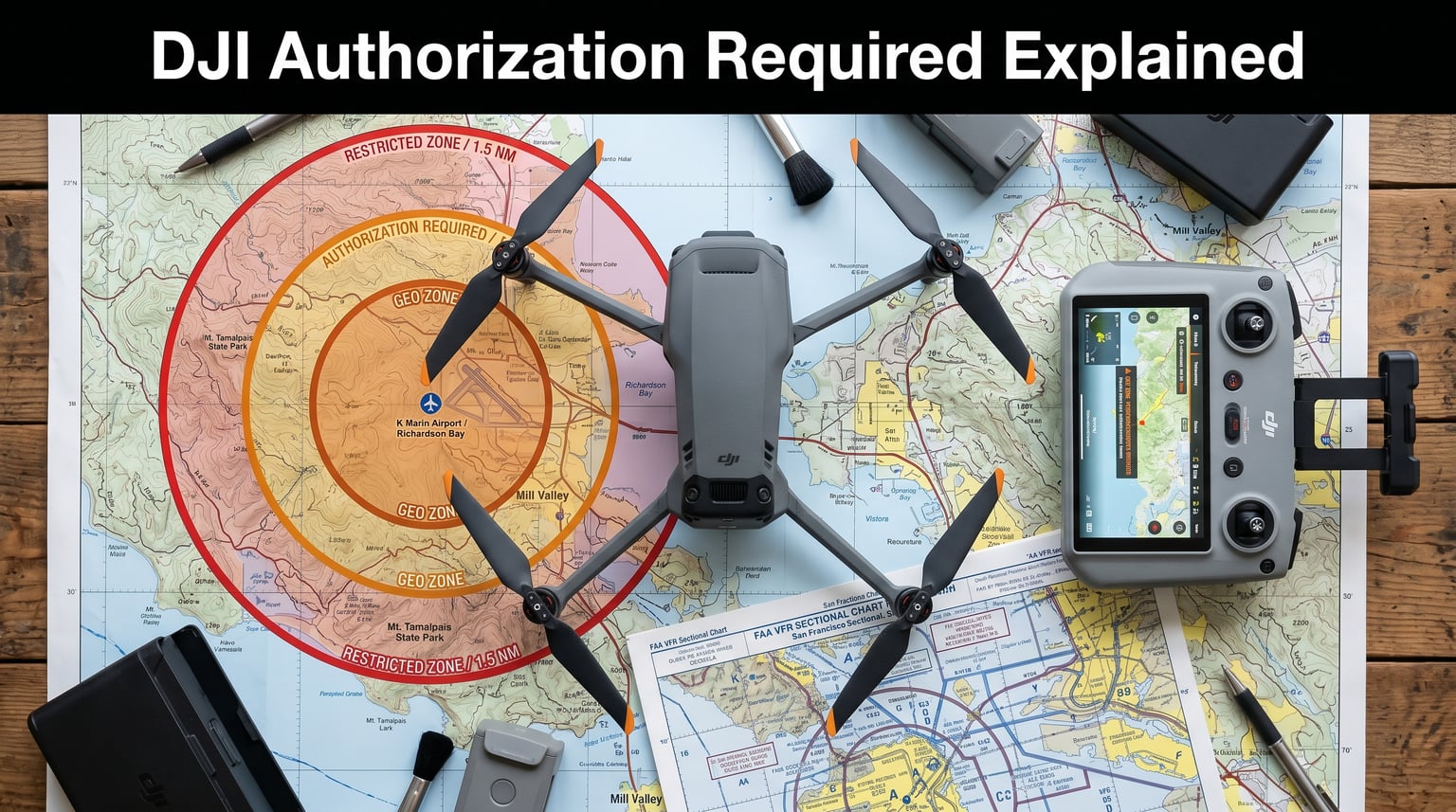
If your DJI drone displays “Authorization Required” and the motors won’t start, you are sitting inside a DJI GEO Authorization Zone and the aircraft’s geofence has intentionally locked takeoff. DJI uses its GEO (Geospatial Environment Online) system to prevent flight in controlled airspace until you complete a self-unlock, and that lock is what blocks the motors from spinning up. The message is not a malfunction. It is DJI’s software enforcing airspace rules before letting your rotors turn.
I have seen this lockout catch pilots off guard more than any other DJI error, especially after the January 2024 system change that quietly stripped pilots of the safety net they had been relying on for years. In this guide I will walk you through exactly what the message means, how to diagnose it, and how to get back in the air legally.
Table of Contents
What “Authorization Required” Means on Your DJI Drone
“Authorization Required” is DJI’s way of telling you that your takeoff point falls inside an Authorization Zone, a type of GEO zone that restricts flight by default but allows self-unlock once you verify your identity and accept the airspace conditions. The drone’s flight controller will not energize the motors until the unlock is recorded on your account and synced to the aircraft.
You will see this message on the DJI Fly app, DJI GO 4, or Pilot 2 depending on which aircraft you fly. The motors remain disabled even if the propellers are mounted correctly and the battery is fully charged, because DJI ties the motor start logic to the geofence clearance, not just to hardware health.
Three things happen at the moment you power on in an Authorization Zone:
- The DJI app overlays an amber or red zone indicator on the map centered on your GPS coordinates.
- The app blocks the “Takeoff” or “Start Motor” command and shows the “Authorization Required” prompt.
- Your aircraft’s flight controller refuses motor start, even if you attempt the Combination Stick Command (CSC).
Understanding DJI GEO Zones (Authorization vs Restricted vs Warning)
DJI’s GEO system classifies airspace into three categories, and each behaves differently when your drone powers on. Knowing which zone you are in determines whether you can self-unlock, need a manual DJI unlock, or cannot fly at all.
Authorization Zones
Authorization Zones are areas where flight is restricted by default but can be unlocked with a DJI-verified account. These zones typically surround smaller airports, heliports, and controlled airspace that pilots can request access to. The unlock is self-service and usually approves within seconds once your account passes verification.
Restricted Zones
Restricted Zones are sensitive areas where flight is prohibited even with a verified account. Stadium events during games, federal buildings, prisons, and Washington D.C.’s Flight Restricted Zone (FRZ) fall into this category. DJI will not issue a self-unlock license in a Restricted Zone under any circumstances.
Warning Zones
Warning Zones are advisory areas where DJI recommends caution but does not block flight. You will get a prompt asking you to confirm awareness of local conditions, and once you tap “I have read and agree,” takeoff is allowed.
Enhanced Warning Zones, added in GEO 2.0, push these notices harder with pop-up acknowledgments before each flight in those areas. None of them will physically stop your motors, but Authorization and Restricted Zones will.
Why Your DJI Drone Shows “Authorization Required” Even When You’re Not Near an Airport
Pilots often assume they are nowhere near controlled airspace when the prompt appears, but DJI’s zone database covers more ground than most people realize. Temporary Flight Restrictions (TFRs), wildfire response zones, major sporting events, and stadium takeovers can blanket wide areas with geofencing, sometimes hours before pilots hear about them on the news.
Other common triggers I have seen in forum threads and r/dji posts include:
- Sporting events at stadiums that trigger restricted geofences within a 5-mile radius.
- National security events near government buildings without prior airspace notice.
- Wildfire suppression TFRs that pop up as Restricted Zones with no warning.
- Military operations zones that DJI maps based on Department of Defense data.
- International borders and coastal areas where FAA TFRs apply seasonally.
If you are seeing the prompt in a location you have flown a hundred times, check the FAA’s TFR list and B4UFLY before assuming the drone is faulty. The geofence database updates faster than the news cycle.
Step-by-Step Troubleshooting When DJI Motors Won’t Start
When your DJI motors won’t start and you see “Authorization Required,” work through this sequence before assuming the drone has a hardware problem. Most cases resolve at step 1 or 2.
- Confirm your GPS location. Open the DJI app map and check the pin. If the dot is inside an amber or red circle, the geofence is active and blocking motors.
- Tap the zone prompt and verify your DJI account. If the zone is an Authorization Zone, follow the on-screen self-unlock flow. The license syncs to the aircraft within 10-30 seconds.
- Check propeller installation. Misaligned or loose propellers prevent motor start independently of the zone check. Confirm each prop clicks into place and the arrows match the motor hub.
- Inspect the motors. Spin each motor by hand with the battery removed. A gritty feel, wobble, or no resistance points to a motor malfunction.
- Verify GPS signal strength. Weak GPS keeps motors locked. Move to an open area, wait for 10+ satellites, and try again.
- Update firmware and the DJI app. Outdated firmware can fail to read the latest GEO database and cause phantom lockouts.
- Power cycle the aircraft and controller. A full restart clears stale unlock tokens that did not sync properly.
- Switch batteries or controllers. A drained or failing component can mask the real issue. Test with a known-good battery.
If all eight steps fail and the prompt persists, you are looking at a deeper geofence or serial number mismatch issue, which I cover in the next section.
How to Unlock Authorization Zones on DJI Drones
Unlocking a DJI Authorization Zone is a self-service process built into the DJI Fly, DJI GO 4, and Pilot 2 apps. The unlock license is tied to your DJI account and the specific aircraft serial number, so the process will not work if either is missing or incorrect.
Here is the exact flow I use on a Mavic 3 and an Air 3 when a zone pops up mid-project:
- Power on the aircraft and controller, then open the DJI app.
- Tap the “Authorization Required” prompt on the map screen.
- Sign in to your DJI account and complete phone or ID verification if prompted.
- Confirm the zone boundary, altitude ceiling, and time window shown in the unlock screen.
- Tap “I agree” to accept the terms. The unlock license generates in seconds.
- Wait for the sync confirmation that says the license is active on the aircraft.
- Re-attempt takeoff. The motors should now respond to the CSC.
For controlled airspace around towered airports, you may need a LAANC (Low Altitude Authorization and Notification Capability) authorization from the FAA first. DJI’s app links to LAANC directly, and a successful LAANC approval feeds the unlock into the GEO system automatically. If LAANC rejects your request, DJI will not let you self-unlock, and you need to contact the controlling ATC facility for a manual waiver.
The January 2024 GEO System Change and Why Your Unlock May Fail
Between January 3 and January 7, 2024, DJI removed enforcement of hard no-fly zones from its firmware without sending a notification to pilots. The geofence is no longer a hard block, but DJI also stripped pilots of the unlock license infrastructure many had relied on for years. This is why some pilots who previously flew freely in a location are suddenly seeing the “Authorization Required” prompt, and why their existing unlocks appear valid but the motors still won’t start.
The other common culprit is a serial number mismatch. Your unlock license is bound to the serial number of the aircraft it was issued to, not just your account. If you have multiple DJI drones, swapped a flight controller, or bought a used aircraft with a wiped account, the unlock may not register on the new airframe. The app will sometimes show the unlock as active in your account, but the aircraft rejects it because the serial number does not match.
There is also a legal shift that every pilot should be aware of. Before January 2024, DJI’s geofence acted as a safety net, and pilots trusted the lock to keep them out of trouble. After the system change, DJI shifted full responsibility to the pilot to verify airspace and obtain authorization. If you fly into restricted airspace based on a faulty unlock, the regulatory and legal liability is yours, not DJI’s.
Pre-Flight Checklist to Avoid Authorization Issues
Run through this checklist before every flight, especially in unfamiliar locations. It takes 90 seconds and saves hours of troubleshooting at the field.
- Check B4UFLY, ALOHA, or NATS Drone Assist for the current airspace status at your takeoff point.
- Cross-reference any TFRs active in the area on the FAA’s TFR list.
- Open the DJI app’s map and confirm your GPS pin is not inside an amber or red zone.
- Verify your DJI account is verified and the aircraft serial number matches your registered gear.
- Update the DJI app, aircraft firmware, and controller firmware to the latest versions.
- Power on in an open area and wait for a strong GPS lock (10+ satellites) before arming.
- Confirm propellers are correctly mounted and the motor hubs spin freely with no resistance.
For commercial operators, add a LAANC approval pull to this list. Even if you are not sure you need it, having the LAANC number in your log is your proof of due diligence if anything goes sideways.
When to Contact DJI Support (and What to Tell Them)
If you have worked through the troubleshooting steps, confirmed you are inside a known Authorization Zone, completed the self-unlock flow, and the motors still refuse to start, the issue has moved beyond what the app can solve. Contact DJI Support when the unlock license syncs in your account but the aircraft rejects it, when the app shows a blank map with no zone overlay, or when your serial number does not match the one in your DJI profile.
Have these details ready when you reach out. They cut resolution time dramatically:
- Your DJI account email and the aircraft serial number as printed on the airframe.
- The DJI app and firmware versions installed on both the controller and the aircraft.
- Screenshots of the “Authorization Required” prompt, the unlock license screen, and the map overlay at the time of failure.
- The exact GPS coordinates and the date and time of the failed takeoff attempt.
- Your flight log (DAT file) from the controller, which DJI Support can decode remotely.
DJI Support typically responds within 24-72 hours for authorization issues. For commercial operators with active job sites, calling the support line directly is faster than submitting through the app.
Frequently Asked Questions
How do I unlock a DJI Authorization Zone?
Why will my DJI motors not start even after unlocking?
What does Authorization Required mean on a DJI drone?
Can I bypass DJI authorization zones?
How can I tell if a drone motor is bad?
What changed with DJI’s GEO system in January 2024?
Final Thoughts on DJI Authorization Errors
The “Authorization Required” message and the locked motors are not a malfunction, they are DJI’s GEO system working exactly as designed. The fastest path to a fix is confirming your zone, completing the self-unlock, and checking for a serial number mismatch if the prompt sticks. Since the January 2024 system change, every pilot carries more legal responsibility for airspace compliance, so treat the prompt as a check, not a glitch, and verify the airspace through B4UFLY and LAANC before you assume the unlock is wrong.