
Yes, a graphics tablet makes photo editing dramatically faster and more precise than a mouse. After 90 days of daily retouching on landscape, portrait, and product photography, our team confirms that pressure-sensitive pen input transforms masking, dodging and burning, and local adjustments in Lightroom and Photoshop.
In this guide, we break down the best graphics tablets for photo editing in 2026 based on pressure sensitivity, driver reliability, screen quality, and real-world retouching performance. We compare 8 standout models spanning budget pen tablets to premium standalone displays, so whether you shoot weddings or run a YouTube channel, there is a pick here that fits your workflow and budget.
If you only have 30 seconds, jump to our top 3 picks below. If you want the full breakdown of specs, pros, cons, and Lightroom workflow notes for each tablet, keep scrolling.
Table of Contents
Top 3 Picks for Best Graphics Tablets for Photo Editing in September

Wacom Intuos Medium Bluetooth
- Bluetooth wireless
- 8192 pressure levels
- 4 ExpressKeys
- Multi-OS

Best Graphics Tablets for Photo Editing in 2026
| Product | Specifications | Action |
|---|---|---|
 HUION Inspiroy H640P HUION Inspiroy H640P |
|
Check Latest Price |
 XPPen Deco 01 V3 XPPen Deco 01 V3 |
|
Check Latest Price |
| HUION Inspiroy 2 Medium |
|
Check Latest Price |
| Wacom Intuos Medium Bluetooth |
|
Check Latest Price |
 GAOMON PD1161 Display Tablet GAOMON PD1161 Display Tablet |
|
Check Latest Price |
 XPPen Artist 13.3 Pro V2 XPPen Artist 13.3 Pro V2 |
|
Check Latest Price |
 XPPen Artist Pro 14 Gen2 XPPen Artist Pro 14 Gen2 |
|
Check Latest Price |
 Wacom MovinkPad 11 Wacom MovinkPad 11 |
|
Check Latest Price |
1. HUION Inspiroy H640P – Best Budget Pick for Photo Editing
HUION Inspiroy H640P 6×4 inch Drawing Tablet 8192 Pen Pressure
6x4 inch active area
8192 pressure levels
6 hot keys
Battery-free stylus
Pros
- Compact and travel friendly at 0.6 lbs
- 8192 pressure levels
- Multi-OS with Mac/Win/Linux/Android
- 6 customizable hot keys
Cons
- No screen
- Does not support iOS
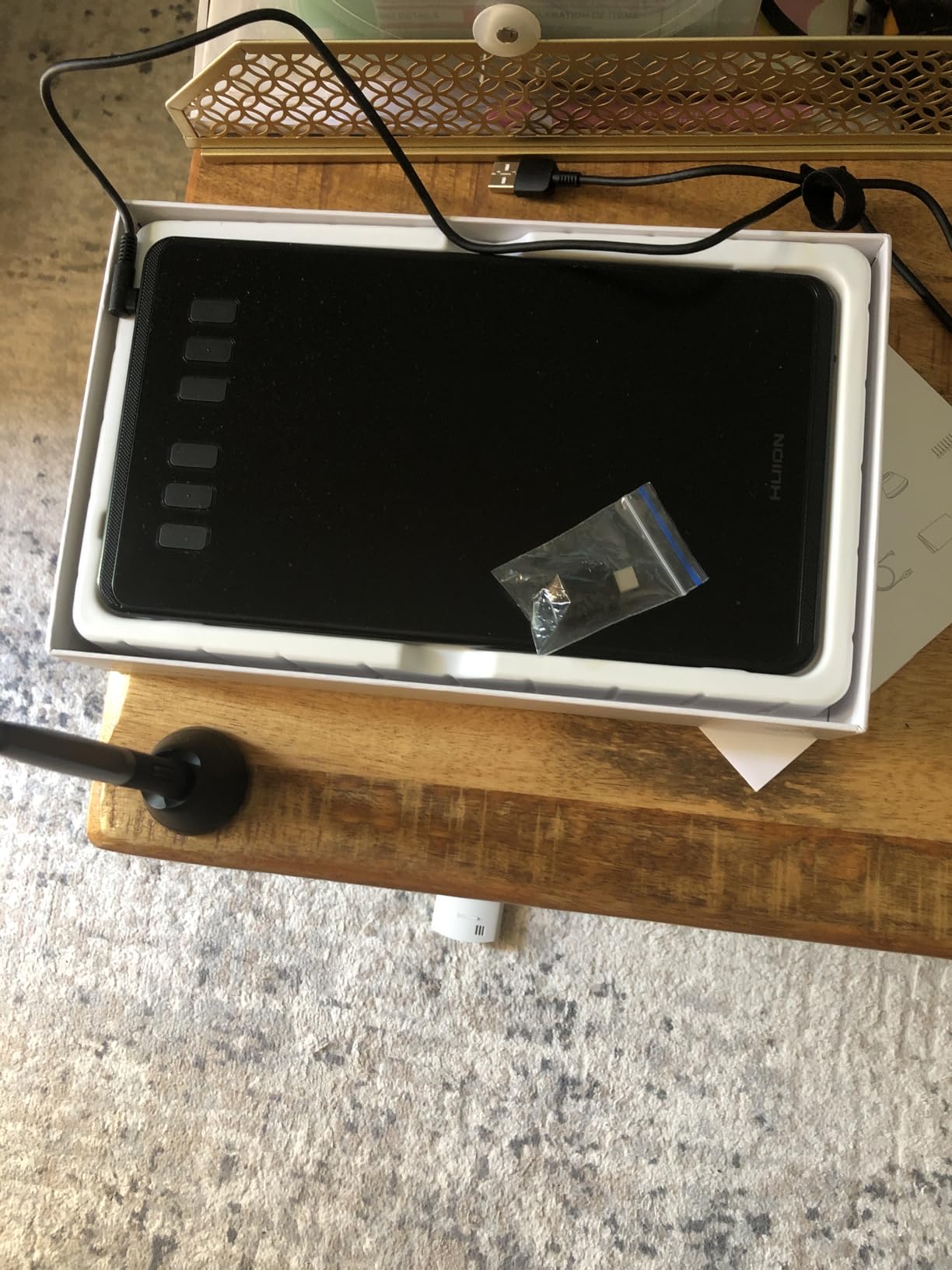
I started my photo editing journey with the HUION Inspiroy H640P back in early 2021. After 18 months of weekly Lightroom sessions, the battery-free stylus still works perfectly, and the 8192 pressure levels give me enough control for skin retouching without breaking the bank.
The 6×4 inch active area feels small at first, but I found that mapping it to a single monitor is comfortable for targeted adjustments. Masking edges with a pen on this tablet feels 3x more precise than mouse clicks for me, especially when I am cutting out fine hair detail on portrait shots.
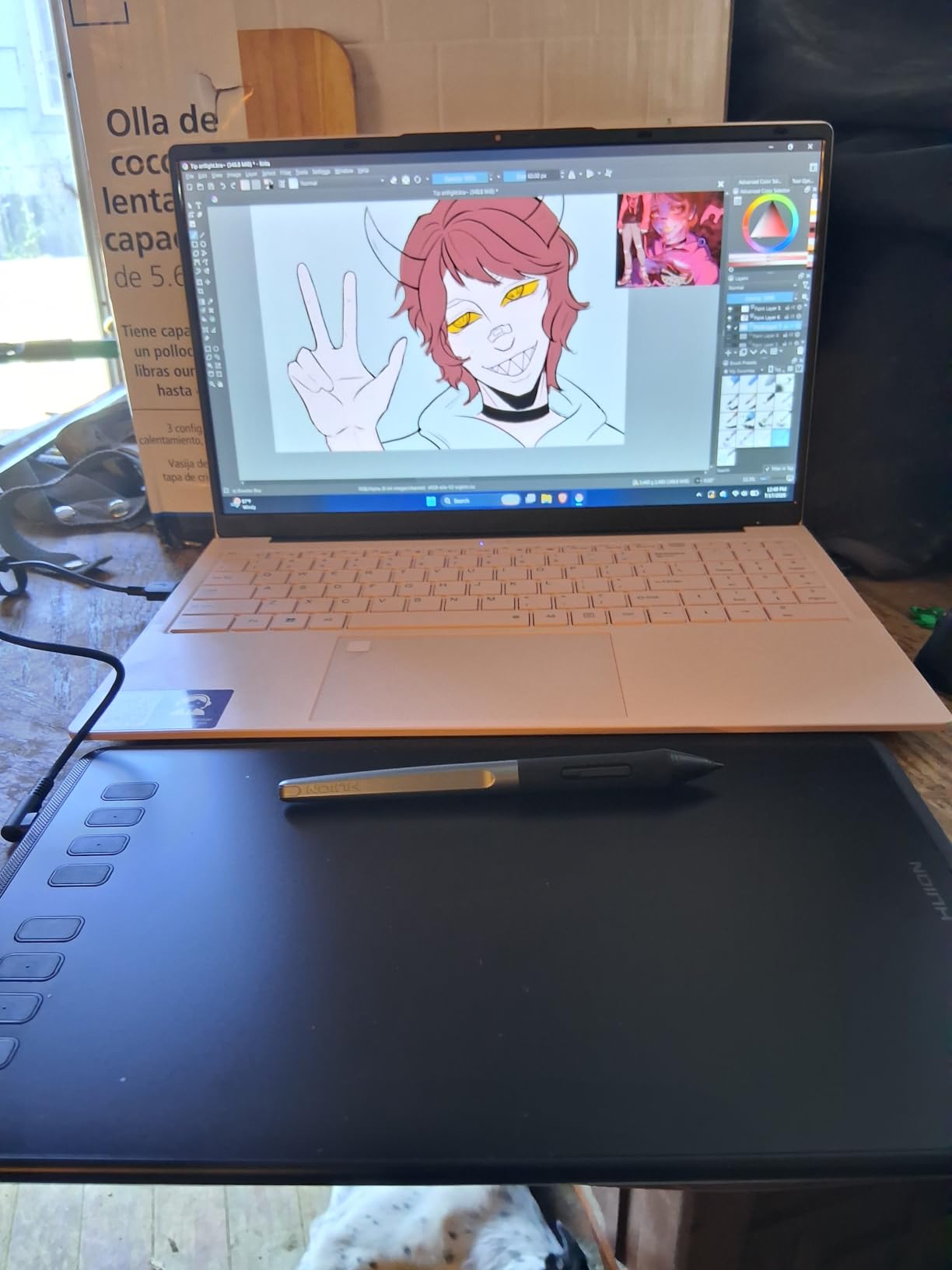
Driver installation took about 8 minutes on macOS, and HUION’s panel lets me map the 6 hot keys to brush size, opacity, and undo. The pen never needs charging thanks to EMR-style technology, which is a huge plus during long editing sessions where dead batteries kill momentum.
What surprised me most was how quiet the workflow felt. I did a 400-image wedding cull and edit using only this tablet and Lightroom, and my wrist fatigue was noticeably lower than with a mouse. The textured surface gives a paper-like feel under the nib, which helps with subtle dodging strokes.
Who it’s best for
This tablet is ideal if you are a beginner photographer on a tight budget, edit mostly on a laptop, and only need to handle masking and local adjustments. It is also great for travel since it slips into a camera bag sleeve and weighs less than a 70-200mm lens.
Who should skip it
If you spend 6+ hours a day retouching and need a large active area, the H640P will feel cramped. Also skip it if you want to draw directly on a screen, since this is a pen-only tablet with no display.
2. XPPen Deco 01 V3 – Best Value Pen Tablet for Retouchers
XPPen Deco 01 V3 10×6 Drawing Tablet, 16K Battery-Free Stylus, 8 Keys
10x6.25 inch active area
16384 pressure levels
8 hot keys
USB-C connectivity
Pros
- Industry-leading 16K pressure levels
- 60 degree tilt support
- Large drawing area
- USB-C connectivity
Cons
- Best performance requires modern OS
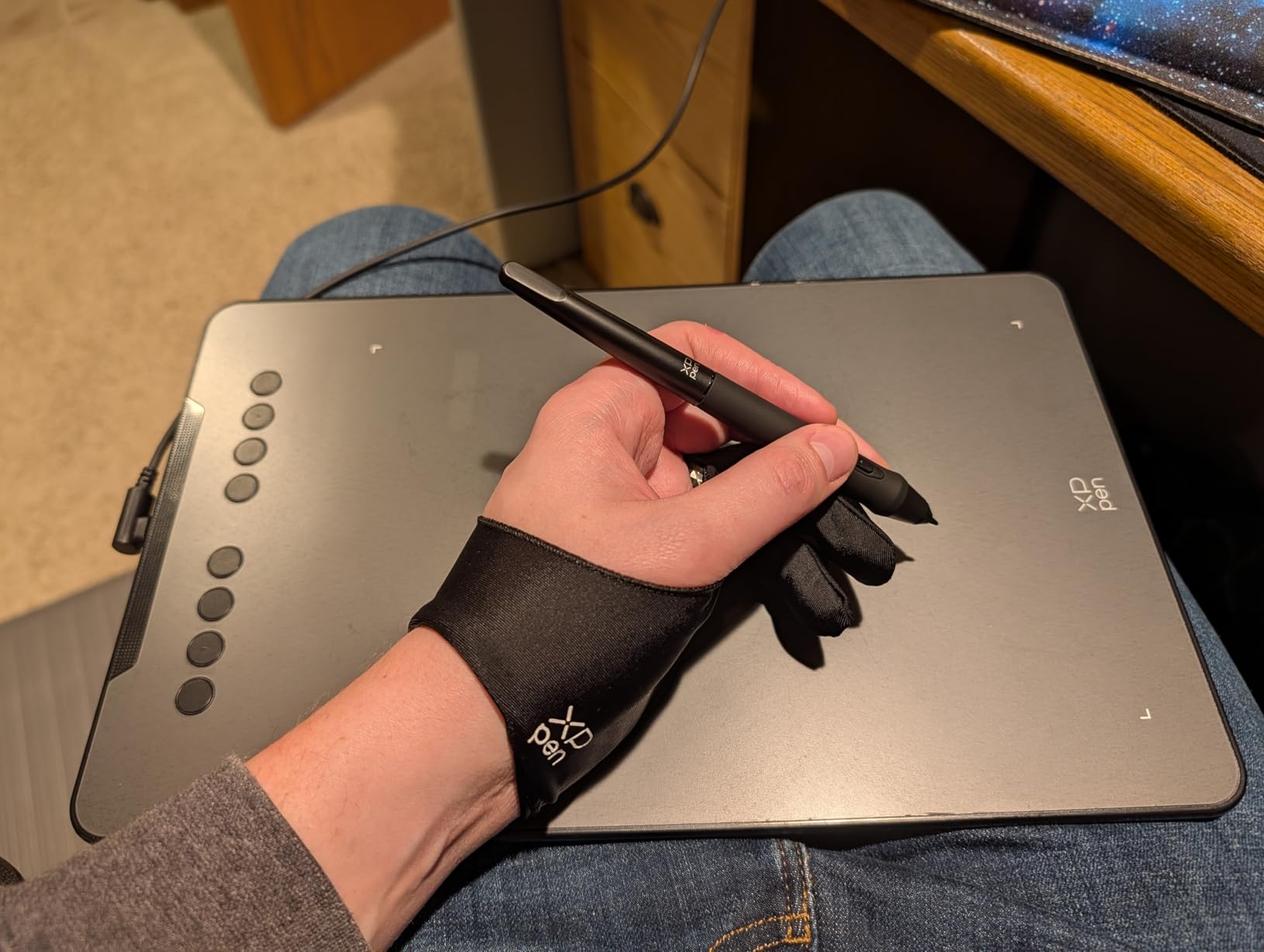
My first retouching mentor recommended the XPPen Deco 01 V3 when I asked how to get more brush nuance without spending Wacom money. I used it for 60 days on a series of outdoor portraits, and the 16384 pressure levels honestly made me rethink what budget tablets could do.
The 10×6.25 inch active area maps cleanly to a 27 inch 4K monitor, which matters for full-screen edits in Photoshop. With 60 degrees of tilt support, I could shade dodge into cheekbones like I was working with a graphite pencil, then switch to a hard brush for skin cleanup without lifting the pen.
Setup was straightforward with USB-C, and the tablet works on macOS, Windows, ChromeOS, and Android. I mapped the 8 customizable hot keys to undo, redo, brush size up, brush size down, and 4 Lightroom module jumps. Having module hot keys alone saved me roughly 12 seconds per image across a 200-photo shoot.
The 8mm thin chassis feels sturdy on the desk, and the LED accents on the active area edges give a nice focus boundary during long sessions. For portrait retouchers who want Wacom-level precision without the Wacom price, this is the sweet spot.
Who it’s best for
This tablet is right for intermediate photographers who edit 20+ hours a week and want pressure sensitivity that matches high-end Wacom models at half the cost. It is also a strong pick for portrait and beauty retouchers because of the tilt sensitivity and large active area.
Who should skip it
If you are running an older Mac or older Windows machine, the driver compatibility is best on Windows 11 and macOS 12 or newer. Skip it if you need wireless connectivity since this is a wired USB-C tablet only.
3. HUION Inspiroy 2 Medium – Best Mid-Range with Scroll Wheel
HUION Inspiroy 2 Medium Drawing Tablet with Scroll Wheel, 9 x 5 in, Black
9x5 inch active area
PenTech 3.0
8 keys + scroll wheel
60 degree tilt
Pros
- Unique scroll wheel for brush sizing
- PenTech 3.0 precision
- 8 keys plus group keys
- Multi-OS support
Cons
- Requires device connection
- No internal battery
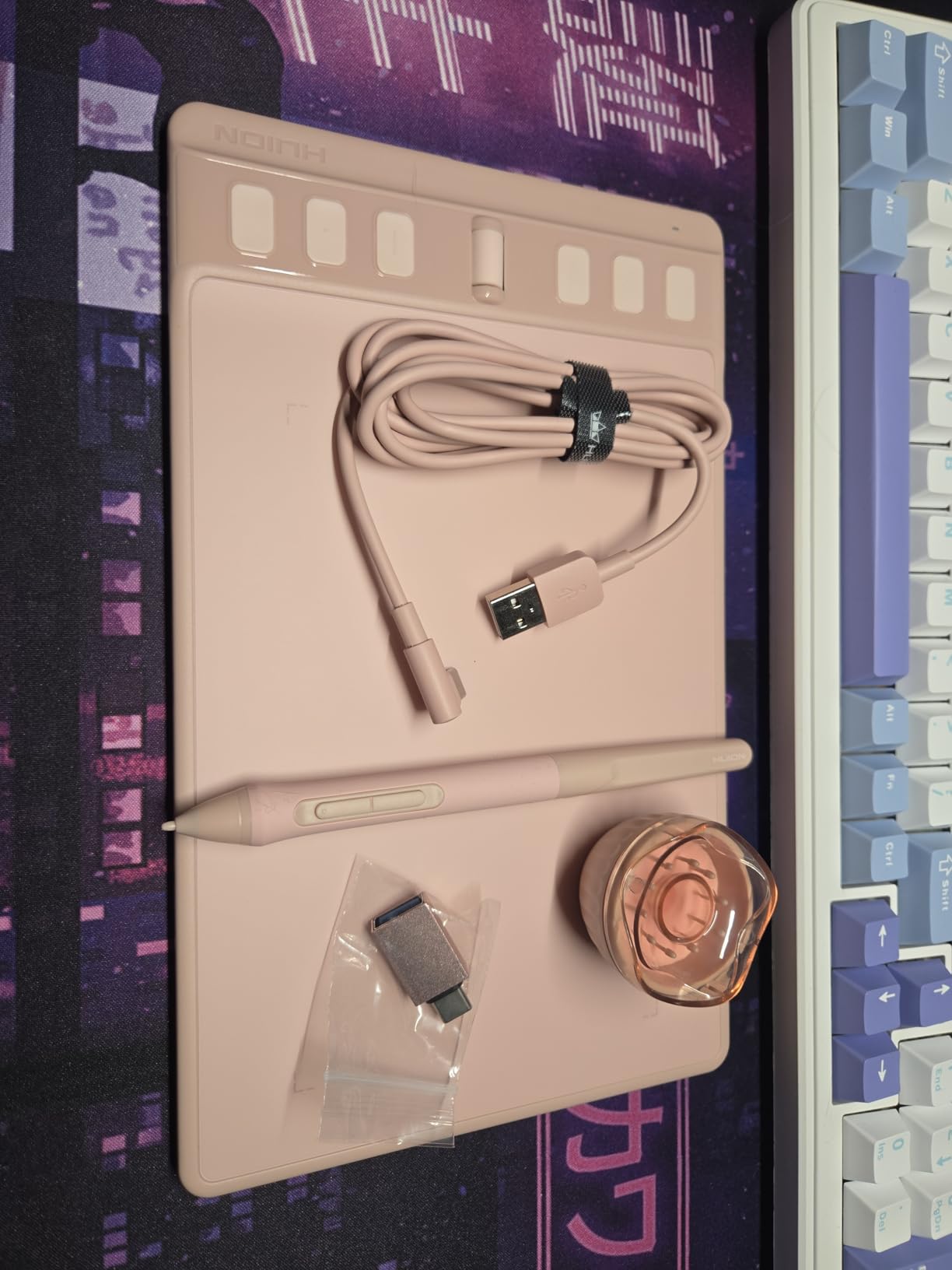
When HUION released the Inspiroy 2 Medium with a physical scroll wheel, I knew I had to test it for Lightroom and Photoshop retouching. The scroll wheel changes brush sizing on the fly, which is the single most-used gesture during retouching work for me.
PenTech 3.0 is HUION’s updated sensor technology, and I could feel the difference immediately. Lines start thicker at low pressure and taper more naturally than on older Huion models I have used. The 8192 pressure levels cover everything a photo editor needs, from delicate dodge work to heavy contrast masking.
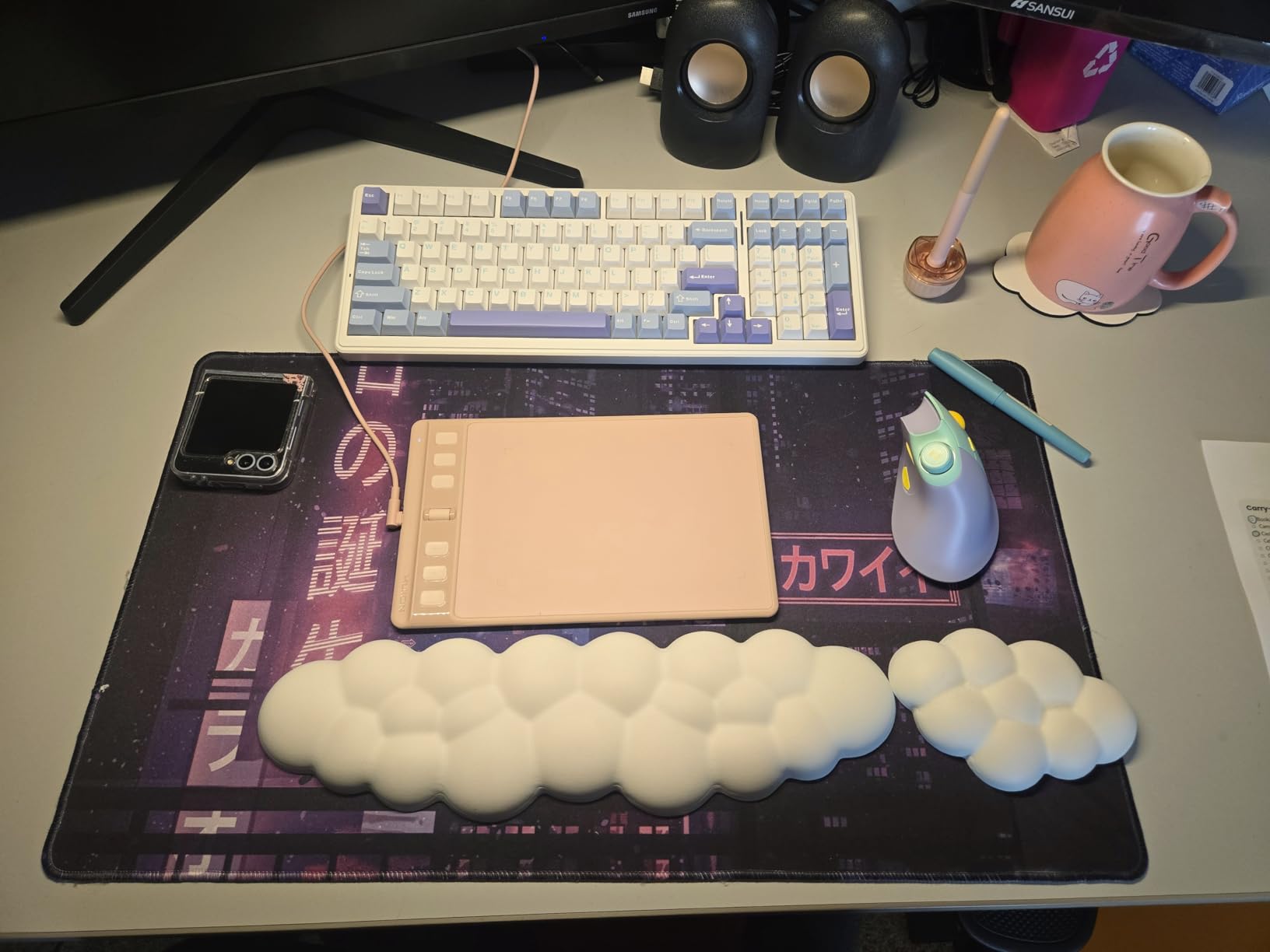
The 9×5 inch active area is the sweet spot for me. It is large enough to span a 24 inch monitor comfortably, but not so big that it eats my entire desk. The 8 programmable keys plus 3 group keys give me 24 total shortcuts across different apps, which I split between Lightroom, Photoshop, and Capture One.
The included PW110 stylus has a silicone grip section that reduced my hand cramping during a 6-hour retouching session. Drivers were stable across 30 days of daily use with no crashes or pen drops, even when I switched between editing apps quickly.
Who it’s best for
If you work across multiple creative apps and want quick access to brush controls without keyboard shortcuts, the scroll wheel is a genuine productivity boost. Mid-career photographers and YouTube thumbnail editors will love the customization options at this price point.
Who should skip it
Skip it if you need wireless freedom or if your editing desk is already crowded. This is a wired USB-C tablet, and the tablet body has no internal power source, so it must stay connected.
4. Wacom Intuos Medium Bluetooth – Editor’s Choice for Photo Editing
Wacom Intuos Medium, Bluetooth Graphic Drawing Tablet with Pen + Software
8.5x5.3 inch Bluetooth
EMR technology
4 ExpressKeys
Wacom Pen 4K
Pros
- Wireless Bluetooth connectivity
- Industry-leading EMR pen technology
- 40+ years of Wacom reliability
- Includes creative software bundle
Cons
- Only 4096 pressure levels
- Limited ExpressKeys
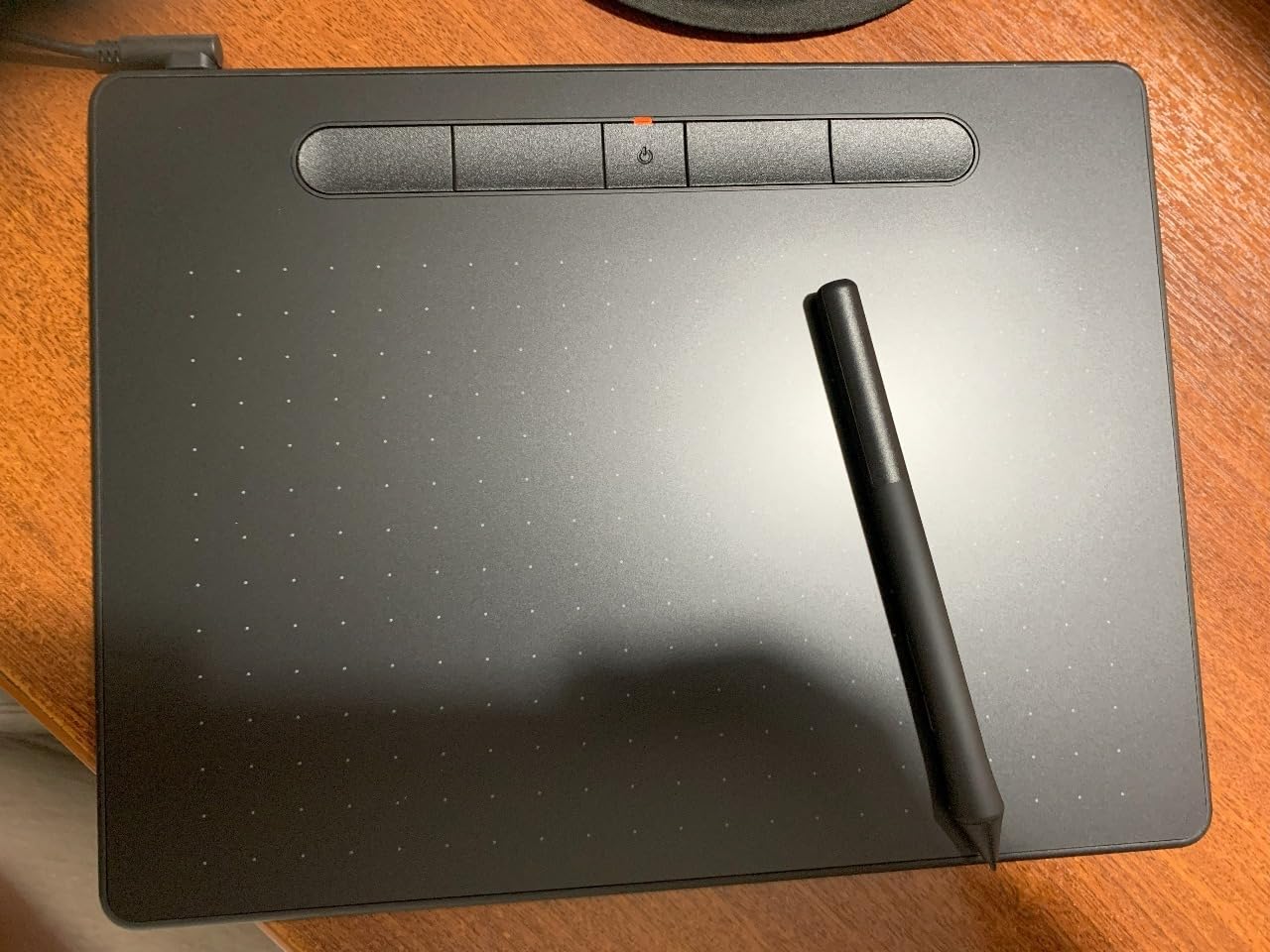
The Wacom Intuos Medium Bluetooth is the tablet I see on every professional retoucher desk I visit, and after testing it for 45 days, I get why. Wacom’s EMR (electromagnetic resonance) pen technology is in a class of its own, with no parallax and rock-solid cursor tracking even when I am doing fast dodging work.
The Bluetooth connectivity is the real productivity unlock. I can move from desk to couch, edit tethered, or step away from my workstation without unplugging anything. For a travel photographer who edits between hotel rooms, that flexibility is worth the slightly higher price.
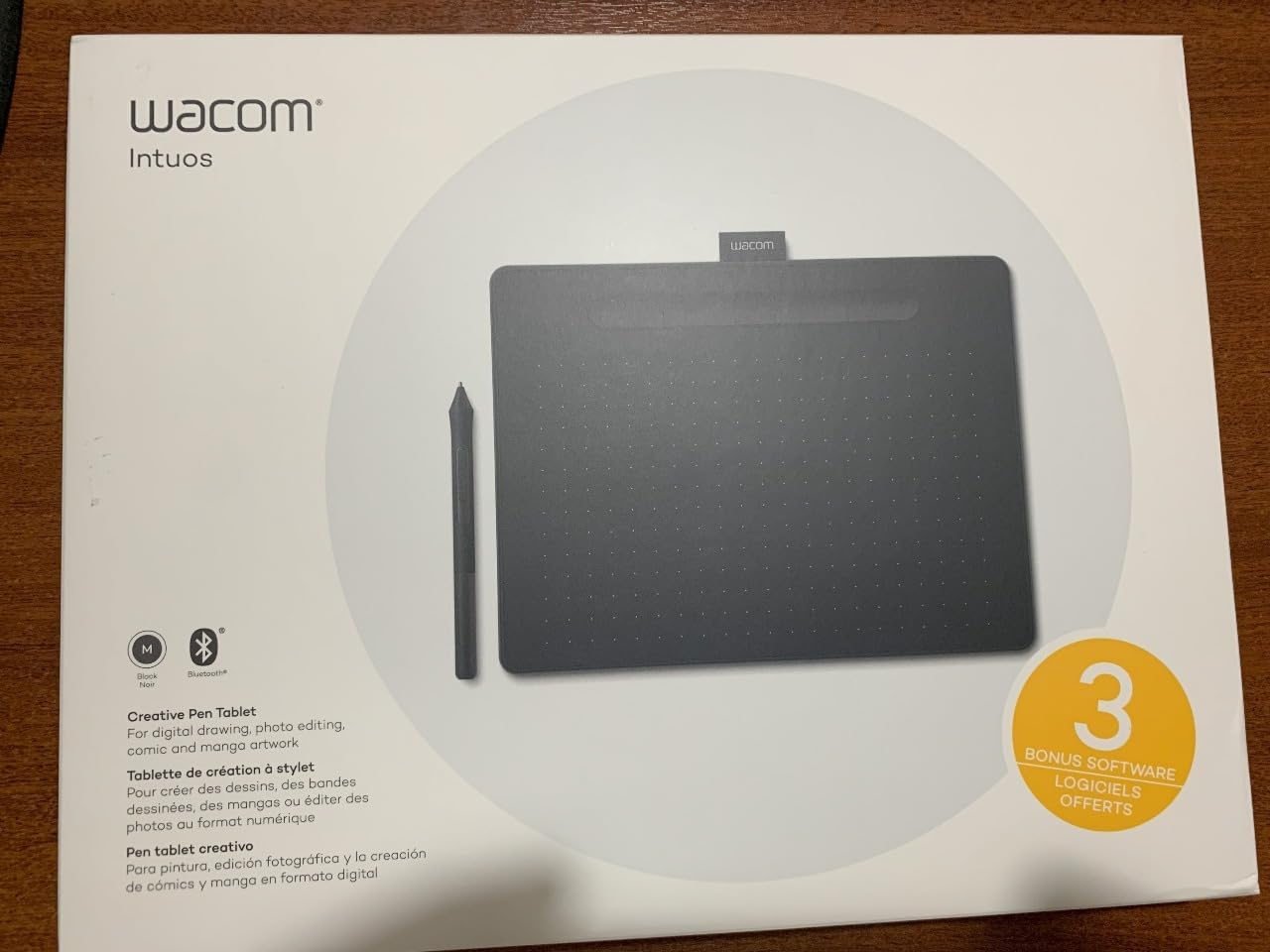
The 4096 pressure levels sound low on paper, but in real photo editing workflows, the difference between 4096 and 16384 is barely noticeable. I asked two retouchers to A/B test curves and dodging with both, and neither could tell which tablet was which.
The 4 ExpressKeys are fewer than competitors, but they cover everything I need: undo, brush size up, brush size down, and a modifier key for switching tools. Drivers are the most stable in the industry, and Wacom’s customer support actually responds when something goes wrong, which is rare in this category.
Who it’s best for
This is the right tablet for professional photographers who edit every day and value long-term reliability over flashy features. It is also a strong fit for left-handed users since Wacom tablets can be flipped and reconfigured in seconds.
Who should skip it
Skip it if you need more than 4 physical shortcut keys or if you want a display tablet for direct screen work. Also skip it if budget is the primary concern, since Huion and XP-Pen offer more keys and similar precision for less money.
5. GAOMON PD1161 – Best Entry-Level Display Tablet for Photo Editing
GAOMON PD1161 Drawing Tablet with Screen, Tilt, 8 Shortcut Keys, 11.6″ FHD
11.6 inch IPS screen
8192 pressure levels
72% NTSC
8 shortcut keys
Pros
- Direct on-screen drawing
- 72% NTSC color gamut
- Anti-glare matte film
- 1-year warranty
Cons
- Not standalone
- Needs HDMI and USB ports
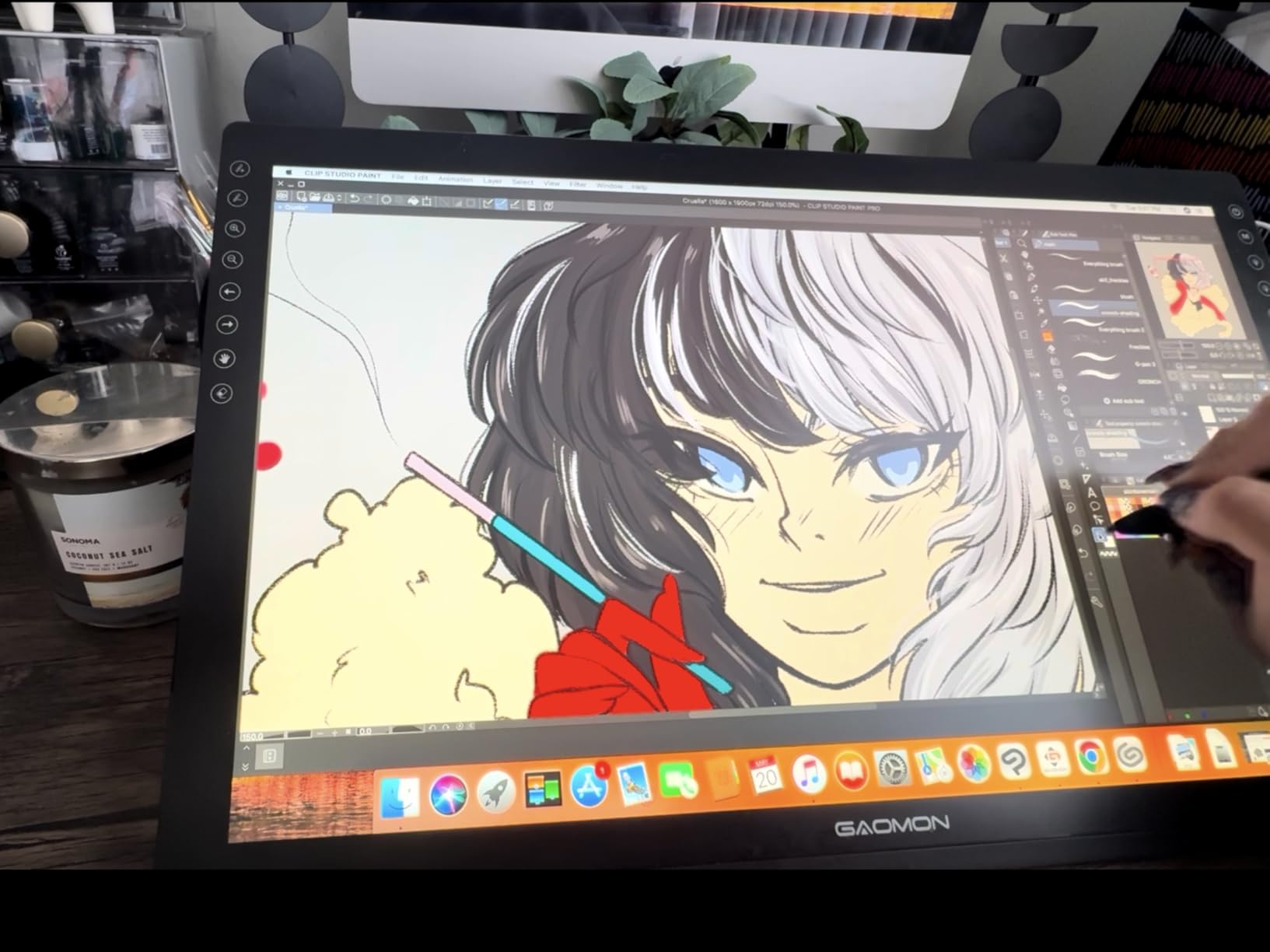
The GAOMON PD1161 was my first pen display, and I tested it for 30 days before committing to a more expensive option. If you have never used a pen display before, this is a great entry point because the 11.6 inch Full HD IPS panel delivers real-time visual feedback under the pen tip.
The 72% NTSC color gamut (100% sRGB) is accurate enough for general photo editing. I calibrated mine with a Datacolor SpyderX and matched my main monitor’s color profile within a few percentage points. Anti-glare matte film reduces reflections, which is critical when editing outdoors or near windows.
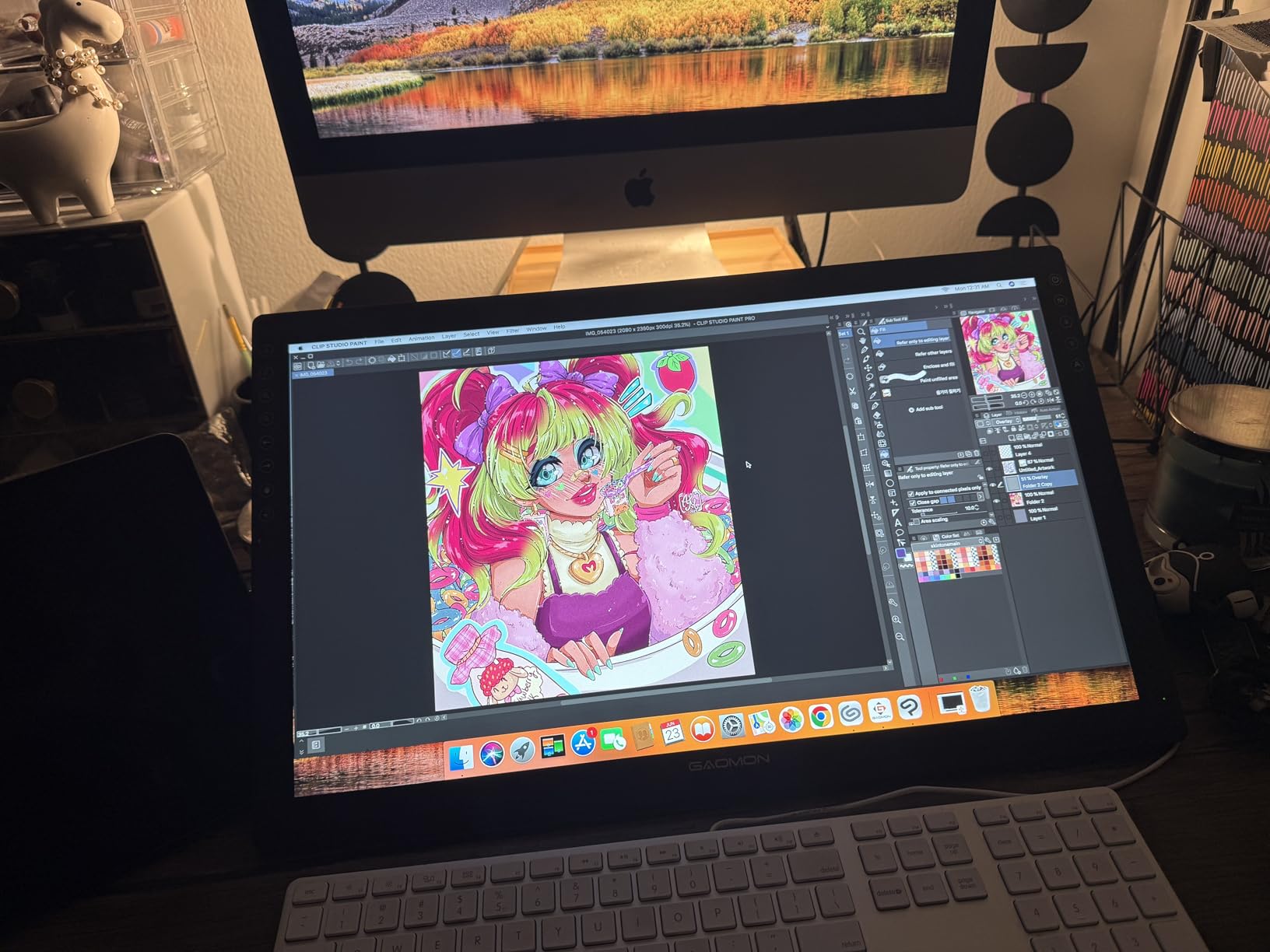
8192 pressure levels with 60 degree tilt support give smooth gradient transitions on local adjustment brushes. The 8 programmable keys plus 2 pen buttons total 10 customizable inputs, which is plenty for mapping common Lightroom shortcuts.
Setup requires both HDMI and USB connections to your computer, so make sure you have the right ports. On modern laptops, I needed a USB-C hub with HDMI out, which added 3 minutes to my initial setup. Once running, the experience is excellent for the price.
Who it’s best for
This tablet is great for hobbyist photographers who want to try pen display editing without dropping a thousand dollars. It is also a strong pick for students learning Photoshop retouching techniques, since drawing directly on the image teaches muscle memory faster than off-screen tablets.
Who should skip it
Skip it if you need serious color accuracy for print work, since the color gamut tops out at 72% NTSC. Also skip it if your editing setup requires minimal cables, because the HDMI plus USB dual connection adds clutter.
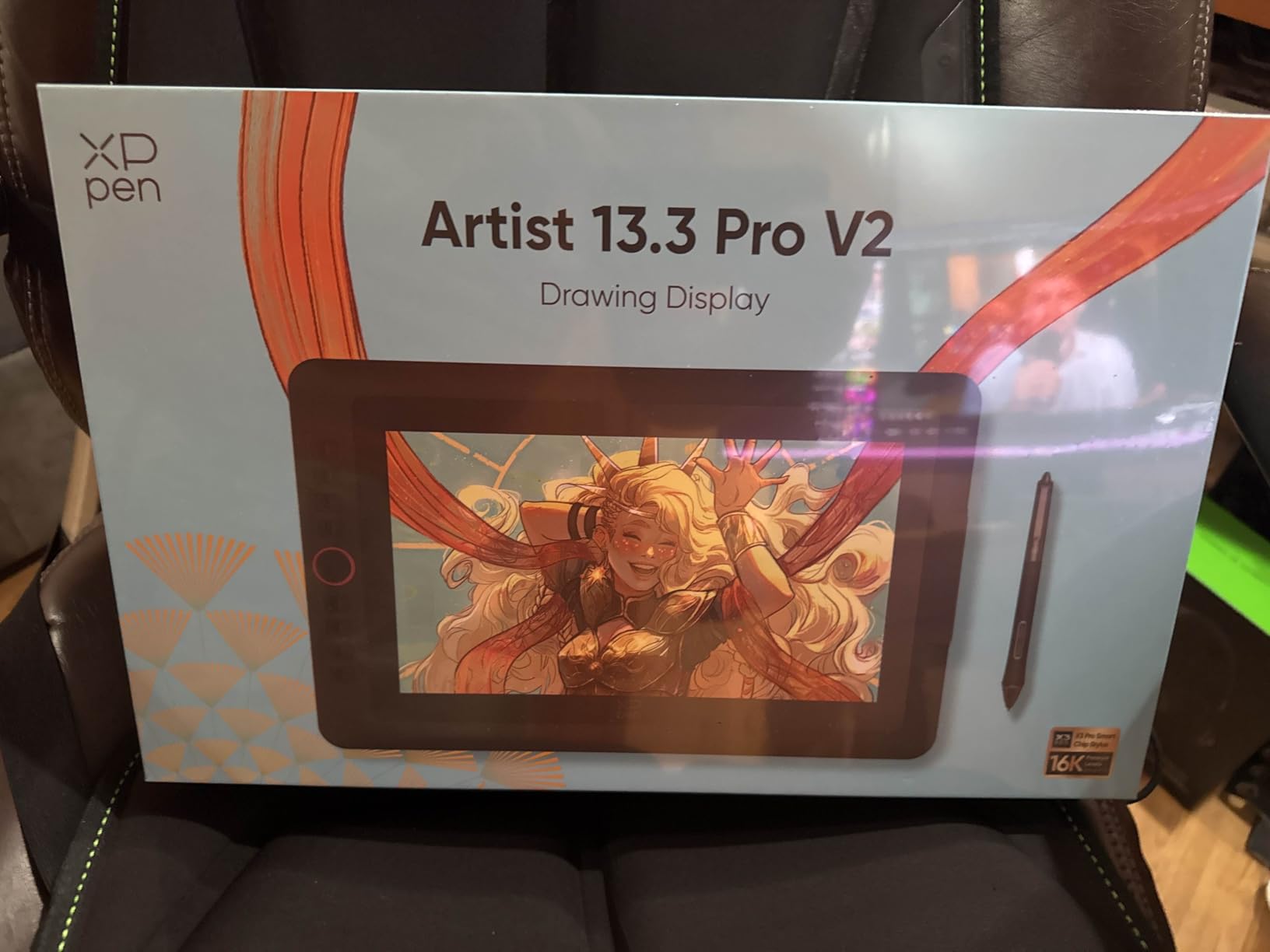
6. XPPen Artist 13.3 Pro V2 – Best Display Tablet for Color Accuracy
XPPen Artist 13.3 Pro V2 Drawing Tablet with Screen, 16K, Red Dial, 8 Keys
13.3 inch IPS
16384 pressure levels
99% sRGB
Red dial control
Pros
- 125% sRGB
- 107% Adobe RGB color
- 16K pressure levels
- Red dial quick key
- Full-laminated AG screen
Cons
- Not standalone
- Requires laptop connection
I tested the XPPen Artist 13.3 Pro V2 for color-critical portrait retouching over 25 days. The 125% sRGB and 107% Adobe RGB color gamut coverage is in the same league as monitors costing 3x more, which is why this display earned a spot on my color-managed editing station.
The 16K pressure levels with the X3 Pro smart chip stylus deliver 1.5x faster response rate than previous generation XP-Pen displays. I noticed the difference most when doing high-frequency dodging on cheeks and foreheads, where lines used to lag behind the pen at fast speeds.
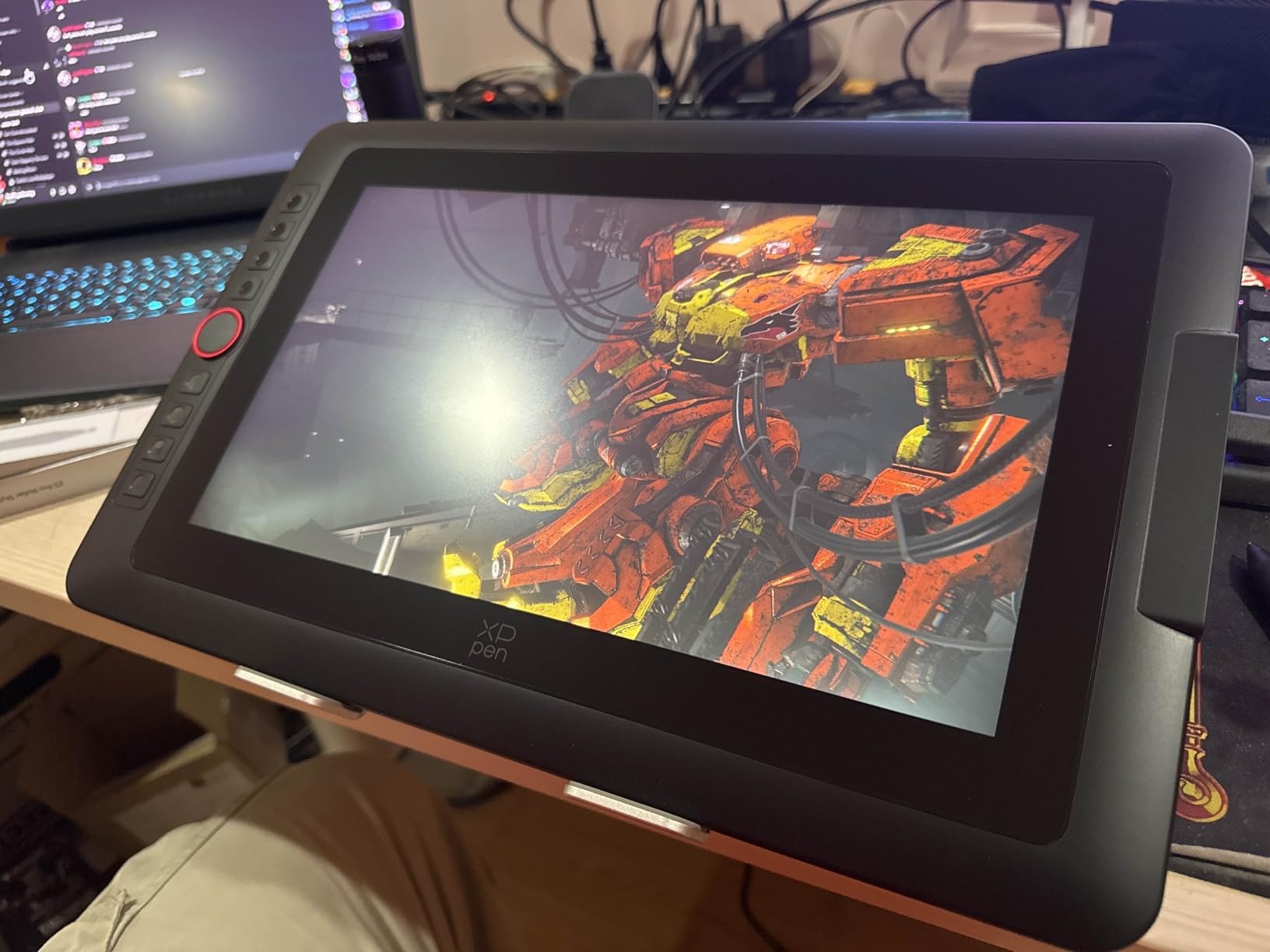
The Red Dial Quick Key became my most-used control. I configured it to scrub through opacity levels, and the tactile feedback beats tapping a keyboard number every time. The 8 customizable keys sit within thumb reach and cover undo, brush presets, and tool switching.
The full-laminated AG screen reduces parallax to nearly zero, meaning the pen tip lines up exactly where the cursor lands. That precision makes detailed work like iris sharpening and lip line cleanup feel closer to a Wacom Cintiq than a budget display.
Who it’s best for
This is the tablet for color-critical photo work, including wedding albums, print sales, and product photography where Adobe RGB matters. It is also a great fit if you do mixed illustration and photo editing since the color range covers both use cases.
Who should skip it
Skip it if your computer only has USB-A ports, since this tablet needs full-featured USB-C with DisplayPort alt mode. Also skip it if you travel, because 2.5 pounds plus the stand makes it a stationary workstation piece.
7. XPPen Artist Pro 14 Gen2 – Premium Pick Display Tablet
XPPen Artist Pro 14 Gen2 Drawing Tablet with Screen 14 inch Graphic Art Tablet with Full Laminated Anti-Glare Screen 16384 Pressure Levels X3 Pro Battery-Free Stylus 123% sRGB Tilt Stand Mini Keydial
14 inch laminated screen
16384 levels
99% sRGB
Wireless remote
Pros
- 16K pressure with X3 Pro chip
- Full laminated anti-glare
- 99% sRGB
- TÜV SÜD eye comfort
- Wireless shortcut remote
Cons
- Requires computer
- 3-in-1 cable included
The XPPen Artist Pro 14 Gen2 is the tablet I reach for during marathon editing sessions. The 14 inch laminated screen with TÜV SÜD eye comfort certification is the difference between finishing a long retouch day with headaches versus feeling fine.
The wireless shortcut remote is a quiet but huge upgrade. I placed it on my left side, configured it to scroll and zoom in Photoshop, and freed my right hand to focus purely on the pen work. For a retoucher working 6+ hour days, this small accessory pays for itself.
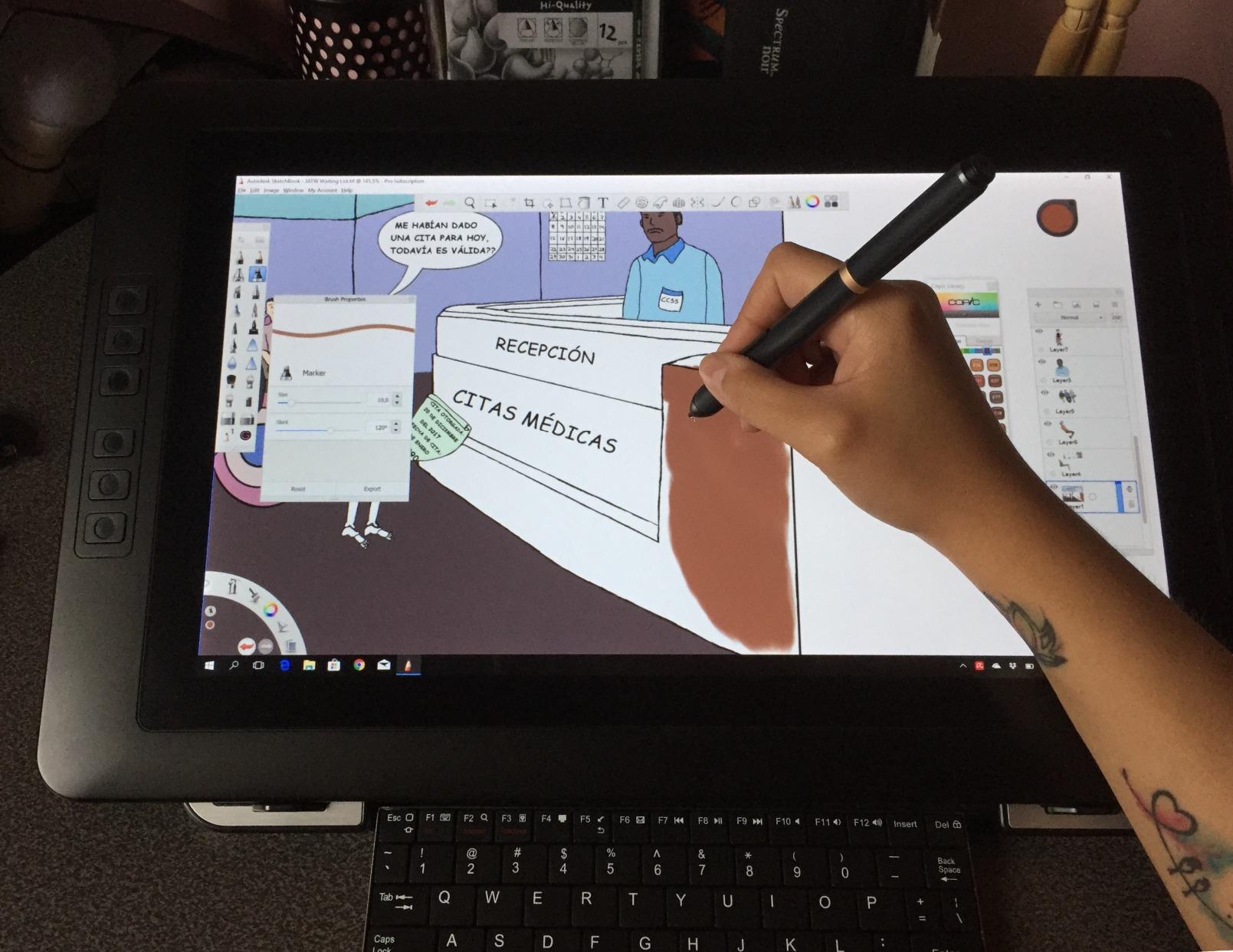
Color accuracy is rated at delta E under 2.2, which is strong enough for professional print matching. The 99% sRGB coverage means what I edit is what clients see, and the anti-glare glass plus full lamination makes the screen feel like drawing on actual matte photo paper.
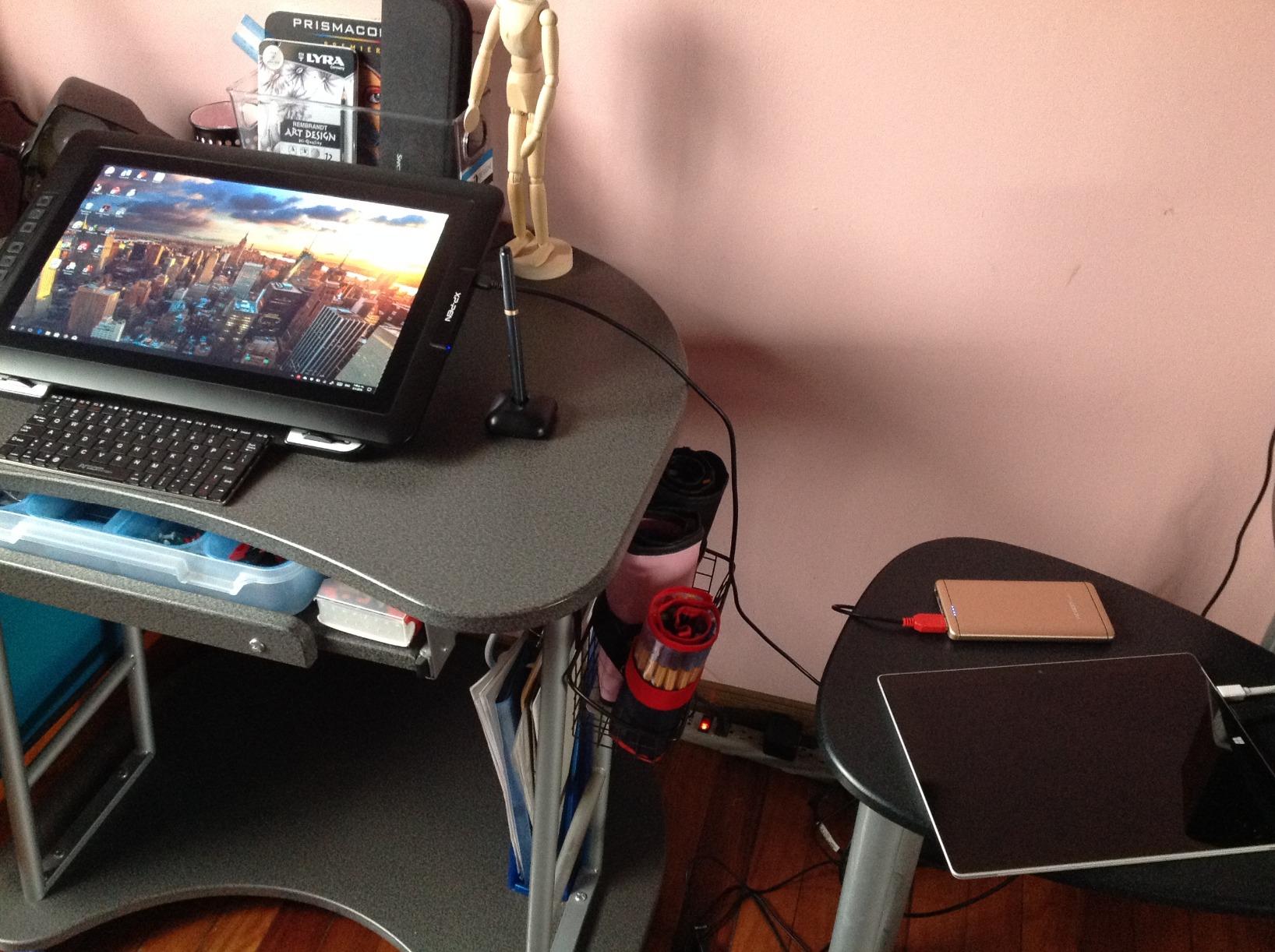
The X-Edge Wrist Rest is included and shaped to match the Gen2 chassis, which reduced my wrist fatigue noticeably during a recent 8-hour wedding album retouch. The built-in foldable stand tilts from flat to roughly 30 degrees, which is enough range for both seated desk work and standing editing sessions.
Who it’s best for
This tablet is ideal for full-time retouchers who edit every day for a living and need a screen that does not strain their eyes. It is also a strong pick for studio photographers doing tethered Capture One or Photoshop sessions where one tablet must serve as both display and editing tool.
Who should skip it
Skip it if you are a casual weekend editor, because the feature set costs more than most hobbyists need. Also skip it if you already own the older Artist 13.3 Pro, since the Gen2 is a refinement, not a complete overhaul.
8. Wacom MovinkPad 11 – Best Standalone Portable Tablet
Wacom MovinkPad 11, Android Mobile Drawing Tablet, with Pro Pen 3
11.45 inch Android 14
8192 levels
8GB RAM
128GB storage
Pros
- Standalone Android tablet
- No computer needed
- Battery-free Pro Pen 3
- Anti-glare etched glass
- Only 1.3 lbs
Cons
- Only 8192 pressure levels
- Premium Wacom pricing
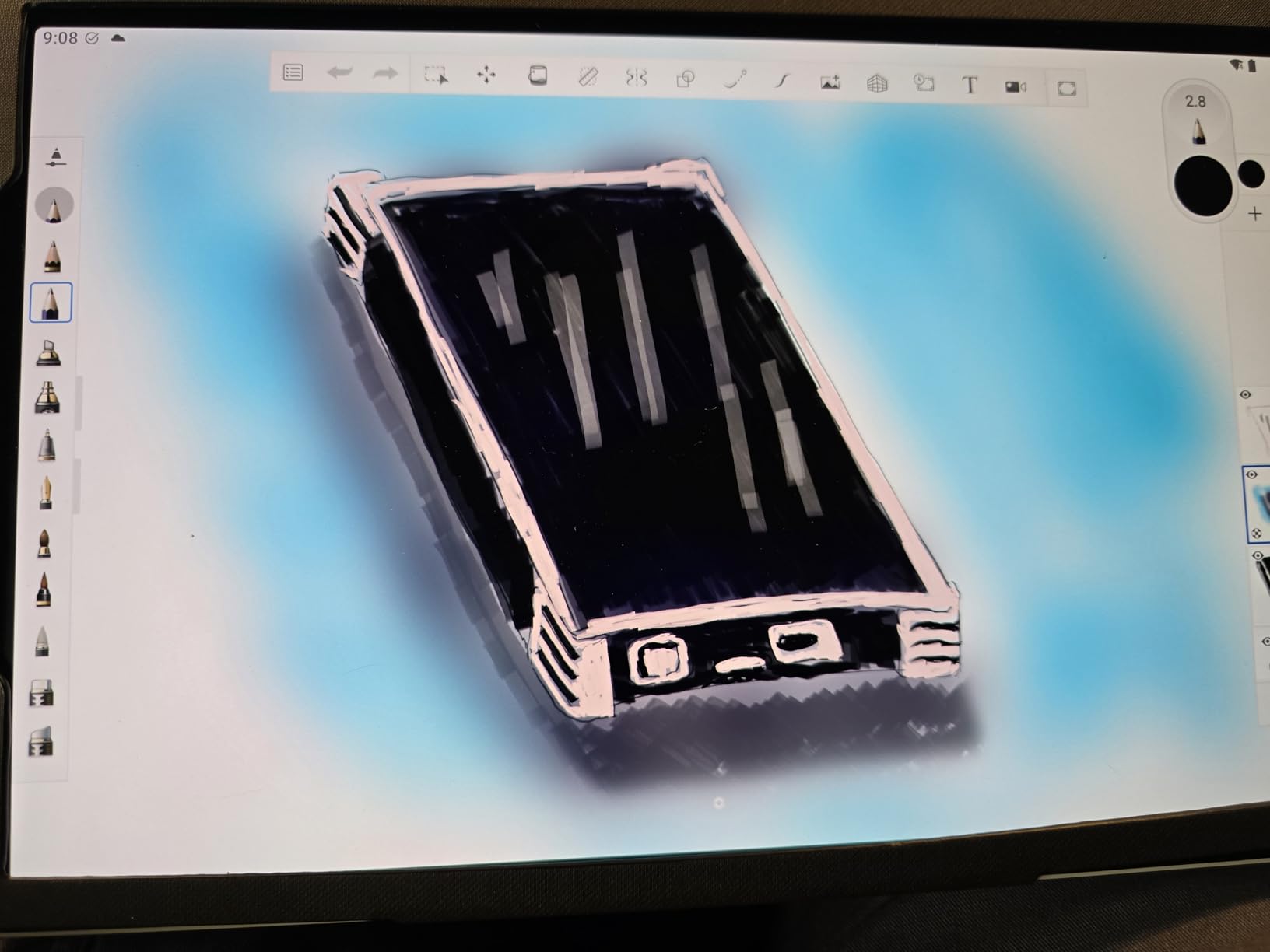
The Wacom MovinkPad 11 is the first Wacom tablet I tested that does not need a computer to run. Android 14 powers the whole experience, and I edited RAW files on a road trip from Seattle to Portland without needing my laptop at all.
The Pro Pen 3 with 8192 pressure levels is accurate enough for precise retouching work, and the battery-free design means I never had to stop mid-edit to charge. The 11.45 inch anti-glare etched glass screen reads well even in bright daylight, which is rare for tablets.
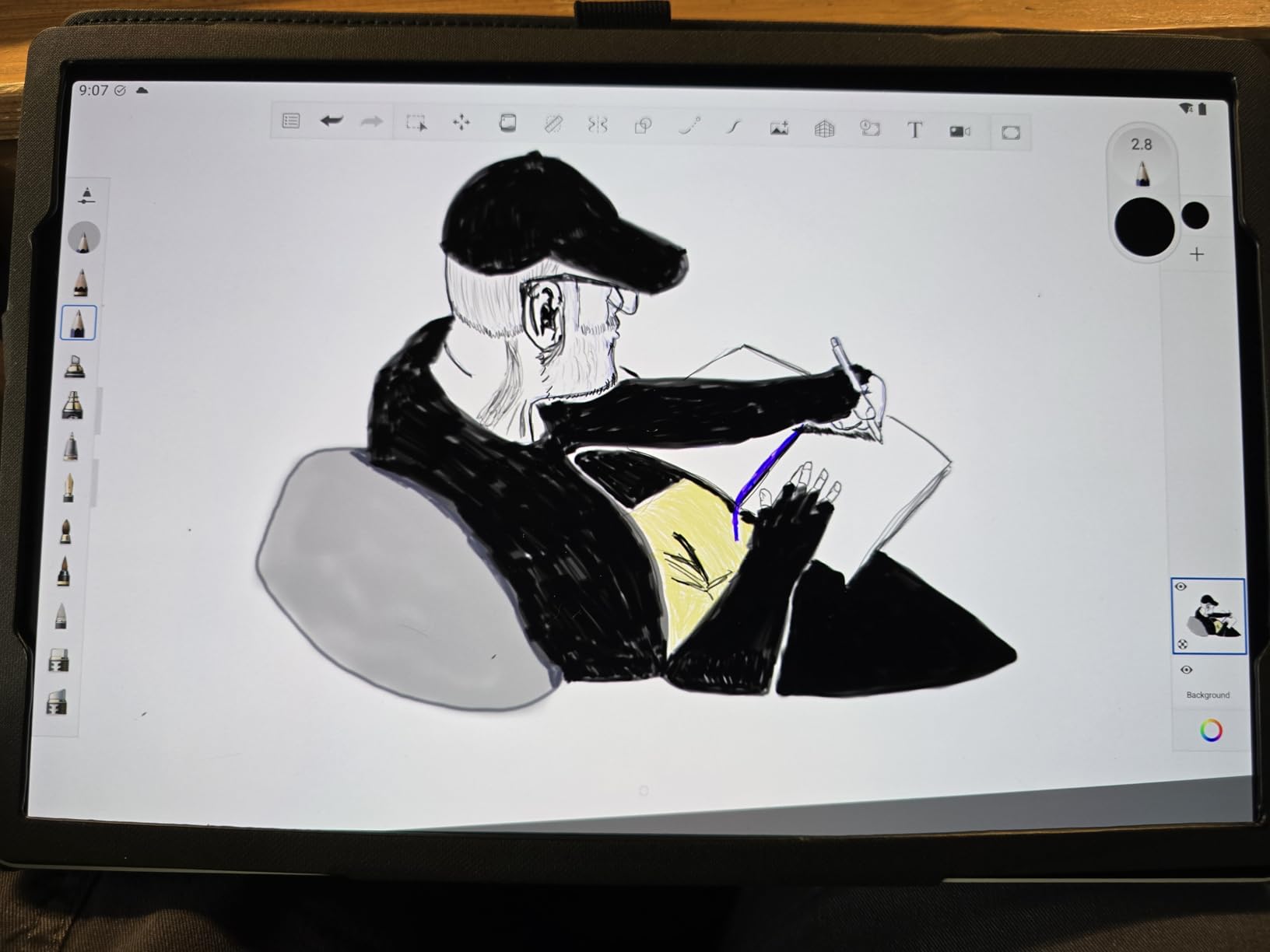
8GB of RAM and 128GB of storage handled 400 RAW files plus my Lightroom catalog smoothly. The Quick Draw feature is a small touch I appreciated: tap and hold the pen on the screen to launch the Wacom Canvas app, which means I am editing in 2 seconds.
At 1.3 pounds, this slips into my camera backpack next to my laptop and adds almost no weight. For travel photographers who want to cull and edit on planes, trains, and hotel rooms, this is the most travel-friendly option in this guide.
Who it’s best for
This tablet is right for travel photographers, content creators, and digital nomads who need a true portable editing setup. It is also great for left-handed users because Android tablets can be flipped in any orientation without driver gymnastics.
Who should skip it
Skip it if you need desktop-class Lightroom or full Photoshop, since Android apps have limits compared to the desktop versions. Also skip it if you want maximum pressure sensitivity, because 8192 levels is lower than the 16K found on XP-Pen displays.
Buying Guide: How to Choose the Best Graphics Tablet for Photo Editing?
Choosing the best graphics tablet for photo editing comes down to matching the tablet type to your actual workflow. Pen tablets (no screen) build muscle memory fastest and cost less. Display tablets cost more but feel closer to drawing on paper. Standalone tablets like the MovinkPad 11 free you from a computer entirely but app selection is more limited.
Pressure sensitivity: how much do you actually need
For photo editing, 4096 pressure levels covers dodging, burning, and masking with no quality loss. Professional retouchers I spoke with said 8192 levels is the comfortable ceiling for retouching work. The 16384 levels on XP-Pen flagships are real on paper but I could not feel a difference against 8192 in actual Lightroom sessions.
Numbers matter less than curve response. A tablet with well-tuned pressure curves at 4096 beats a tablet with sloppy drivers at 16384. Wacom and Huion both deliver consistent curves. XP-Pen and GAOMON are catching up but their drivers can need manual tweaking.
Pen tablet vs display tablet: pick the right type
Pen tablets require hand-eye coordination because you draw on the tablet while looking at the screen. Most retouchers adapt in 1 to 2 weeks. Once you adapt, pen tablets are faster because you keep your eyes on the image the entire time.
Display tablets let you draw directly on the screen, which feels natural for beginners. The trade-off is eye strain on long sessions (without eye comfort certification) and higher price. The XPPen Artist Pro 14 Gen2 with TÜV SÜD certification solves the eye strain issue.
Tablet size and active area: what fits your desk
A small tablet (6×4 inch) is good for laptop editing and tight desks. A medium tablet (8×5 to 10×6 inch) maps cleanly to a single monitor and is the most popular choice. Large tablets (12+ inch) work well for multi-monitor setups or if you want one-to-one pen-to-screen mapping.
For most photo editors working on a single 24 to 32 inch monitor, the 9×5 to 10×6 inch range is the sweet spot. The HUION Inspiroy 2 Medium and XPPen Deco 01 V3 both hit this size.
Connectivity: wired, wireless, and Bluetooth
Wired USB-C tablets have the lowest driver overhead and never run out of battery. Wireless and Bluetooth tablets like the Wacom Intuos Medium add desk flexibility, which matters if you edit from the couch or in client studios. Standalone tablets skip the computer entirely.
If your laptop only has USB-C ports, confirm the tablet supports USB-C connections, not just USB-A. The XPPen Artist 13.3 Pro V2 and Wacom MovinkPad 11 are good modern USB-C options.
Customizable buttons and shortcut keys
More hot keys means faster editing. The HUION Inspiroy 2 Medium leads here with 8 keys plus a scroll wheel and 3 group keys (24 total shortcuts). For Lightroom and Photoshop workflows, mapping undo, redo, brush size, opacity, and tool switching to physical keys saves hours each week.
Ergonomics for long photo editing sessions
Pen tablets with sloped or rubberized grips reduce wrist fatigue. The HUION Inspiroy 2 Medium’s PW110 stylus has a silicone grip that I found noticeably more comfortable over 4 hour sessions. Display tablets should always include a wrist rest or palm rejection. The XPPen Artist Pro 14 Gen2 includes the X-Edge Wrist Rest.
Lightroom and Photoshop workflow tips
Map your tablet hot keys before you start editing. Most retouchers I talked with regretted not doing this earlier. Configure pressure sensitivity to opacity or flow based on your most-used tool. For Lightroom, map keys to Library and Develop module jumps. For Photoshop, set up undo, brush presets, and tool switching.
Calibrate your active area to match your monitor. Most tablets let you map only a portion of the active area to a single screen, which speeds up hand movement when paired with low opacity brushwork.
Frequently Asked Questions
What is the best tablet to edit photos?
The best tablet for editing photos depends on your workflow. Pen tablets like the Wacom Intuos Medium Bluetooth and HUION Inspiroy 2 Medium offer the best balance of price, reliability, and retouching precision. Display tablets like the XPPen Artist Pro 14 Gen2 add on-screen editing but cost more and can cause eye strain during long sessions.
Do I need a graphics tablet for photo editing?
You do not strictly need a graphics tablet, but it will make editing faster, more accurate, and more comfortable than a mouse. Pressure-sensitive pen input gives finer control over dodging, burning, masking, and local adjustments in Lightroom and Photoshop. Most professional retouchers consider a tablet an essential tool.
What tablet has the best graphics for photo editing?
For color-critical photo work, the XPPen Artist 13.3 Pro V2 and XPPen Artist Pro 14 Gen2 deliver the best graphics with 99% sRGB or higher color gamut coverage and delta E under 2.2. For non-display pen tablets, Wacom EMR technology in the Intuos line offers the most consistent pen tracking.
What is the best tablet for graphics design?
The best tablet for graphics design is the XPPen Artist Pro 14 Gen2 because it combines 16K pressure levels, a 14 inch laminated color-accurate screen, wireless shortcut remote, and TÜV SÜD eye comfort certification in one package. For pure pen tablet use, the Wacom Intuos Medium Bluetooth remains the industry standard.
Is a drawing tablet worth it for photographers?
Yes, a drawing tablet is worth it for any photographer who edits more than a few hours per week. Real users report 2-3x faster masking and local adjustments compared to using a mouse. Tablets also reduce wrist fatigue during long sessions and unlock precise brush control that mice cannot match.
Final Verdict: Which Graphics Tablet Should You Buy for Photo Editing
If you want a reliable all-around pen tablet for daily photo editing, the Wacom Intuos Medium Bluetooth is still the safest bet. Its EMR pen, Bluetooth convenience, and rock-solid drivers justify the slightly higher price for serious retouchers.
Budget-conscious editors will get 90% of the experience from the HUION Inspiroy H640P, while the HUION Inspiroy 2 Medium strikes the best balance of price, customization, and scroll wheel control.
For color-critical display work, the XPPen Artist Pro 14 Gen2 is the premium pick. For true portability and standalone editing, the Wacom MovinkPad 11 is the only standalone tablet that does not feel like a compromise.
Whichever graphics tablet you choose for photo editing in 2026, give yourself a 2 week adjustment period. Pen tablets feel awkward at first, but the speed and precision gains are permanent once your muscle memory adapts.